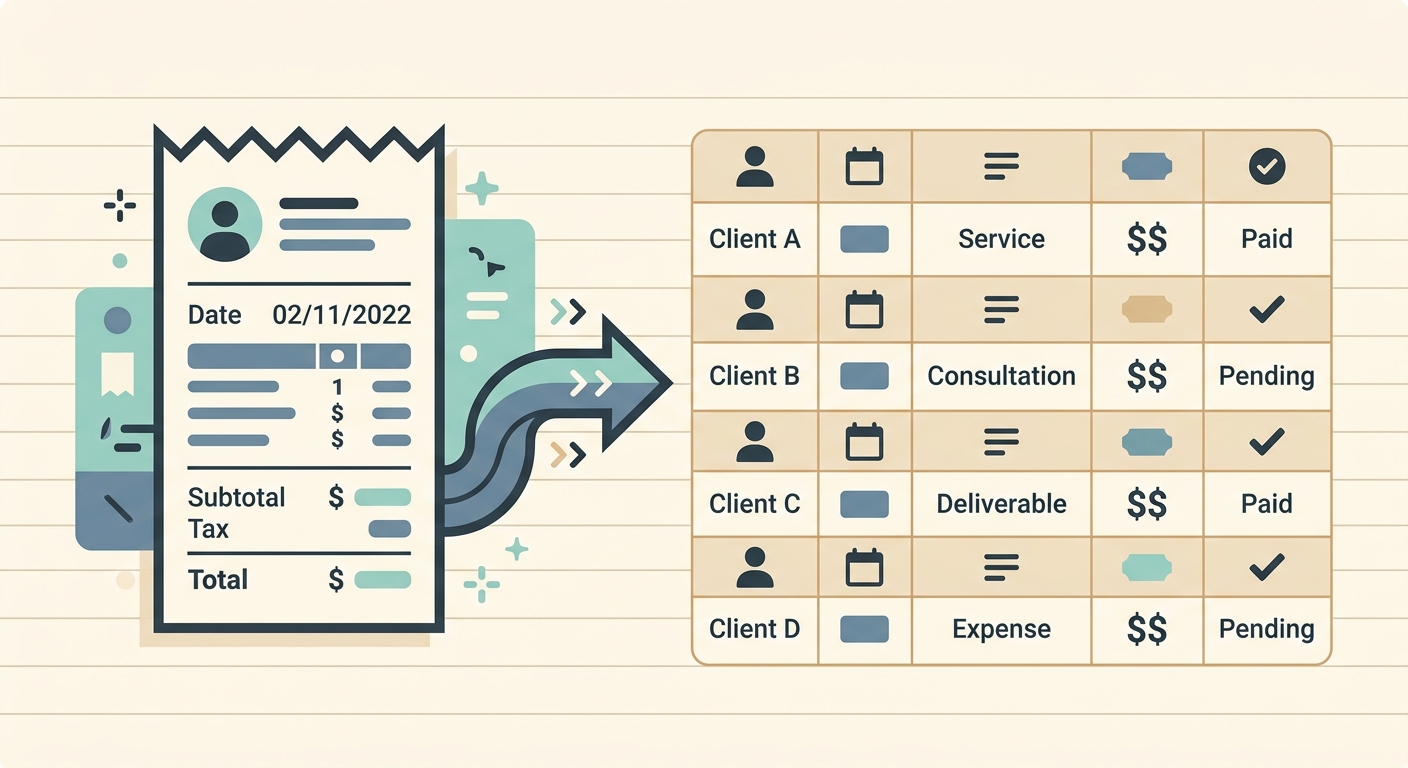
Client billing gets messy fast when receipts live in inboxes, glove boxes, phone photos, and card statements. The work is not just saving the receipt. You need to connect the purchase to the right client, confirm the amount, explain the expense clearly, and move it into the tool you use for invoices or reimbursement reports. A simple client billing receipt workflow gives you a repeatable way to do that without rebuilding the process every time month-end arrives.
This workflow is built for freelancers, agencies, consultants, bookkeepers, and small teams that need receipt records they can trust. It keeps the process lightweight, but it still creates enough structure to prevent missing billable expenses, duplicate charges, and vague invoice line items.
Capture or upload receipts
The first phase is getting every receipt into one intake path. If receipts arrive in several places, the workflow should still end in one place. That might mean uploading phone photos, forwarding email receipts, dragging PDFs from a downloads folder, or collecting client-specific purchase records from a shared drive.
The goal is not perfection at capture. The goal is consistency. A receipt should enter the workflow as soon as possible after the purchase, while the client, project, and reason for the expense are still easy to remember. Waiting until the end of the month increases the chance that a $37 software charge turns into ten minutes of detective work.
- Use one receipt intake folder or app instead of scattered storage.
- Capture the whole receipt, including tax, vendor, date, and payment details.
- Add a quick note if the client or project is not obvious from the receipt.
- Separate personal receipts from client-billable receipts before review.
SlipSheet helps here by turning uploaded receipts into structured rows, so your capture step does not become a manual typing session. You can upload receipts, review the extracted details, and prepare the information for the spreadsheet or billing system you already use.
Extract the fields that matter for billing
Once receipts are captured, the next phase is extracting the details needed for client billing. At minimum, each receipt should include the vendor, date, total, currency, tax if relevant, and a short description. For billable expenses, you also need a client name, project, category, and billing status.
Many teams stop at the receipt total, but that creates problems later. A client invoice needs enough context for the client to understand the charge. A bookkeeper needs enough detail to classify the cost correctly. You need enough information to answer questions without reopening every PDF.
A practical extracted row might include these fields:
- Receipt date
- Vendor name
- Total amount
- Tax or VAT amount
- Payment method
- Client or project
- Expense category
- Billable status
- Invoice reference or reimbursement batch
This is where automation saves time, but judgment still matters. Receipt extraction can handle the repetitive work, then you can review the rows that need context. SlipSheet is especially useful for spreadsheet-first workflows because the output is easy to scan, filter, edit, and export.
Review receipts before they reach the client
The review phase is the quality control step. It protects you from sending the wrong expense to a client, billing the same receipt twice, or missing a reimbursable cost. This phase should be short and focused, not a full accounting audit.
Start by filtering for receipts marked billable. Confirm that each one belongs to the client or project shown in the row. Then check the total, date, and category. If a receipt includes both billable and non-billable items, split the amount or add a note explaining the billable portion.
- Confirm the receipt is tied to the correct client.
- Check that the date falls inside the billing period.
- Verify the total and tax fields against the receipt image or PDF.
- Look for duplicates with the same vendor, date, and amount.
- Add a client-friendly description for invoice support.
A good review process also makes exceptions visible. If a receipt is missing a project, mark it as needs review. If a receipt is personal, mark it non-billable. If a receipt belongs to a future invoice, leave it in the tracker but keep it out of the current billing export.
Export to your preferred billing tool
After review, export only the approved rows. This keeps your invoice or reimbursement packet clean. Depending on your setup, the export might become a CSV for accounting software, a spreadsheet for your client, a backup file for your records, or a data source for invoice line items.
The export should match how you bill. If clients expect itemized expenses, include vendor, date, description, and amount. If you bundle expenses into one invoice line, keep the detailed receipt export as backup. If a bookkeeper reviews the file, include categories and tax fields so they do not need to guess.
For spreadsheet-based teams, this is where SlipSheet fits naturally. You can move from receipt images to a clean spreadsheet-style export, then use that export in Google Sheets, Excel, QuickBooks imports, invoice templates, or internal reimbursement trackers.
Getting started
You do not need a complicated system to start. Begin with one shared intake location, one standard set of fields, and one weekly review habit. The biggest improvement usually comes from reducing scattered receipt handling, not from adding more software layers.
Set a clear rule for what counts as client-billable. For example, travel booked for a client project may be billable, while general office software may not be. Add that rule to your workflow notes so anyone helping with receipts can make the same decision.
Then choose a cadence. Freelancers may review receipts every Friday. Agencies may review by client before each invoice run. Bookkeepers may review after receiving a monthly receipt upload from the client. The right cadence is the one that keeps the backlog small enough to review accurately.
Common pitfalls
The most common mistake is waiting too long to add context. A receipt without a client or project is easy to ignore, but it becomes harder to classify later. Capture notes while the purchase is fresh, even if the note is only a few words.
Another pitfall is exporting everything instead of only approved items. If personal, duplicate, or uncertain receipts make it into the billing file, the client may lose confidence in the whole invoice. A simple billable status field prevents that.
Finally, avoid making the workflow dependent on one person's memory. The receipt record should explain itself. If a client asks why a charge appears on an invoice, you should be able to answer from the receipt row and its notes, not from a Slack thread from three weeks ago.
If you want a faster way to turn receipts into clean billing-ready rows, try SlipSheet. Upload receipts, review extracted fields, and export the data to the spreadsheet or billing workflow your business already trusts.
FAQ
What should be included in a client billing receipt workflow?
Include receipt capture, extracted fields, client or project assignment, billable status, review, and export. The workflow should make each expense easy to verify before it appears on an invoice.
How often should I review client-billable receipts?
Weekly review works well for most freelancers and small teams. If you invoice frequently, review receipts before every invoice run so missing context does not pile up.
Can I use spreadsheets for client billing receipts?
Yes. A spreadsheet is often the simplest place to review, filter, categorize, and export receipt data, especially when you need a clean file for invoices or bookkeeping.
How do I avoid billing the same receipt twice?
Track vendor, date, amount, client, and invoice reference for every receipt. Before export, filter for similar vendor-date-amount combinations and mark duplicates before they reach the client.
Does SlipSheet replace my accounting software?
No. SlipSheet helps convert receipts into structured rows you can review and export. You can then use that data in your spreadsheet, accounting software, or billing system.