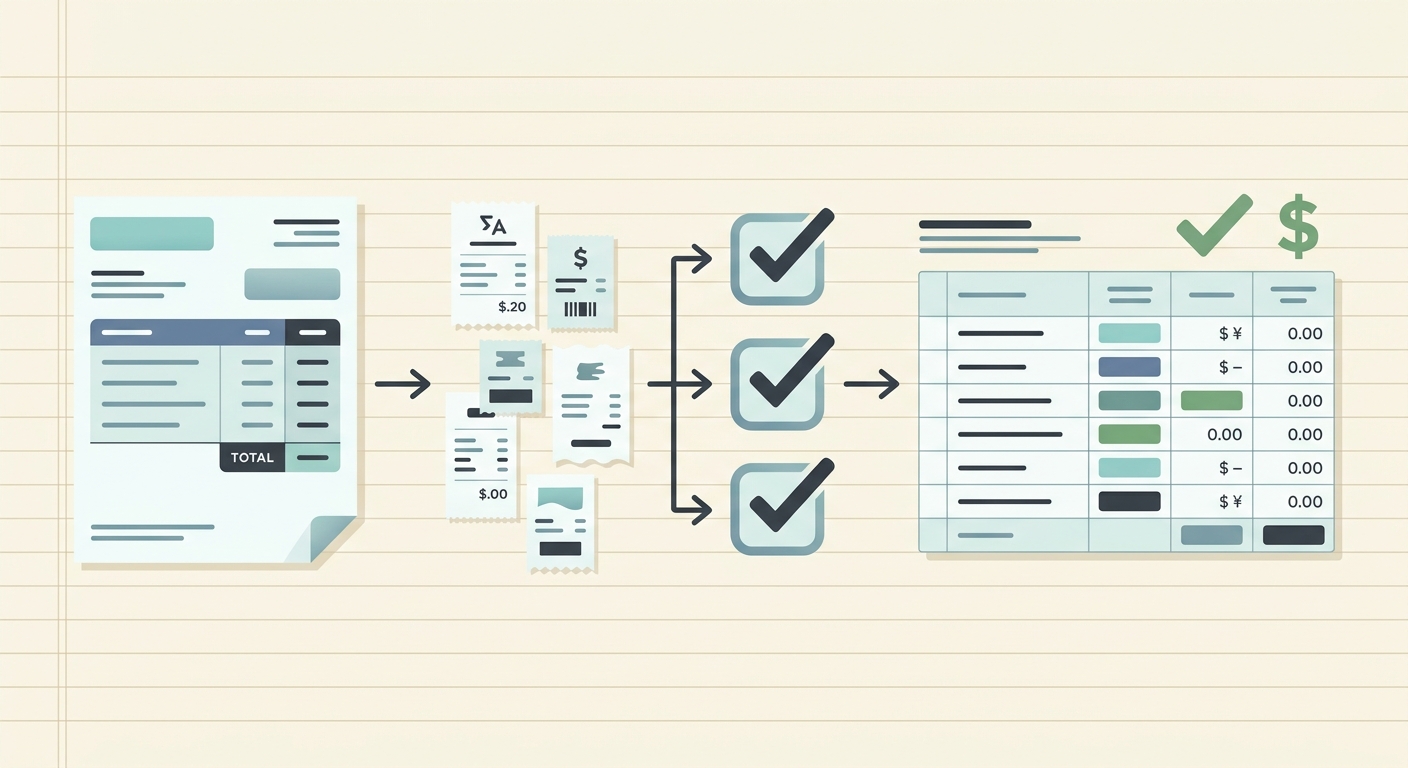
Contractor payments get messy fast when receipts, invoices, mileage notes, supply runs, and reimbursement requests arrive through different channels. A subcontractor might text a photo from a job site, email an invoice later, and hand over a paper receipt at the end of the week. If you wait until month end to sort it all out, you are left matching names, dates, totals, projects, and payment records under pressure.
A reliable contractor payment workflow gives you a repeatable way to collect proof of spending, confirm what should be paid, and keep clean records for bookkeeping. It does not need to be complicated. The goal is simple: every payment should have the right documentation attached, reviewed, categorized, and ready to export before it hits your books.
Capture receipts and payment documents at the source
The best workflow starts before the contractor is paid. Ask contractors to submit receipts, invoices, and supporting documents as soon as the expense happens. That might include material receipts, equipment rental invoices, parking fees, fuel records, or signed work orders. The sooner documents are captured, the less time you spend chasing details later.
Set a simple rule for where documents go. For example, contractors can upload receipts to a shared folder, forward emails to a bookkeeping inbox, or send images to an admin who uploads them daily. Avoid spreading records across text messages, personal email threads, and paper folders unless someone is responsible for moving them into one system.
SlipSheet helps here by turning receipt images and PDFs into structured spreadsheet-ready data. Instead of manually typing vendor names, totals, dates, and tax amounts, you can upload documents and start from extracted fields that are easier to review.
Extract the key payment details
Once documents are collected, the next phase is extraction. For contractor payments, the most useful fields are usually contractor name, vendor, receipt date, total amount, tax, payment method, project, job location, and expense category. If you pay contractors for both labor and reimbursed expenses, keep those lines separate so your books stay clear.
A good extraction step prevents two common problems: overpaying because a receipt was counted twice, and under-documenting because the payment was made without enough support. Even a basic spreadsheet can work if the columns are consistent.
- Use one row per receipt, invoice, or reimbursement item.
- Keep contractor name and project name in separate columns.
- Record both the receipt date and the payment date when they differ.
- Add a document link or file name so the original proof is easy to find.
This is where spreadsheet-first teams often save time with SlipSheet. You can extract receipt data, review it, and export it without committing to a full expense management platform that may be heavier than you need.
Review before you approve payment
Review is the control point in the workflow. Before paying a contractor, confirm that each submitted expense is allowed, belongs to the correct project, and has enough detail to support the payment. This protects cash flow and makes future bookkeeping cleaner.
For small teams, review can be quick. Create a status column with values like pending, approved, rejected, and paid. Add a notes column for missing details, duplicate receipts, or items that need owner approval. If you work with multiple job sites, add project codes or tags so costs do not get lumped into a generic contractor expense bucket.
It is also worth checking totals against the payment request. If a contractor submits an invoice for $1,250 plus three reimbursable receipts, your spreadsheet should show the invoice amount, each receipt, the approved total, and the final amount paid. That paper trail is useful when a contractor asks a question, a client requests job cost detail, or your bookkeeper needs to reconcile bank activity.
Export clean records to your bookkeeping tool
After review, export the approved records to the tool where you manage books, payments, or job costing. That might be QuickBooks, Xero, Google Sheets, Excel, or a project accounting workbook. The key is to export only the fields you actually need, in a format that your next system can accept without cleanup.
For many businesses, the best export includes date, contractor, vendor, description, category, project, total, tax, payment status, and source file. If your accountant has a preferred chart of accounts, use the same category names in your workflow. Consistency matters more than having a long list of columns.
SlipSheet is useful when your destination is a spreadsheet or when you need a clean CSV before importing into another system. You can review extracted receipt fields, correct anything unusual, then export the data in a format that is easier to map into your bookkeeping process.
Getting started with a simple contractor payment workflow
You do not need to rebuild your whole back office at once. Start with one repeatable process for the next pay cycle. Choose one place for documents, one spreadsheet structure, one review owner, and one export schedule. Weekly review is often enough for small businesses, while higher-volume teams may need daily processing.
- Create a standard contractor payment spreadsheet with the fields you need.
- Ask contractors to submit receipts and invoices by a fixed deadline.
- Upload documents to SlipSheet and extract the receipt details.
- Review categories, projects, amounts, and payment status.
- Export the approved records to your bookkeeping or payment system.
Once the workflow is running, keep an eye on the exceptions. If the same contractor often misses receipts, change the submission rule. If categories are confusing, simplify them. If exports require cleanup every time, adjust the spreadsheet columns before the next cycle.
Common pitfalls to avoid
The biggest mistake is paying first and organizing later. That creates extra work because the urgency disappears once the payment is complete. Make documentation part of payment approval, not a separate month-end cleanup task.
Another common issue is using vague categories. Labels like supplies, misc, and reimbursement may be quick in the moment, but they are not helpful for job costing or tax review. Use categories that match how you make decisions, such as materials, subcontractor labor, equipment rental, fuel, permits, and client-billable expenses.
Finally, do not let the workflow depend on one person's memory. If a receipt is approved, the spreadsheet should show why. If a payment is made, the status should change. If a document is missing, the note should be clear enough for someone else to follow up.
If contractor payments are slowing down your bookkeeping, SlipSheet can help you turn receipts and invoices into clean, reviewable spreadsheet data. Try it at slipsheet.app and build a payment workflow that is easier to manage every week.
FAQ
What should be included in a contractor payment workflow?
Include document capture, receipt or invoice extraction, category review, approval status, payment tracking, and export to your bookkeeping tool. The goal is to connect each payment to clear supporting records.
How often should contractor receipts be reviewed?
Weekly review works for many small businesses, but high-volume teams may need daily processing. The important part is reviewing documents before payments are finalized.
Can I manage contractor payments in a spreadsheet?
Yes, a spreadsheet can work well if your columns are consistent and every receipt or invoice has a status, category, project, amount, and source document. SlipSheet helps by extracting receipt data into spreadsheet-ready fields.
How do I avoid duplicate contractor reimbursements?
Track one row per receipt or invoice, keep source file names or links, and review vendor, date, total, and contractor name before approval. A clear paid status also helps prevent repeat payments.
What export format is best for bookkeeping?
CSV is usually the most flexible format because it can be opened in spreadsheets and imported into many accounting tools. Use the same category names and project codes your bookkeeping system expects.