How to Digitize Your Paper Receipts in 2026
Paper receipts fade, tear, and get lost. Digitizing them means having a copy that never degrades, is searchable, and can be exported in seconds. Here's how to build a system that actually sticks.
Why digitize
A paper receipt is fragile. Heat, light, and handling all work against it. A digital copy is immune to all of that, and it's backed up. Beyond preservation, digital receipts can be organized by date, vendor, or category, and exported into whatever format you need.
The scanning workflow
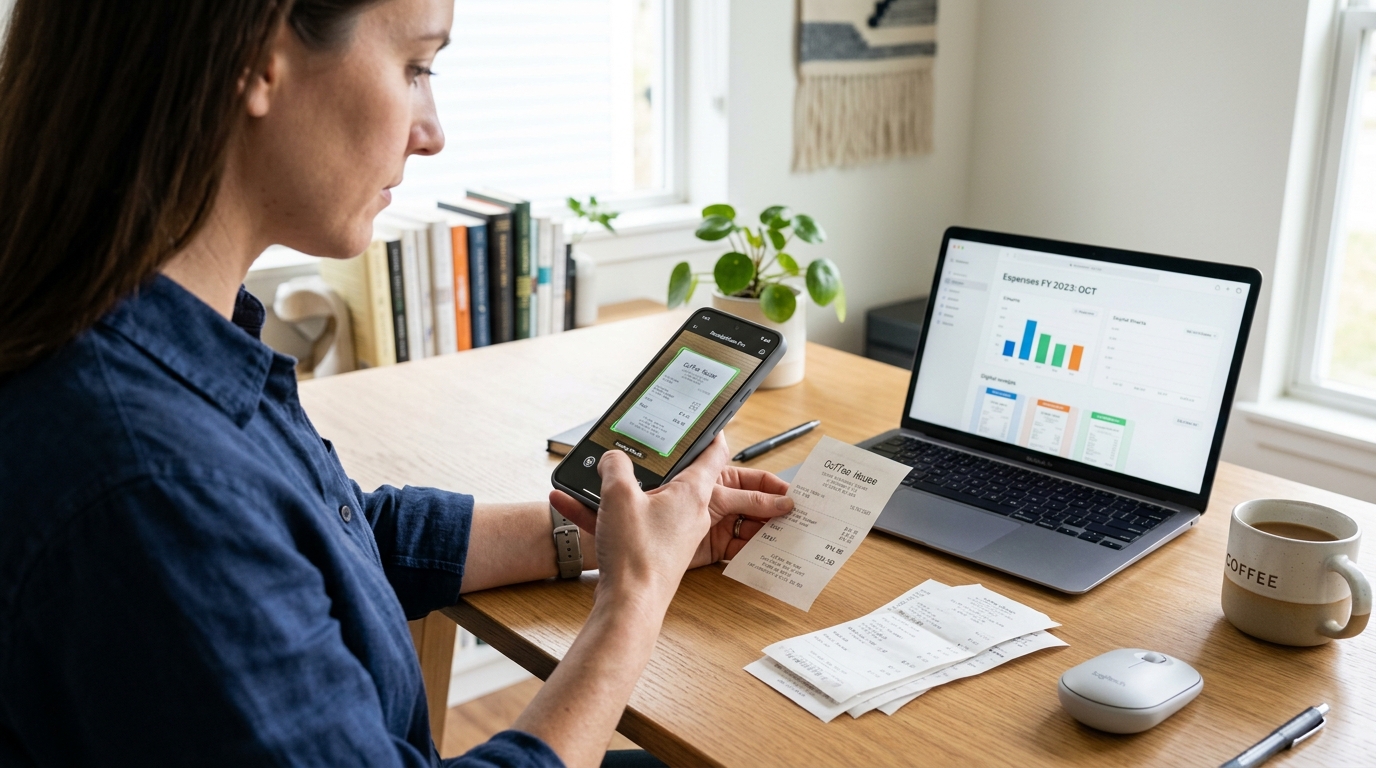
You don't need a dedicated scanner. A phone camera is sufficient for receipts if you're consistent about it. The key is a consistent naming convention: date-vendor-amount.jpg. Or just use an app that handles the naming for you and stores it in a shared drive folder.
Forwarding email receipts
Email receipts are already digital, but they scatter across your inbox. The easiest system is a dedicated email address that feeds into your receipt tracker. Forward the confirmation email as it arrives, and it's in the system without any extra steps.
Extracting data from scanned receipts
Scanning a receipt creates an image. Extracting the vendor, date, total, and tax from that image is where modern receipt trackers differ. Slipsheet uses machine vision to pull these fields automatically from photos and forwarded emails, so you're not typing what the image already shows.
Storage and backup
Store receipts in a cloud folder (Google Drive, Dropbox, OneDrive) so they're accessible and backed up. The folder structure should map to your tax year. A folder called 2025-expenses with monthly subfolders keeps things organized and makes year-end export straightforward.
Making it a habit
Don't try to digitize everything at once. Start with new receipts, then tackle the backlog on a rainy afternoon. The goal is a system that runs in the background of your regular workflow, not a project you finish once.