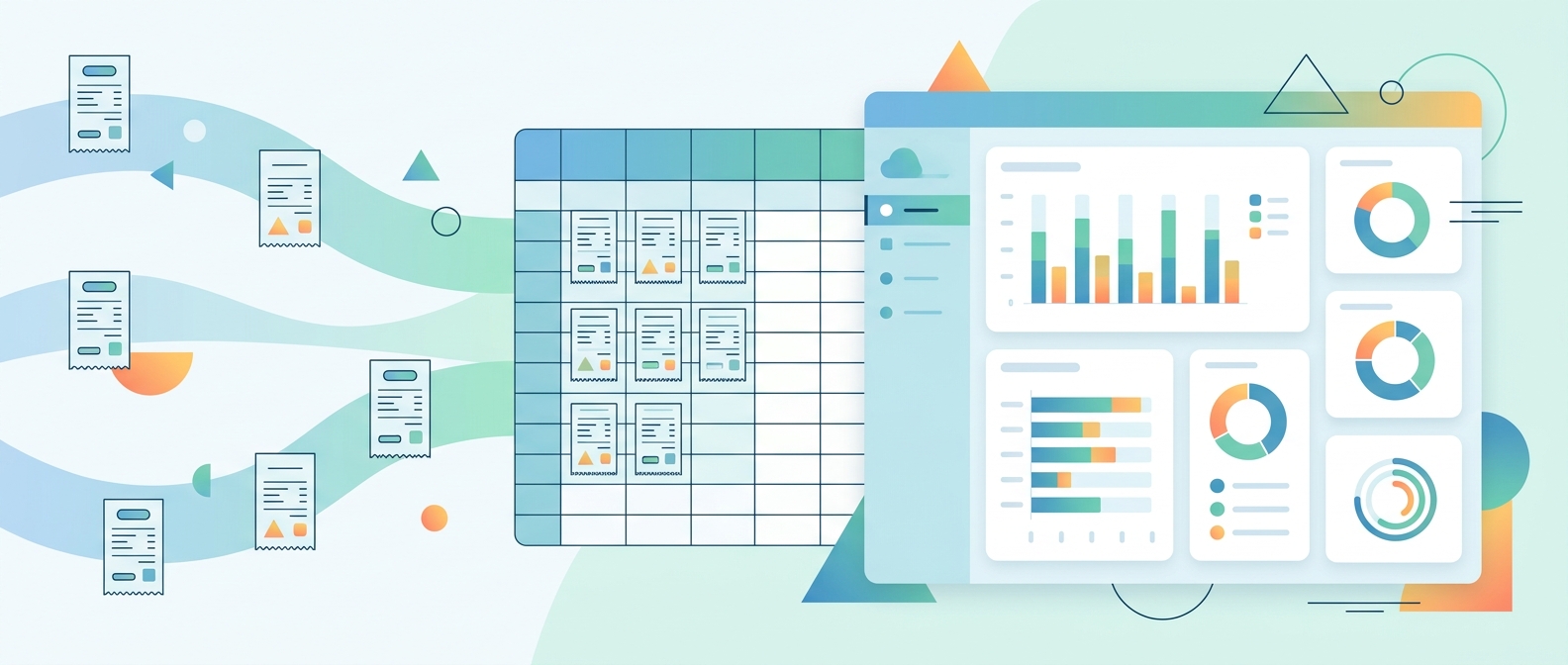
An expense dashboard view is useful only when it shortens the distance between a receipt and a decision. A founder, bookkeeper, contractor, or office manager does not need another decorative chart. They need a clear place to see what was spent, which receipts are missing context, what is ready to export, and what might cause trouble later. That is why a receipt-first dashboard is different from a generic reporting screen. It starts with messy source material, then turns that source material into rows, totals, categories, and review queues.
The research behind this is practical. The IRS says business records should clearly show income and expenses, help track deductible expenses, support tax return entries, and include supporting documents generated by purchases, sales, payroll, and other transactions. The SBA also emphasizes tracking money in and money out, using statements and segmented views to understand the business. In practice, the receipt is where a lot of that evidence begins. SlipSheet is built around that handoff: upload receipts, extract useful fields with OCR, review the results, and export spreadsheet-ready data.
What the dashboard should make obvious
A good dashboard answers the first questions without making someone download a CSV or open a folder of PDFs. How much did we spend? Where did it go? Which receipts still need review? Which expenses are ready for bookkeeping? What changed since last week? If those answers are buried, the dashboard is not doing its job.
- Total spend: A running total for the selected date range, with filters for week, month, quarter, and custom periods.
- Category breakdown: Grouped totals for meals, travel, supplies, software, fuel, equipment, and other common operating costs.
- Receipt status: Counts for uploaded, processed, needs review, approved, and exported receipts.
- Exception queue: Receipts with low OCR confidence, missing dates, duplicate totals, unusual vendors, or category conflicts.
- Export readiness: A clear signal that the dataset is ready for CSV export into a spreadsheet or accounting workflow.
This view matters because expense tracking is not just historical reporting. It is a control system. When a dashboard shows review status next to spending totals, the team can see both the financial picture and the data quality behind it.
Receipts are evidence, not decoration
Many expense dashboards summarize transactions but lose the trail back to the original receipt. That creates a problem when a number looks wrong. A total might be accurate, duplicated, missing sales tax, assigned to the wrong category, or attached to the wrong vendor. Without source visibility, the user has to hunt through inboxes and shared drives to confirm what happened.
The IRS recordkeeping guidance is a useful reminder here. Records are not only for tax season; they help monitor business progress, prepare financial statements, identify sources of receipts, track deductible expenses, and support items reported on tax returns. An expense dashboard view should reflect that reality by keeping the source document close to the structured data.
- Clicking a dashboard row should reveal the receipt image or PDF that produced it.
- Extracted fields should show enough context to catch mistakes, especially vendor, date, subtotal, tax, tip, total, and payment method.
- Review notes should stay connected to the receipt so future users understand why a correction was made.
OCR speed still needs human review
OCR reduces manual typing, but an expense dashboard should never pretend extraction is perfect. Receipts are faded, tilted, crumpled, photographed under poor lighting, or printed with vendor-specific layouts. A purchase total might appear near a barcode, an authorization block, or a loyalty points summary. A dashboard that hides uncertainty can create more work later.
The better pattern is to separate speed from approval. OCR can populate the first draft of expense data, then the dashboard can highlight fields that deserve a second look. That keeps the workflow efficient without turning automation into a black box.
- Flag missing or ambiguous dates before export.
- Surface duplicate receipt candidates when vendors, dates, and totals match.
- Show low-confidence fields inline instead of burying them in logs.
- Let users correct values directly from the review queue.
From dashboard to clean spreadsheet export
The final test of an expense dashboard is what happens after someone clicks export. If the CSV is inconsistent, the dashboard merely moved the mess to another tool. Column names, date formats, currency values, category labels, and vendor names need to be predictable. Otherwise the user still spends time fixing rows before they can analyze spending or hand the file to a bookkeeper.
SlipSheet focuses on the tedious middle step between receipt capture and usable spreadsheet data. The dashboard view should support that focus by showing which receipts are ready for export and which ones would pollute the file.
- Use consistent columns for vendor, transaction date, subtotal, tax, tip, total, category, notes, and source file.
- Keep categories editable before export rather than forcing cleanup afterward.
- Include source links or filenames so each exported row remains auditable.
- Make it easy to export only approved receipts for a selected period.
The weekly operating rhythm
An expense dashboard view is most valuable when it becomes a weekly habit, not a once-a-year panic screen. A short review every Friday can catch missing receipts while purchases are still fresh. It can also reveal budget creep in meals, tools, shipping, subscriptions, and supplies before the month closes.
- Upload receipts still sitting in email, camera rolls, or shared drives.
- Review the dashboard's exception queue and correct uncertain OCR fields.
- Scan category totals for unusual changes or duplicate vendors.
- Export approved rows to CSV for the current bookkeeping period.
- Store the receipt files and exported sheet together for future reference.
That rhythm matches the broader recordkeeping advice from tax and small business sources: organized records help prepare statements, support returns, and keep the business aware of where money is going.
Expense dashboard FAQ
What should an expense dashboard view show first?
Start with total spending, category totals, unreconciled receipts, export status, and transactions that need human review.
Can OCR alone create a reliable expense dashboard?
OCR can extract vendor names, dates, totals, and tax lines, but uncertain fields should stay visible for correction before export.
How often should a small business review an expense dashboard?
Weekly is a practical cadence because receipts are still familiar and cash flow issues surface before month end.
Does SlipSheet replace accounting software?
No. SlipSheet turns receipt images into structured spreadsheet data that can support your bookkeeping or accounting workflow.
Why connect receipt images to dashboard totals?
A dashboard is more trustworthy when every summary number can be traced back to the source receipt.