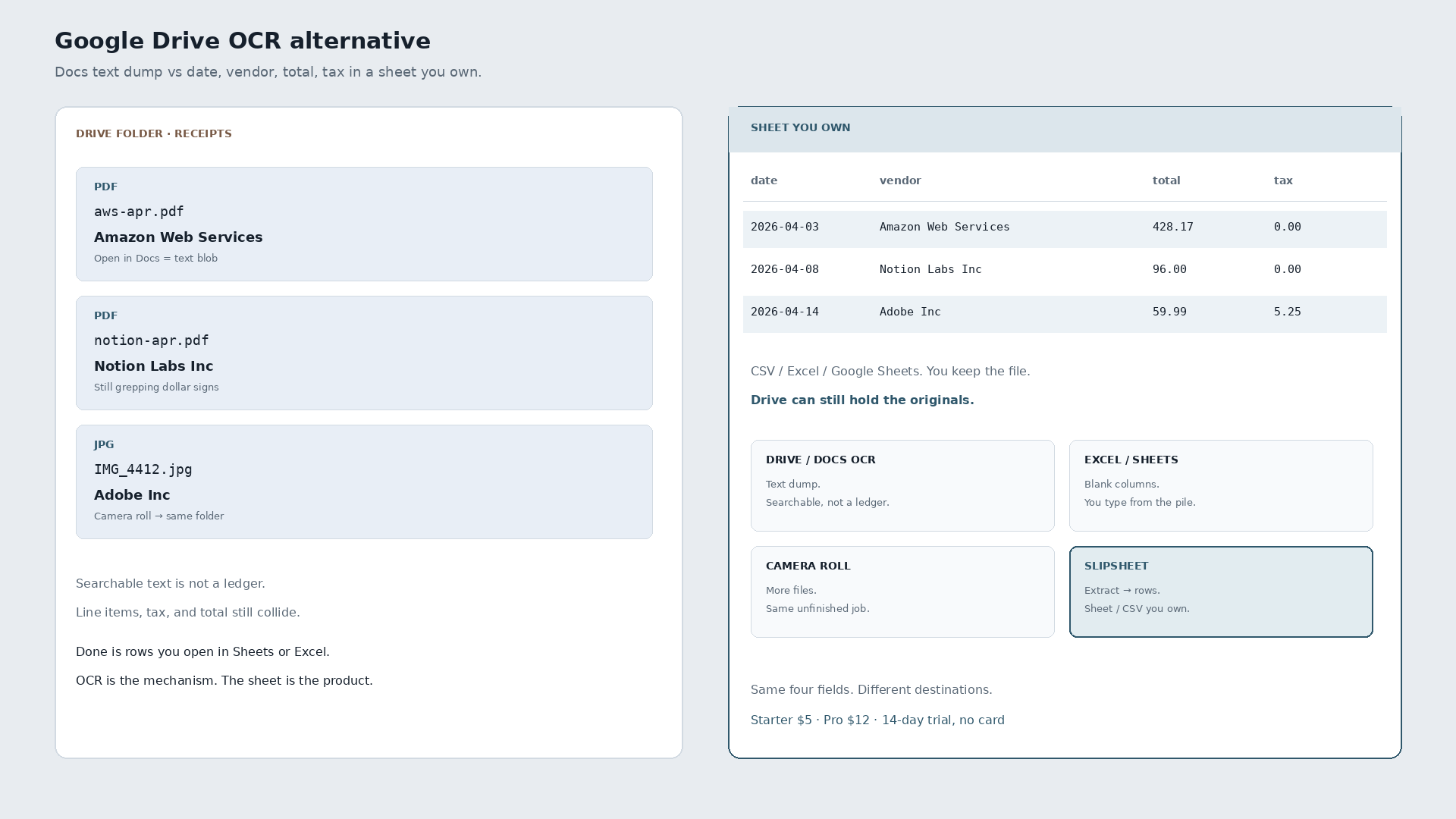
A Google Drive OCR alternative for receipts is not another tool that dumps a PDF into searchable text. It is date, vendor, total, and tax as spreadsheet rows you own. Drive is great at holding the pile. Open in Docs is great at making that pile searchable. Neither finishes the ledger.
The folder is usually named Receipts, Q2, or Tax. Inside: aws-apr.pdf for Amazon Web Services, $428.17, April 3. notion-apr.pdf for Notion Labs, $96.00, April 8. IMG_4412.jpg for Adobe Inc, $59.99 plus tax $5.25, April 14. Open any of them in Docs and you get a text blob. Grep for dollar signs and line items, tax, and total still collide. The alternative is all three as rows in one sheet the same day.
| Date | Vendor | Total | Tax | Was sitting in |
|---|---|---|---|---|
| 2026-04-03 | Amazon Web Services | 428.17 | 0.00 | Drive folder · PDF |
| 2026-04-08 | Notion Labs Inc | 96.00 | 0.00 | Drive folder · PDF |
| 2026-04-14 | Adobe Inc | 59.99 | 5.25 | Drive folder · phone snap |
Those three lines are ground-truth slips from a local Q2 2026 research corpus (synthetic receipts). The before state is a Drive folder. The after state is columns. No accuracy percentages claimed here beyond that framing.
What Drive OCR is actually for
Google Drive OCR (open a scan or PDF in Docs) turns pixels into searchable text. That job is real when you need to find a phrase later. It is the wrong finish line for bookkeeping. A receipt ledger needs structured fields, not a paragraph of OCR noise sitting next to the original file.
People who type “google drive ocr alternative” often already live in Drive. They do not need another Docs dump. They need the pile out of the folder and into Sheets, Excel, or a CSV they can download. A camera-roll dump into the same Drive folder is still a pile.
Drive/Docs OCR vs typing vs extract-to-sheet
Honest, not a dunk list.
| Drive / Docs OCR | Excel / Sheets | Slipsheet | |
|---|---|---|---|
| What it is | Searchable text from a file | Manual columns you type yourself | Rows you own |
| Job it finishes | Find words in a PDF or photo later | Whatever you typed, when you typed it | Date, vendor, total, tax as a sheet or CSV you keep |
| Best when | Archive and search are the product | The sheet is empty and typing is fine | You want Excel, Sheets, or CSV without living in a text dump |
| Drive later | You never left | Hand-type forever or start over | Keep originals in Drive if you want. The ledger is separate. |
Pick Drive OCR when searchable PDFs are the product. Pick a blank sheet when you will type. Pick a spreadsheet-first tool when the sheet is the product and you want the digits extracted first. OCR pulls digits off the page. It is the mechanism, not the story.
What “done” looks like
Pull the three files from the Drive folder (or forward/upload them). Review three rows. Export. Open the file in Google Sheets or Excel, or keep the CSV. You own the file. The originals can stay in Drive. There is no requirement to replace Drive as storage.
Slipsheet Starter is $5 a month for 250 receipts. Pro is $12 a month for 1,500. Fourteen-day trial, no card. Photo, PDF, or forward to the inbox at receipts@slipsheet.app, then CSV, Excel, or Sheets. You still glance at the totals. The Docs dump is optional.
A few straight answers
Is Google Drive OCR enough for receipts?
Enough for finding a PDF later. Not enough when line items, tax, and total collide and you still have to build the ledger by hand.
Can I keep the files in Drive?
Yes. Drive can stay the file cabinet. The ledger job ends at a sheet or CSV you own, not another text dump next to the PDF.
What is the difference between Docs text and sheet rows?
Docs text is a searchable blob. Sheet rows are date, vendor, total, and tax in columns you can sort, sum, and hand to a bookkeeper.
Do I still open Excel or Sheets?
Yes if that is where expenses live. You open it to use the rows, not to retype the Drive folder.