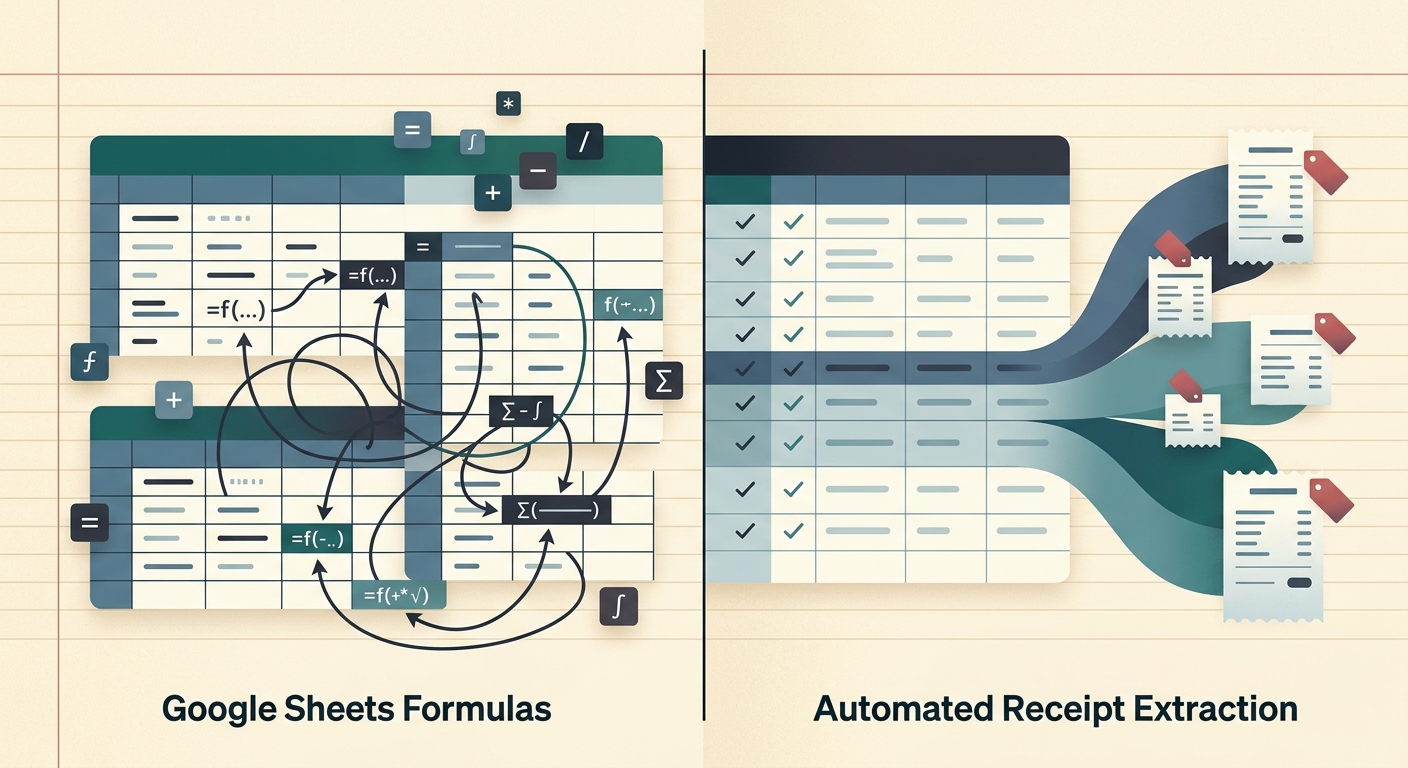
Comparing Google Sheets formulas vs SlipSheet is really a question about where your receipt workflow is breaking. Google Sheets is excellent once expense data is already in neat rows. Formulas can categorize vendors, summarize totals, split months, flag missing categories, and power a lightweight bookkeeping system. But formulas do not solve the hardest part of receipt work: getting messy paper slips, email PDFs, phone photos, tips, taxes, and line items into the sheet accurately in the first place.
That distinction matters for freelancers, bookkeepers, agencies, consultants, and small shops. The IRS says business transactions generate supporting documents, including receipts, paid bills, invoices, deposit slips, and canceled checks. A spreadsheet is only as useful as the evidence and cleanup process behind it.
What Google Sheets formulas are good at
Google Sheets is a strong bookkeeping workspace when the data is already structured. The QUERY function can run a database-like query across a range, and ARRAYFORMULA can expand calculations across rows and columns, which is perfect for reusable expense logic.
For example, a small business might use formulas to:
- Normalize merchant names with LOWER, TRIM, SUBSTITUTE, or REGEXREPLACE.
- Classify vendors with IFS, XLOOKUP, or a category mapping table.
- Build monthly totals with SUMIFS, QUERY, or pivot tables.
- Flag missing receipts by comparing bank transactions against uploaded receipt IDs.
- Calculate reimbursement totals by employee, client, project, or payment card.
That flexibility is why many people prefer Google Sheets to a rigid expense app. You can design your own categories, add helper columns, import bank CSVs, and make the month-end view match your business.
Where formulas start to fail with receipts
The problem is that receipts rarely arrive as clean rows. They arrive as crumpled paper, mobile photos, forwarded emails, PDF attachments, faded thermal print, meal receipts with tips, ride-share receipts with taxes and fees, and hotel folios with multiple line items. A formula can split text once text exists in a cell, but it cannot look at a blurry receipt image and decide which number is subtotal, tax, tip, discount, and final total.
Even when you paste OCR text into a sheet, the cleanup can become fragile. One coffee shop uses “Total,” another says “Amount Paid,” and a restaurant receipt may show subtotal, tax, gratuity, suggested tip, card authorization, and balance due. If you build enough REGEXEXTRACT formulas to handle every format, you eventually own a mini software project inside your bookkeeping file.
What SlipSheet does before the spreadsheet
SlipSheet is built for the stage before formulas become useful. It turns paper slips, email PDFs, and phone snaps into clean, sorted, export-ready ledger data. Extraction is handled by machine, then reviewed by you, so nothing enters the books without a sanity check.
That makes SlipSheet less like a replacement for Google Sheets and more like the missing intake desk. Instead of building a spreadsheet that tries to be an OCR pipeline, you use SlipSheet to capture the receipt, extract the important fields, review the result, and export rows that a spreadsheet can actually work with.
For bookkeeping and expense tracking, the workflow becomes:
- Collect receipt photos, PDFs, or email receipts as they happen.
- Extract merchant, date, total, taxes, fees, and other useful fields.
- Review questionable values before they become bookkeeping entries.
- Export clean rows for Google Sheets, accounting review, reimbursements, or tax prep.
This also matches how modern document automation works. Google Cloud describes Document AI use cases such as parsing receipts and invoices for expense report validation. SlipSheet applies that idea to the practical receipt-to-ledger workflow.
The practical comparison: formulas vs extraction
The best way to compare the tools is by job, not by brand. Google Sheets formulas are a calculation and reporting layer. SlipSheet is a capture, extraction, review, and export layer. If you expect formulas to do both jobs, your sheet becomes brittle.
- Data entry: Google Sheets needs typed, pasted, imported, or scripted data. SlipSheet starts with receipt images, PDFs, and email receipts.
- OCR cleanup: Google Sheets can clean text with formulas after extraction. SlipSheet is designed to create spreadsheet-ready receipt rows before export.
- Review: Google Sheets can flag anomalies if you build the logic. SlipSheet keeps review close to the extracted receipt data.
- Reporting: Google Sheets wins for custom summaries, pivots, dashboards, and ad hoc questions.
- Maintenance: Formula-heavy receipt parsing can become hard to debug. A dedicated receipt workflow reduces spreadsheet gymnastics.
For a freelancer with twenty monthly receipts, a manual sheet may be fine. For a bookkeeper processing client receipt piles, the time sink is not SUMIFS. The time sink is turning messy receipts into reliable rows.
A better workflow: use both
The strongest setup is SlipSheet first, Google Sheets second. Capture and review receipts in SlipSheet, export clean rows, then use Google Sheets for the analysis that spreadsheets do best.
A practical month-end flow looks like this:
- Use SlipSheet throughout the month to process receipt photos and email receipts.
- Export reviewed rows with consistent merchant, date, amount, tax, and category fields.
- Import the export into a Google Sheet with formulas for summaries, client splits, reimbursement packets, or tax category totals.
- Keep the original receipt trail available so the spreadsheet total is tied back to supporting documents.
This gives you the confidence of a purpose-built receipt intake process and the flexibility of a spreadsheet.
Bottom line
Google Sheets formulas are powerful after your expense data is structured. SlipSheet is useful because receipt data usually starts unstructured. If your current workflow is mostly bank CSVs and a few typed receipts, formulas may be enough. If you are spending real time decoding receipt photos, correcting OCR text, chasing missing documentation, or preparing exports for a bookkeeper, SlipSheet handles the part formulas were never meant to own.
Use Google Sheets for calculation. Use SlipSheet for turning receipts into reviewable, spreadsheet-ready data. Together, they make a cleaner bookkeeping workflow than either one stretched beyond its natural job.
FAQ
Can Google Sheets formulas read receipt photos by themselves?
No. Formulas can clean and summarize text that is already in cells, but they do not reliably extract merchant, date, tax, tip, payment, and line-item data from images or PDFs without an OCR step.
When are Google Sheets formulas enough for expense tracking?
They are enough when you already have structured rows from a bank export, card statement, or manual entry process and only need categorization, totals, pivots, or month-end summaries.
What does SlipSheet do differently?
SlipSheet starts at the receipt, uses extraction to create reviewable spreadsheet-ready rows, and keeps the human approval step before the data enters your books.
Can I still use Google Sheets after using SlipSheet?
Yes. SlipSheet is useful before the spreadsheet stage because it turns messy receipts into clean rows that can be exported and then analyzed in Google Sheets.
Which option is better for bookkeepers and freelancers?
Use Google Sheets for flexible reporting and formulas. Use SlipSheet when receipt capture, OCR cleanup, and reviewable export are the repetitive bottlenecks.