
For a handful of receipts, type them into a sheet. For an ongoing pile, you want one row per receipt in one file, and plain OCR and one-file converters don't give you that on their own.
To show what that means, we ran the same 20 receipts through four common methods and counted what each one handed back.
The test: 20 receipts, four ways
We used 20 synthetic receipts dated April to June 2026: restaurants, software invoices, rideshares, office supplies and hardware. They are rendered test images, not customer data, so read every number here as example data. We counted what each method produces. We did not time anyone, so this page reports counts, not durations.
| Method | What you get | Rows you end with | What's left for you |
|---|---|---|---|
| Type it by hand | 20 rows you build yourself | 1 sheet, 20 rows | 120 fields and 839 characters to type |
| Plain OCR | 284 lines of raw text | No rows until you parse | Pick the total from about 6.05 money-like numbers per receipt; 11 of 20 fully right after a simple parser |
| Free one-file converter | One editable .xlsx per document | 20 separate files | Review, then download; layout follows each file (see how CleanTably compares); free tier capped at 10 conversions an hour |
| Ledger with CSV export | One CSV with 9 fixed columns | 1 file, 20 rows | Review and fix each row before export |
1. Type it by hand
For each receipt we counted six fields: date, merchant, total, currency, tax and category. Across 20 receipts that is 120 fields and 839 characters, a mean of 42 characters per receipt (from 35 to 50). That is a character count from the receipts themselves, not a timing.
Typing gives you exactly what you want: one clean row per receipt, in your columns. The cost is the keystrokes, every month.
2. Plain OCR
We ran the receipts through Tesseract 5.5.0, a free OCR engine, after converting to grayscale and doubling the size. The 20 receipts became 284 lines of raw text, a mean of 14.2 lines per receipt (11 to 18), instead of 20 rows.
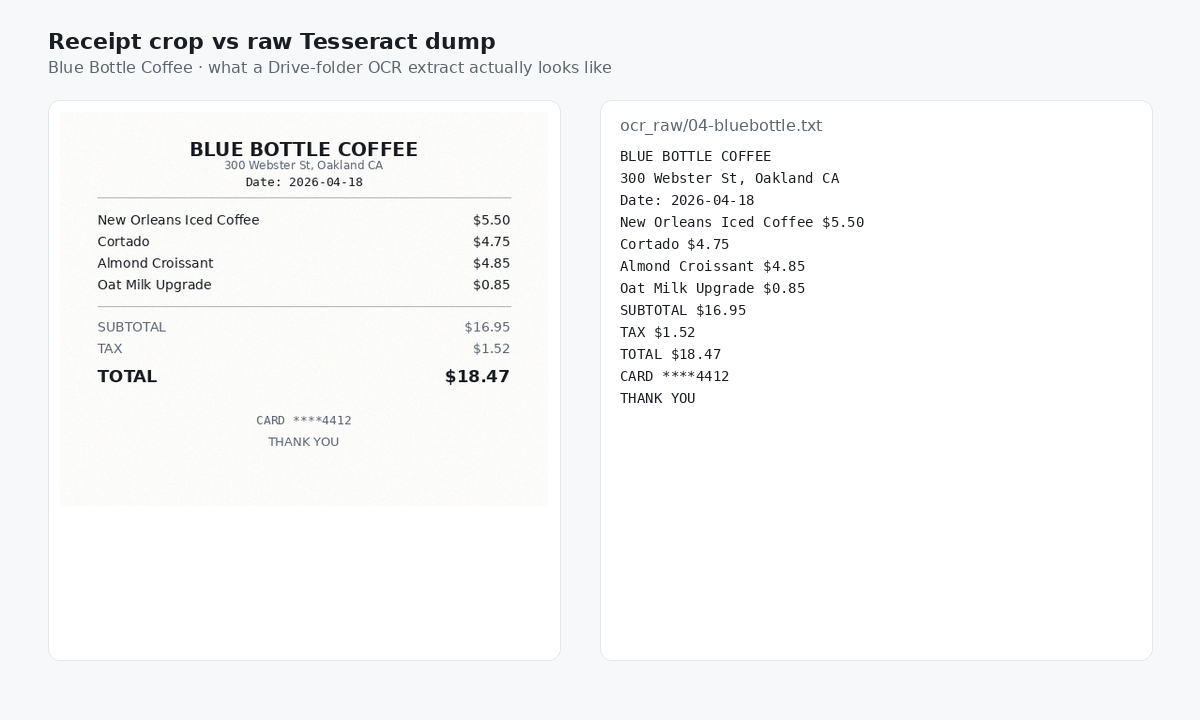
Each receipt's text held about 6.05 money-looking numbers on average: line items, subtotal, tax and total. Someone still has to pick the total. Here is the text of one receipt next to the row it should become:
ZUNI CAFE
Table 14 / Guest 2
1658 Market St, SF CA
Date: 2026-05-21

Roast Chicken for Two $68.00
Caesar Salad $18.00
Bottle Pinot Noir $42.00
Espresso x2 $8.48
SUBTOTAL $136.48
TAX $12.24
TOTAL $148.72
CARD ****4412

THANK YOU
As a row, that receipt is just: 2026-05-21, Zuni Cafe, 148.72, USD, 12.24, Meals.
With a simple parser on top, the merchant was right on 19 of 20, the date on 20, the total on 20 and the tax on 12. All four were right on 11 of 20. These were clean images; phone photos are harder, as our Tesseract test on phone snaps shows.
3. A free one-file converter
Free converters are good at one document. CleanTably, as of October 2026, accepts PDF, PNG, JPG and JPEG files up to 5 MB, lets you review the rows in your browser, and gives you an editable .xlsx. Its site says the output "adapts to the file instead of forcing every document into the same template," and its terms cap the free tier at "10 document conversions per hour per user."
For 20 receipts, that means 20 separate workbooks whose columns can differ, and at least two hourly windows on the free tier. Each file is useful; together they still need combining into one list.
4. A ledger that exports one CSV
A ledger keeps every receipt as a row in one place. In Slipsheet, you upload photos and PDFs (JPG, PNG, HEIC or PDF) on the web, or, on a paid plan, forward receipt emails with the files attached. Each receipt becomes one row. You review and fix each row before it goes into an export.
The export is one CSV named slipsheet-YYYYMMDD.csv with nine columns, always in the same order. The column walkthrough explains each one.
What one CSV looks like (example data)
| date | merchant | total_amount | currency | tax_amount | category | client_tag | notes | file_name |
|---|---|---|---|---|---|---|---|---|
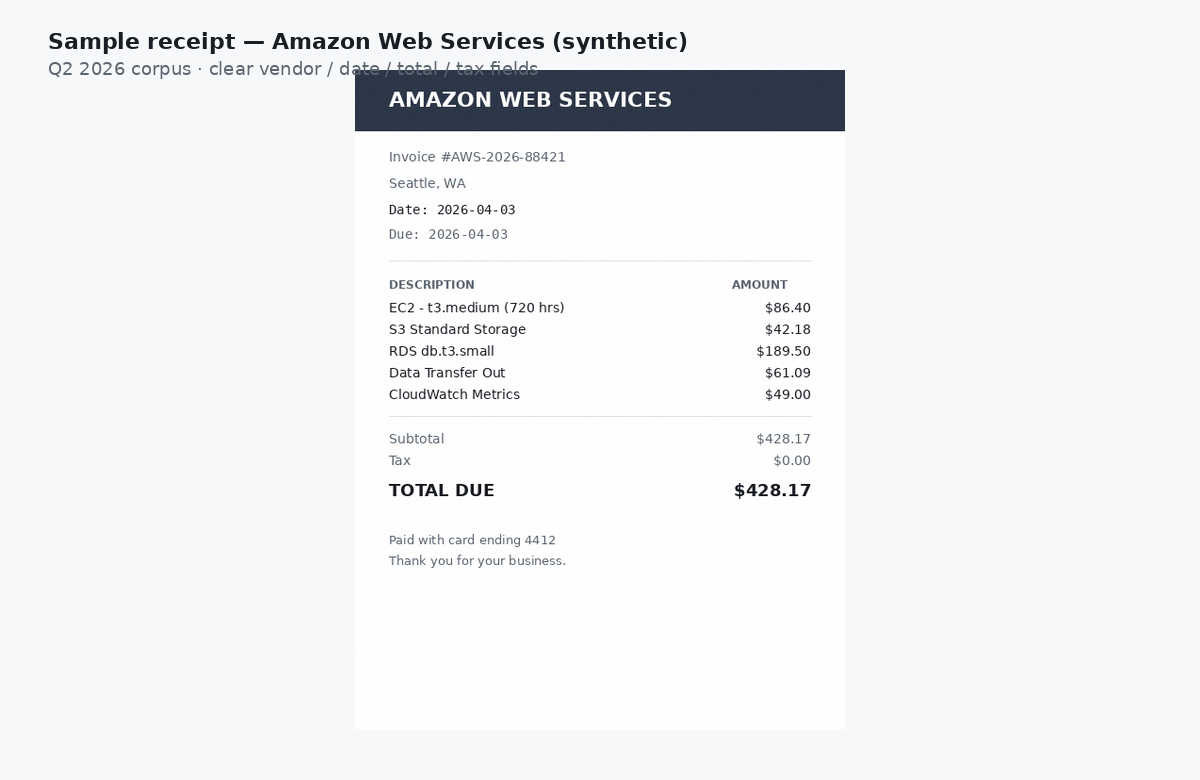
| 2026-04-03 | Amazon Web Services | 428.17 | USD | 0.00 | Software | monthly hosting | 01-aws.png | |
| 2026-04-14 | Adobe Inc | 59.99 | USD | 5.25 | Software | Creative Cloud | 03-adobe.png | |
| 2026-04-22 | Uber Technologies | 24.83 | USD | 2.15 | Travel | Client A | to client site | 05-uber.png |
| 2026-05-12 | Home Depot | 156.88 | USD | 12.91 | Supplies | Client B | install job | 10-homedepot.png |
| 2026-05-21 | Zuni Cafe | 148.72 | USD | 12.24 | Meals | Client A | client dinner | 12-zuni.png |
These five rows are example data from the same 20-receipt set. Dates, merchants, totals and tax come from the test receipts; category, client_tag and notes are illustrative. The totals add up to 818.59, with 32.55 in tax.
What the numbers say
Every method got the receipts out of the shoebox. The difference is what you are left holding. Typing ends in the right shape but costs 839 characters for 20 receipts, and that repeats every month the pile grows. Plain OCR reads the digits but hands you 284 lines of text, and even with a parser only 11 of 20 receipts came out fully right on clean test images. A free converter gives a tidy workbook for each document, which is ideal for one statement and awkward for twenty receipts that should live in one list. A ledger gives you one file with the same columns every time, and you still check each row.
So the question to ask is not which tool reads a receipt. It is where the rows end up, and whether next month's rows land in the same place, in the same shape, without a cleanup pass.
Getting the CSV into Excel or Google Sheets
In Excel, open the CSV file. In Google Sheets, use File > Import and pick the file. Once the rows are in, build your receipt log in Excel, or see receipt to Excel for more on that route.
Google Sheets sync is live on Slipsheet Pro. Excel, OneDrive and Microsoft 365 sync are coming soon; today Excel gets the CSV. QuickBooks and Xero take the same CSV through their import. There is no direct connection to either.
Just type it if
You have fewer than about 10 receipts a month and no photos to deal with. A simple sheet with your own columns is free, and at that size the keystrokes are small.
If the pile keeps growing, a ledger keeps it in one file. Slipsheet Starter is $5/mo for up to 250 receipts. Pro is $12/mo for up to 1,500 receipts plus Google Sheets sync. Yearly plans are $50 and $120. Both start with a 14-day free trial, no card needed. Try Slipsheet.
FAQ
Can I convert a receipt photo to Excel for free?
Yes, one at a time. You can type it, or use a free one-file converter. CleanTably, for example, takes a PDF, PNG, JPG or JPEG up to 5 MB and gives you an editable .xlsx; its terms cap the free tier at 10 document conversions per hour per user (checked October 14, 2026).
Does OCR turn receipts into a spreadsheet?
It turns them into text. In our test, plain OCR made 284 lines of text from 20 example receipts. After a simple parser, 11 of the 20 had merchant, date, total and tax all right.
What columns should a receipt spreadsheet have?
At least date, merchant, total and tax. Slipsheet exports nine, always in this order: date, merchant, total_amount, currency, tax_amount, category, client_tag, notes and file_name.
Can I convert emailed receipts to a spreadsheet?
Yes. On a paid Slipsheet plan you can forward receipt emails with the files attached, and each receipt becomes a row. Without a tool, open the email and type the fields into your sheet.