If you run a small business, freelance on the side, or do the books for a household, the same question always lands on your desk before tax season: where did that receipt go? Scattered across pockets, inboxes, shoeboxes, three different cloud drives. Organizing receipts by month turns that chaos into a clean record your accountant can read in minutes, and it makes quarterly estimated taxes far less painful. This guide walks through a simple four-step process that works whether you have ten receipts a month or three hundred.
What you need before you start
You don't need much, but a few basics make the workflow stick:
- A consistent capture point. Pick one place where receipts land the moment you get them. Email forwarding, a phone folder, or a designated cloud folder all work.
- A spreadsheet or tool that reads receipts. SlipSheet handles the extraction step automatically; a manual spreadsheet works if you have very low volume.
- A monthly rhythm. Block 15 to 30 minutes once a month to file everything. Doing it weekly is even better, but monthly is the minimum.
- A naming convention. Decide on a format like
YYYY-MM-Vendor-Amountso files sort cleanly.
Step 1: Gather your receipts into one place
Before you can organize, you need to round up everything. Set a timer for 20 minutes and pull from the obvious sources first: your email inbox (search for "receipt," "invoice," "order," and "thanks for your purchase"), your physical wallet and glove box, any loyalty apps that store digital receipts, and your bank or credit card statement (every line item is a clue about a receipt you may be missing).
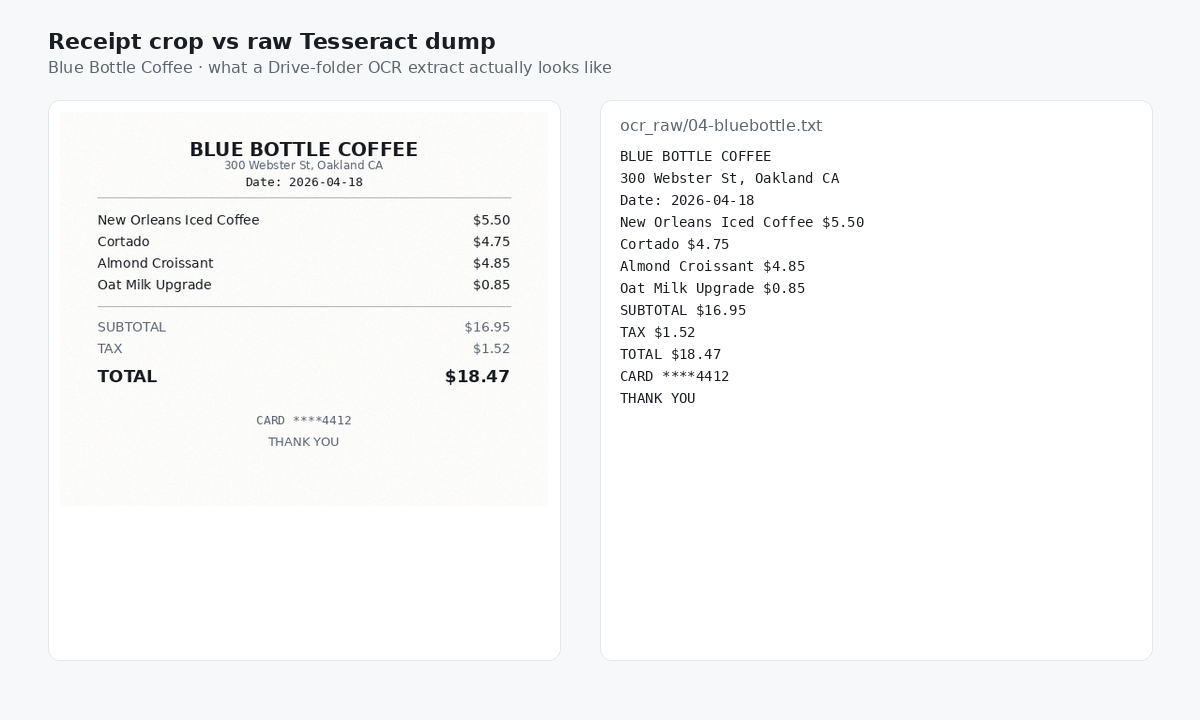
For physical paper receipts, snap a quick photo with your phone the moment you get them. Toss the paper after you confirm the photo is legible. If you wait until end of month to photograph a crumpled gas receipt, you will lose data: faded ink, half-torn edges, and printer fade are real problems.
For digital receipts, set up a forwarding rule so anything matching common subject lines auto-files into a dedicated folder. Most email clients let you do this in two clicks.
Step 2: Upload or capture with SlipSheet
Open SlipSheet and either drop a batch of receipt images into the upload zone or forward them to your SlipSheet inbox. Each receipt becomes a row in your sheet with the date, vendor, amount, tax, and category fields already filled in. SlipSheet reads the receipt once and writes structured data into a Google Sheet or Excel file you control.
Process receipts in batches of ten to twenty rather than one at a time. Batch uploads keep your attention focused on review (the next step) rather than on dragging files around. If you have an existing pile of unprocessed receipts, set a goal of finishing one stack per session rather than trying to clear the whole pile in one sitting.
One practical tip: capture the receipt the same day as the expense whenever possible. The longer you wait, the higher the chance you forget the context (was that a business lunch or a personal dinner?), and context is what makes the spreadsheet useful at tax time.
Step 3: Review extracted fields and fix errors
Extraction is fast but not magic. Spend five minutes reviewing each batch before you move on. The most common fields that need correction:
- Date when the receipt shows multiple dates (purchase date vs. ship date vs. statement date).
- Vendor name when the receipt abbreviates or uses a parent company name you don't recognize.
- Tax when sales tax is listed separately or rolled into the total.
- Category when the auto-category guesses wrong (a hardware store purchase for a client job should not be filed as "personal").
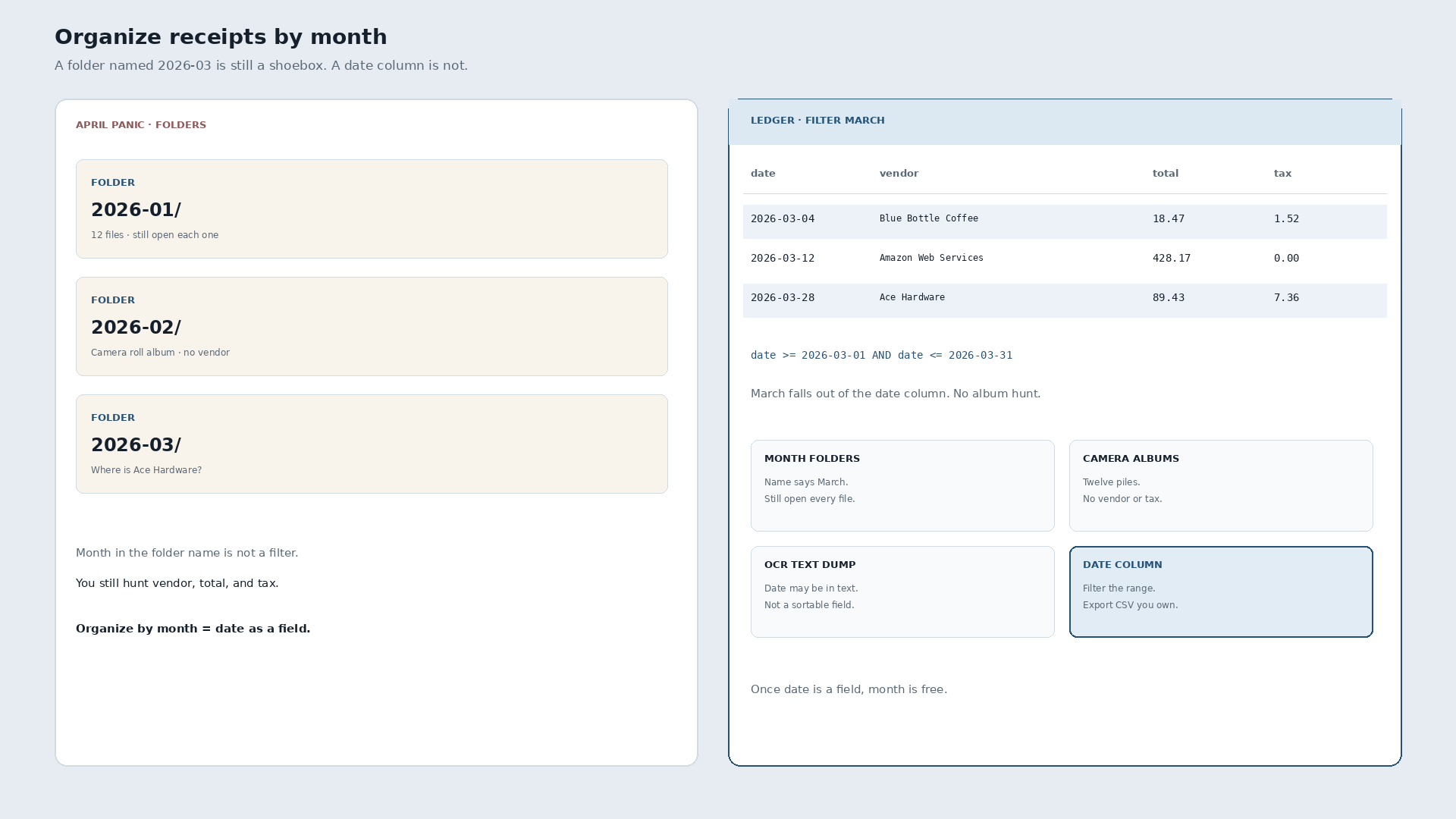
Sort the sheet by date once the batch is reviewed. If everything is in place, your receipts are now organized by month, with January receipts at the top of one block and February receipts in the next. Add a column for the month name or use a filter view to flip between months quickly.
Step 4: Export or share the data with your accountant
At month-end, you have three good options for the data:
- Keep it in your shared spreadsheet. If your accountant already has access to the file, nothing else is needed. They can filter by month or vendor at any time.
- Export a monthly CSV. SlipSheet supports one-click export. Send the CSV by email at the start of each month as a clean handoff.
- Generate a monthly summary report. Use a pivot table or the built-in SlipSheet summary to show totals by category per month, which is what most bookkeepers want for reconciliation.
Whichever path you choose, archive the original receipt images alongside the spreadsheet row. Most audits want both: the structured data plus the source document. SlipSheet keeps the image link attached to each row, so this is automatic.
Common mistakes to avoid
Three pitfalls trip people up most often when organizing receipts by month:
- Letting receipts pile up. A backlog of three months is much harder to process than one month at a time. Pick a cadence and protect it on your calendar.
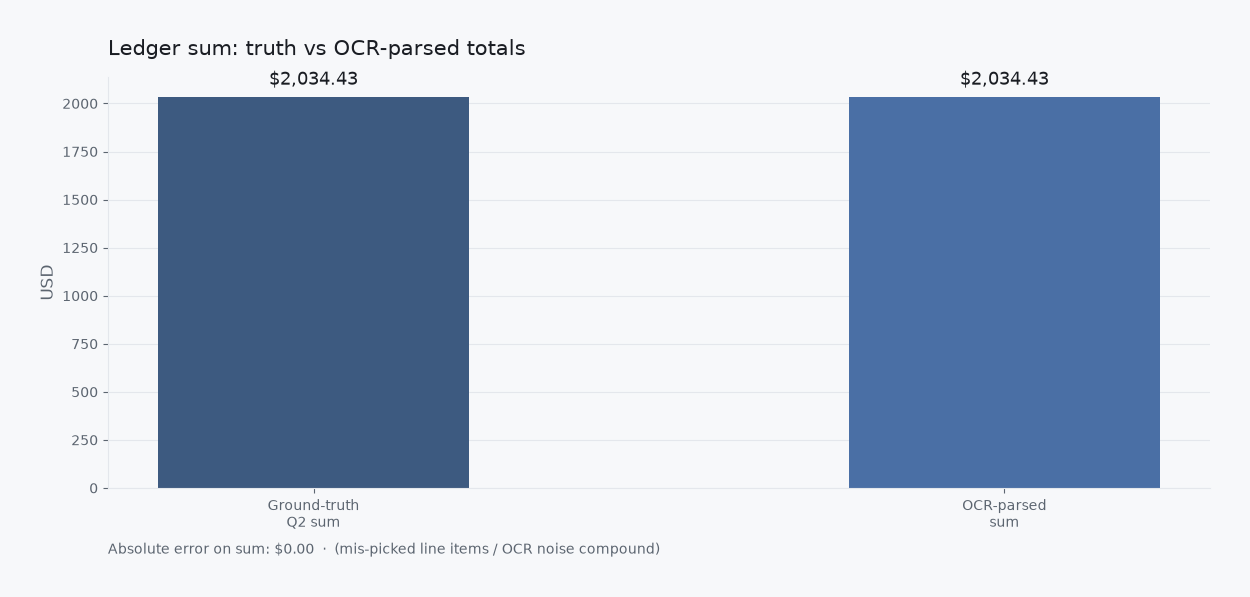
- Trusting extraction without review. Even the best OCR misreads a number now and then. A two-minute review per batch catches errors before they cascade into a wrong tax filing.
- Mixing personal and business expenses. Tag expenses by purpose from day one. Retroactively splitting personal and business receipts is tedious and error-prone.
Once you have a full month of clean, organized receipts in your sheet, the rest of the year gets easier. Quarterly taxes become a 20-minute exercise, your accountant spends less time on data entry, and you stop dreading the shoebox ritual. Try SlipSheet free and see how quickly a month of receipts turns into a clean, sortable record.
FAQ
How long does it take to organize a month's worth of receipts?
For a typical freelancer or small business owner with 30 to 60 receipts per month, expect 20 to 40 minutes total when using SlipSheet, with most of that time spent on the review step rather than the upload.
Should I keep paper receipts after I scan them?
Keep paper receipts until you have verified the scanned copy is legible and your bookkeeping is reconciled for the period. After that, most receipts can be shredded unless your industry has specific retention rules (restaurants, fuel, and medical expenses often require longer paper retention).
Can I organize receipts by month in Excel without special software?
Yes. Create a column for date, sort the sheet by date, and add a formula column that extracts the month name. The tradeoff is that you have to type or paste the vendor, amount, and category for each receipt yourself, which is where most of the time goes.
What naming convention works best for monthly receipt files?
Use YYYY-MM-Vendor-Amount (for example, 2026-03-Staples-42.18). This sorts chronologically by default in any file manager and makes the vendor and amount visible without opening the file.
How should I handle receipts that mix personal and business expenses?
Split the receipt at the time of capture, not later. Enter two rows in your spreadsheet (one tagged Personal, one tagged Business) with proportional amounts, and keep the same source image linked to both rows for audit purposes.