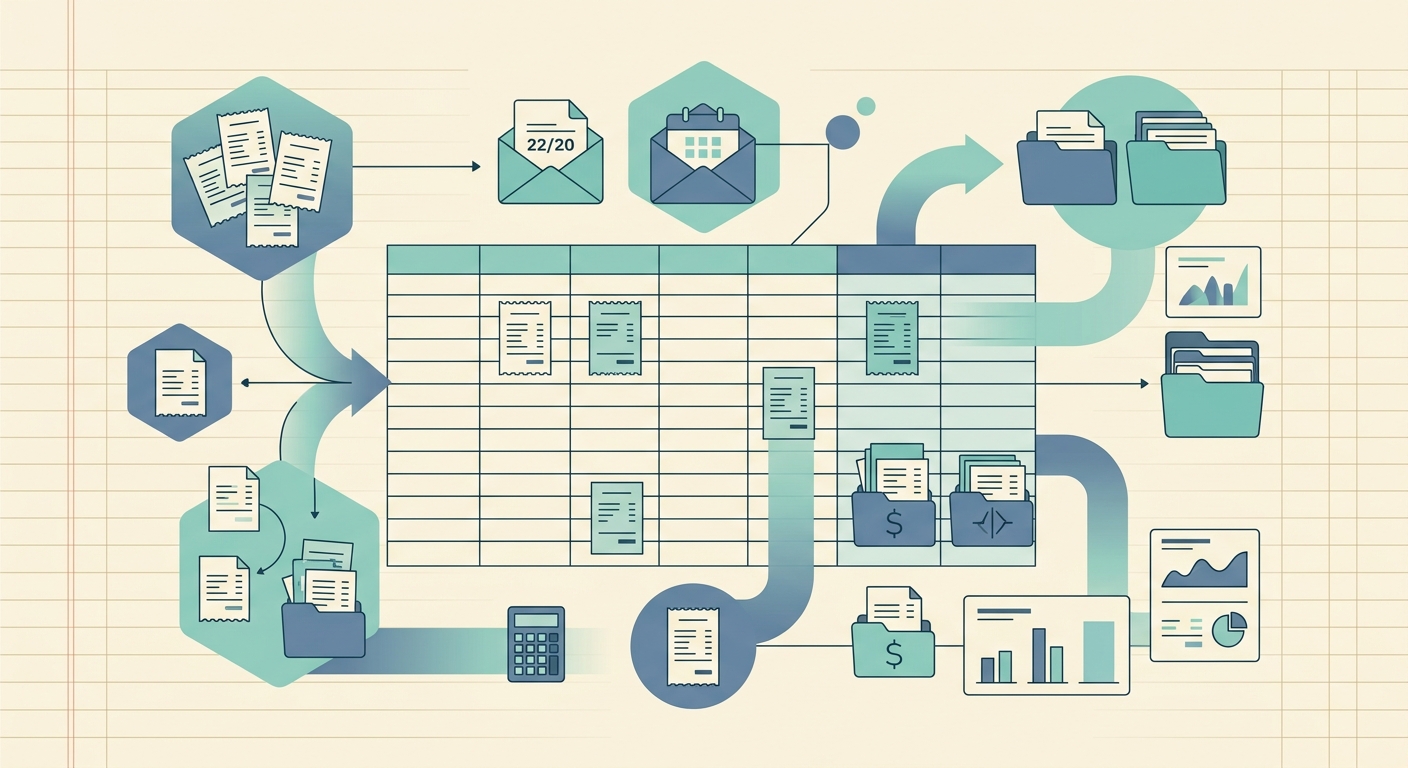
Year-end tax prep starts long before December 31. The receipts you organize in November save you hours in January, and they keep the IRS happy if you ever get audited. This guide walks through a practical workflow for collecting, digitizing, and categorizing receipts so deductions don't slip through the cracks when it's time to file.
What you need before you start
You'll get the cleanest result if you set up a simple folder and naming convention before you scan anything. Most small business owners and freelancers need three buckets: business expenses, personal expenses you might partially deduct (home office, mileage, medical), and client reimbursables. A spreadsheet with columns for date, vendor, category, amount, and payment method covers about 90% of what your accountant or tax software needs.
Decide your storage medium upfront. Cloud storage (Google Drive, Dropbox, iCloud) survives a laptop crash and lets your bookkeeper or CPA access files without email attachments. A local folder works if you back it up weekly. The wrong answer is "in a shoebox" because thermal paper fades within a year, and lost receipts mean lost deductions.
Step 1: Gather your receipts
Round up every paper receipt from your wallet, car, desk drawer, and home office. Pull bank and credit card statements for the full tax year to cross-reference. Most people miss 10-20% of deductible expenses because they forget about cash purchases or one-off vendor receipts. A statement reconciliation pass catches the gaps: anything that looks like a business expense on the statement should have a matching receipt in your pile.
If you use a business credit card, the issuer may already provide year-end summaries. Download the CSV or PDF and keep it alongside your scanned receipts; it's not a substitute for receipts, but it speeds up the matching pass.
Step 2: Capture or upload each receipt
Snap a photo of every paper receipt with your phone, or drop the photo into a scanner app. A flatbed scanner produces cleaner images, but the camera on a modern phone is good enough for OCR if you shoot straight down in good light. Multi-page receipts (think hotel folios or itemized meal bills) should be scanned as a single PDF or saved together in one folder entry.
SlipSheet reads each image and pulls out the merchant, date, subtotal, tax, total, and payment method. The whole pass takes a few seconds per receipt; a stack of 200 receipts finishes in roughly ten minutes instead of the several hours it would take to type everything by hand. Skip the manual transcription step entirely and let OCR do the heavy lifting.
Step 3: Review the extracted fields
OCR is fast, but it isn't perfect. Spend five minutes per page correcting anything that came out wrong. Common trouble spots: vendor names with accents or unusual capitalization, totals that look swapped with subtotals, and dates in the wrong format. A quick eyeball check on the totals column against the original image catches most errors before they propagate into your tax return.
Categorize each receipt at this stage. Common categories for small business owners and freelancers include software and subscriptions, travel, meals, office supplies, professional services, marketing, and equipment. The IRS Schedule C lists the official category names; matching those upfront saves a remapping pass later. For tax-deductible personal expenses, separate the deductible portion cleanly so the math is auditable.
Step 4: Export and share the data
Export your cleaned dataset as CSV, Google Sheets, or Excel. Most tax software (TurboTax, H&R Block, FreeTaxUSA) accepts a CSV import for Schedule C line items. If you work with a CPA or bookkeeper, share a read-only link to the spreadsheet rather than emailing a file; version control gets messy when multiple people edit the same export.
Keep the original receipt images stored alongside the export. The IRS requires documentation for at least three years after you file, and longer in some cases (losses, home office deductions, asset purchases). A folder per tax year with both the spreadsheet and the images gives you an audit-ready archive you can hand over with one link.
Common mistakes to avoid
- Waiting until December. Receipts fade, get lost, or end up in the laundry. Capture them within a week of the purchase.
- Skipping small purchases. Five-dollar coffee meetings and twelve-dollar software subscriptions add up; track them or lose the deduction.
- Mixing personal and business receipts. Use separate cards or separate folders; commingling triggers audit flags and confuses the categorization pass.
- Forgetting the receipt itself. Bank statements are not receipts in the eyes of the IRS. Keep the actual proof of purchase for three years minimum.
- Relying on OCR without review. Even the best extraction misses a field now and then. A quick scan of the totals column catches errors before they hit your return.
Getting started with SlipSheet
SlipSheet handles the slow part of tax prep: getting receipt data into a spreadsheet without manual typing. Sign up, capture or upload your receipts, and export the cleaned dataset in the format your accountant or tax software needs. The 14-day trial covers enough receipts to clear out a full year of accumulated paper in one sitting.
Ready to skip the shoebox? Try SlipSheet free for 14 days and turn that pile of receipts into an audit-ready spreadsheet before January.
FAQ
How long should I keep receipts for tax purposes?
The IRS requires you to keep receipts and supporting records for at least three years after you file, and up to seven years for asset depreciation or loss claims. A safe default for small business owners is to keep digital copies for seven years and never delete the originals once they're scanned.
Do I need paper receipts or are digital copies acceptable?
Digital copies are fully acceptable as long as they accurately reproduce the original document. Photos, scanned PDFs, and OCR-extracted spreadsheets all qualify, but make sure vendor name, date, amount, and payment method are legible in the digital version.
What expenses should small business owners track separately?
Track every business purchase on a dedicated card or account so the statement reconciles cleanly. Common deductible categories include software subscriptions, travel, meals (at 50%), office supplies, professional services, marketing, equipment, and home office expenses calculated by square footage.
Can I organize receipts without a scanner?
Yes. A modern phone camera in good lighting produces images that OCR tools like SlipSheet can read accurately. The key is to shoot straight down, capture the full receipt, and keep the image in focus so the merchant name and total are legible.
What's the fastest way to get receipts into a spreadsheet?
Skip manual transcription. Capture or upload each receipt to an OCR tool, review the extracted fields for accuracy, then export as CSV or Google Sheets. A stack of 200 receipts typically takes about ten minutes this way, compared to several hours of typing.