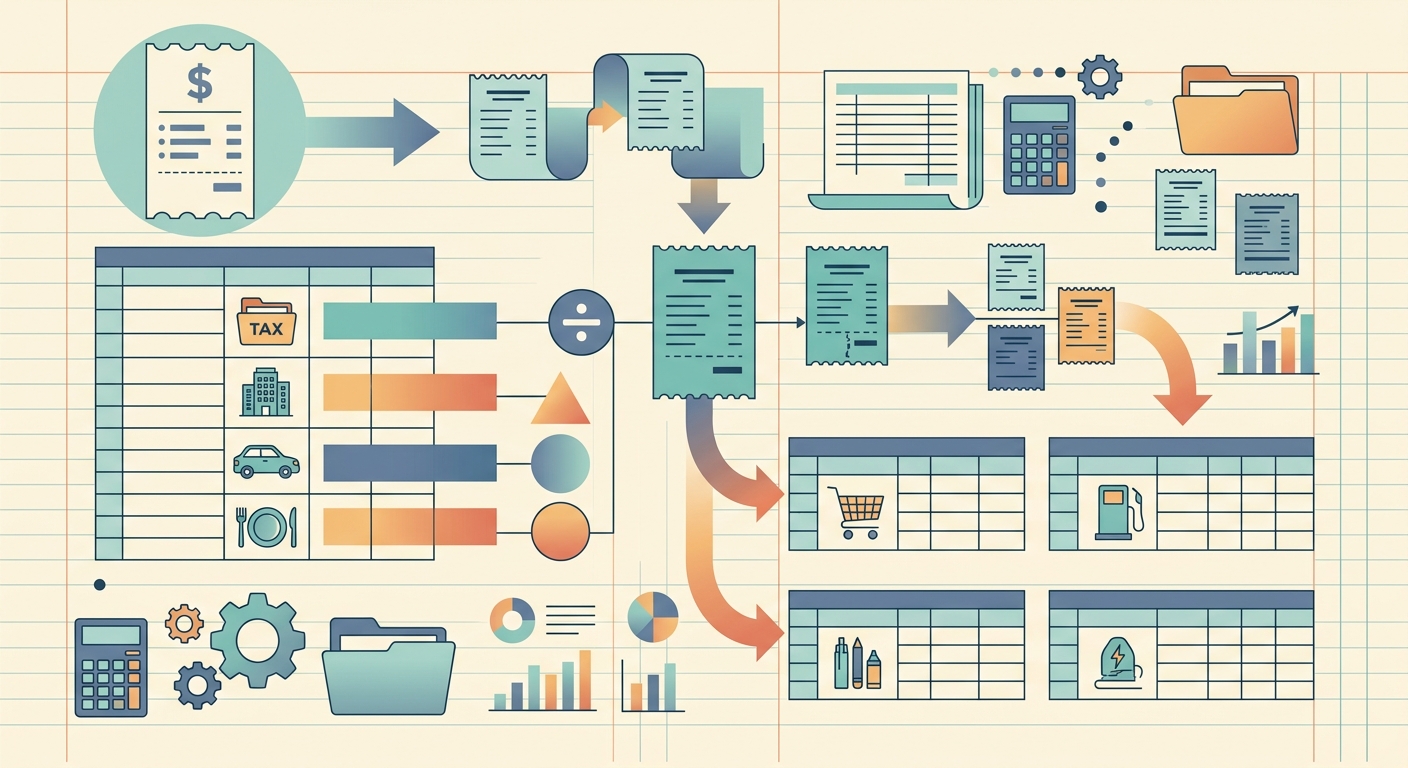
Splitting receipts into the right tax categories is the difference between a smooth April and a weekend lost to shoebox archaeology. Most freelancers, small business owners, and bookkeepers already know that some expenses get deducted; the hard part is assigning every receipt to the correct Schedule C line (or 1040 line for sole proprietors) without misclassifying something the IRS will flag later.
The good news: with a clear workflow and a receipt scanner that pulls line items automatically, the split becomes a fast morning routine instead of a quarterly scramble.
Why tax categories matter (and where people get them wrong)
The IRS doesn't audit vibes. If you lump every business meal, Uber ride, and software subscription into "Office Expenses," you're under-documenting and over-spending the line. The IRS expects:
- Specificity: a meal is "Meals" (50% deductible), not "Office Expense."
- Supporting detail: vendor, date, amount, business purpose for meals and entertainment.
- Documentation: digital copies of every receipt kept for at least 3 years (7 if the loss was substantial).
The most common misclassifications we see: mixing personal and business on the same card, treating a software seat as "Supplies" instead of "Software/Subscriptions," and forgetting that home office expenses need square-footage math, not a single receipt.
What you need before you start
Before you scan a single receipt, lock in three things:
- A category list tied to your tax form. Pull the line items from Schedule C (or your entity's equivalent). If you use a CPA, ask them for a category list; if you file alone, IRS Schedule C Part II is the canonical source.
- A consistent naming convention for vendors. "UBER" vs "Uber" vs "Uber * Eats" vs "Uber BV" all show up as different vendors. Decide whether you'll standardize to the parent company or keep the exact merchant string.
- A place to store the source files. Cloud folder, Dropbox, Google Drive; whatever you'll actually keep open in April. PDFs of paper receipts beat photos because they include capture metadata.
How to split receipts by tax category, step by step
Step 1: Gather your receipts
Pull everything: paper receipts from the wallet, PDFs from your email, app exports from Uber Eats, Square receipts from your vendor portal. If it cost the business a dollar, it goes in the pile. Don't pre-sort; sorting comes after extraction.
Step 2: Upload or capture with SlipSheet
Open SlipSheet and either snap a photo of a paper receipt or drag in the PDF batch. SlipSheet's OCR reads merchant, date, line items, subtotal, tax, and total. For multi-page receipts (think: a conference hotel folio with room, parking, and meals all bundled), SlipSheet flags each item separately so you can split them out below.
For batches over 50 receipts, drop them in a folder and import; the queue processes them in the background while you do something else.
Step 3: Review and tag each line
This is where the actual category split happens. For each receipt:
- Single-purpose receipts (a SaaS subscription, a parking meter): assign one category directly. Software → "Software/Subscriptions." Parking → "Travel."
- Mixed receipts (a hotel folio with room + meals + parking; a Costco run with office supplies and a coffee maker): split the line items. Use SlipSheet's line-item editor to assign each row to its own category. The total then rolls up by category automatically.
- Personal + business mixed (a Target run that includes printer paper and a kids' birthday gift): split the total proportionally, or tag the personal portion as "Owner Draw" so it doesn't pollute Schedule C.
The first time you do this, it'll take 2-3 minutes per receipt. By receipt 20, you'll have muscle memory; by receipt 50, the obvious categories snap into place without thinking.
Step 4: Export or share the data
Export the categorized list as CSV (works with Excel, Google Sheets, or any bookkeeping app). If your bookkeeper uses QuickBooks, the IIF or QBO export cuts the next handoff to a single file. The export keeps the source-receipt link so anyone reviewing later can click through from a row to the original PDF.
Common mistakes to avoid
- Sorting before extraction. If you alphabetize paper receipts before scanning, you've lost the date context that catches duplicate uploads. Extract first, sort later.
- Trusting the merchant label. "AMZN Mktp US*1A2B3" is Amazon, but is it office supplies, a client gift, or personal? The merchant doesn't know; you do.
- Forgetting mileage and time. Receipts aren't the only deductible. If you drove 400 miles for client meetings, log the mileage alongside the gas receipts; the IRS standard mileage rate usually beats gas + depreciation by a wide margin.
- Letting personal bleed in. The fastest way to lose a deduction is to claim a personal Target run as a business expense. When in doubt, tag it "Personal" and move on; the audit cost of false positives dwarfs the time saved.
Making it stick month to month
The first split takes a few hours. The 12th split takes 45 minutes because you've built a vendor memory: "Every Costco receipt = Office Supplies + Meals (50%)," "Every Adobe charge = Software," "Every Uber in this zip code = Travel." SlipSheet remembers your assignments and suggests categories for repeat vendors, so by month three you're confirming suggestions, not picking from scratch.
Schedule a 30-minute weekly slot for receipt processing. Doing it weekly beats quarterly by an order of magnitude; the receipts are still in your head, the totals are still meaningful, and the categories stay consistent. Quarterly catch-ups force you to guess three months later, which is exactly when misclassifications creep in.
If you want a receipt scanner that reads line items, suggests categories based on your vendor history, and exports to QuickBooks without re-keying, try SlipSheet free for 14 days. The first 25 receipts go through in under 10 minutes, and you'll know by lunch whether the workflow fits your books.
FAQ
How do I split a single receipt into multiple tax categories?
Use SlipSheet's line-item editor to assign each row to a different category. The total then rolls up by category automatically, so a hotel folio can split into Travel (room), Meals (restaurant charges), and Transportation (parking) without manual math.
What tax categories should I use for small business receipts?
Pull the line items directly from IRS Schedule C Part II if you file as a sole proprietor, or ask your CPA for an entity-specific list. Common buckets include Advertising, Car/Truck, Supplies, Software/Subscriptions, Travel, Meals (50%), Office Expense, and Utilities.
Can I split a receipt where personal and business items are mixed?
Yes. Split the total proportionally and tag the personal portion as Owner Draw so it doesn't pollute Schedule C. The IRS expects personal expenses to stay out of business deductions entirely.
How long do I need to keep split receipt records?
At least 3 years from the date you filed the return, and 7 years if you claimed a loss worth more than a few thousand dollars. Digital copies of PDFs are accepted; paper is no longer required.
Do I need to categorize receipts I already gave my bookkeeper?
Even if your bookkeeper handles the final filing, doing the split yourself saves them billable hours. Most bookkeepers charge $50-150/hour; a 10-minute weekly pass on your end can save a full hour at quarter-end.