Slipsheet ยท Content Back to ledger
Home / How to Track Receipts for Reimbursement
How to Track Receipts for Reimbursement

How to Track Receipts for Reimbursement

Lost receipts are the slowest way to lose money on a business trip. Whether you are reimbursing an employee, filing a client expense, or settling your own costs at month end, the question is the same: how do you track receipts for reimbursement without ending up with shoeboxes of faded paper and CSV exports that never quite match?

The good news is that a tight reimbursement workflow only takes a few minutes per receipt once it is set up. The steps below cover what you need, how to capture each receipt in seconds, and how to export a clean report your bookkeeper or finance team can actually use.

What you need

  • A capture method that works on the go. Your phone is almost always the right answer. A dedicated scanner app or a camera roll workflow beats relying on a desktop scanner.
  • A consistent place to store the files. One folder, one app, one Drive account. Avoid splitting receipts across email, photos, and paper.
  • A way to pull the structured fields out of the image. Vendor, date, total, tax, and currency are the five fields a reimbursement report usually needs.
  • An export format your finance team will accept. CSV is the safe default; XLSX or Google Sheets works if your bookkeeper wants formulas.

Step 1: Gather your receipts the day you spend

The single biggest mistake in receipt tracking is the gap between the swipe and the save. The longer a receipt waits in a wallet or inbox, the more likely it is to vanish.

Pick one rule and stick to it: every receipt is captured the same day, before you leave the restaurant, the airport, or the client site. If you wait until Friday, half of them are already gone. Set a phone reminder at the end of each workday if you have to; the habit matters more than the tool.

Step 2: Capture the receipt with your phone

Open SlipSheet, tap the camera icon, and snap a photo of the receipt. Hold the phone straight over the paper so the edges are visible, and make sure the total and date are in frame. The capture step takes about five seconds per receipt.

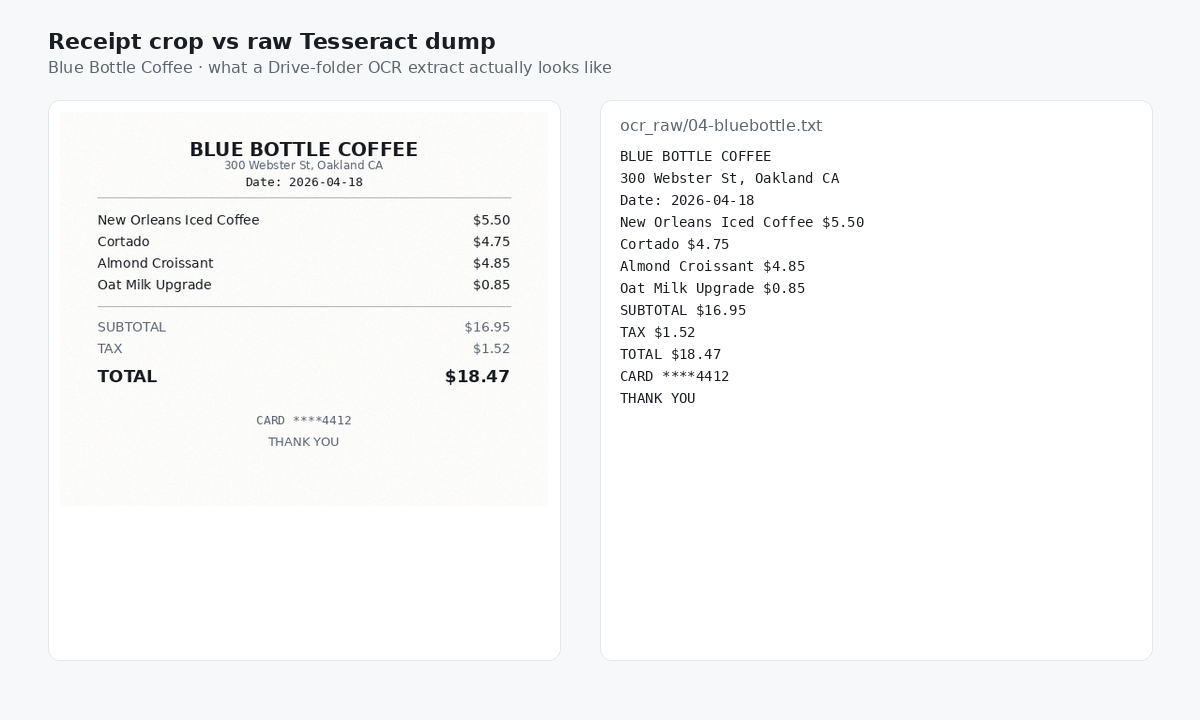
SlipSheet reads the image and pulls out vendor, date, total, tax, and currency. You do not need to crop, rotate, or retype anything. If a field is missing or unclear, you will see it flagged in the review step; it does not silently get lost.

Step 3: Review the extracted fields

This is where most apps quietly let bad data through. Do not skip review. Open each captured receipt and confirm:

  1. Vendor name is the business you actually paid, not a payment processor.
  2. Date matches the receipt date, not the day you uploaded it.
  3. Total equals what you actually paid, including tip and tax.
  4. Currency is correct. This trips people up on travel reimbursement more than anything else.

If a field is wrong, tap to edit it in place. The corrected value becomes the source of truth for the export. Fixing ten receipts takes about a minute once you have done it a few times.

Step 4: Add context the report needs

Receipt images are not enough on their own; the report needs to know why each charge happened. Add a short note per receipt, or use tags to mark categories like travel, meals, client meeting, or supplies. If you are reimbursing an employee, capture the employee name as well.

Spend thirty seconds on context now and you save an hour of email back-and-forth later when someone asks what that $42 charge on March 14 was for.

Step 5: Export or share the reimbursement report

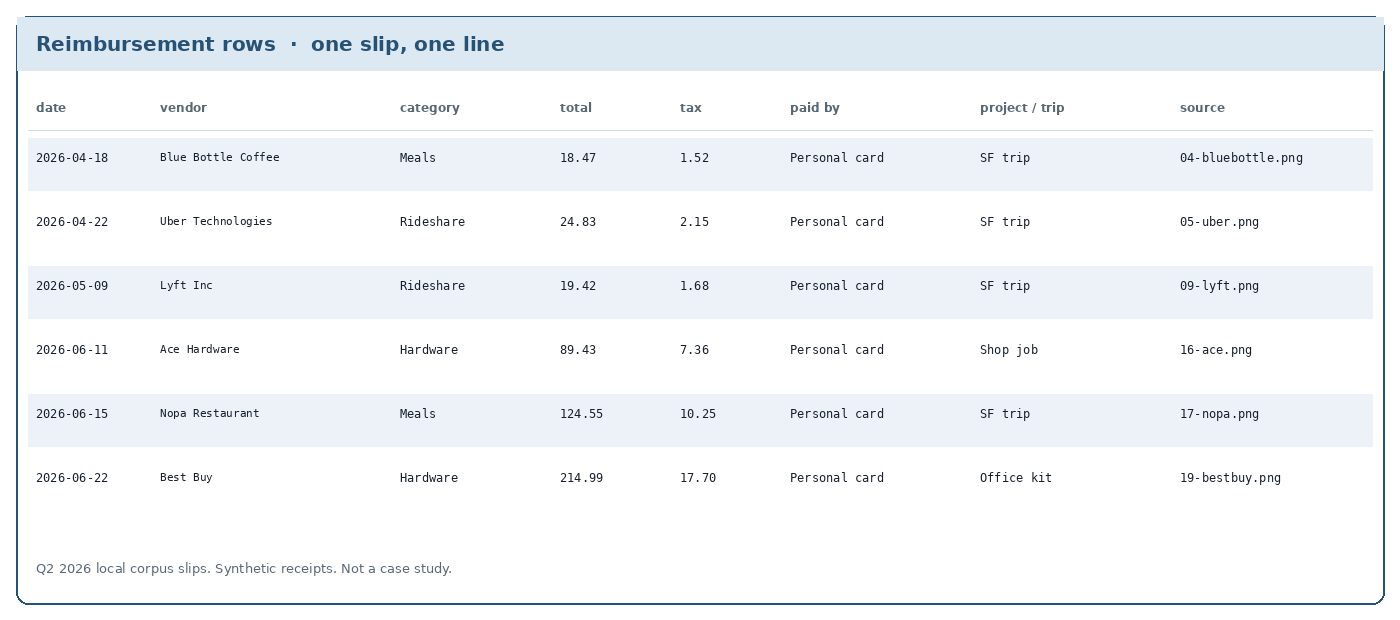
When the report is ready, export it as CSV from SlipSheet. The columns you need are usually: date, vendor, category, total, currency, notes, and receipt filename. Drop the file into the shared Drive folder, attach it to the reimbursement email, or hand it to your bookkeeper directly.

If your finance team uses a spreadsheet template with specific column names, rename the CSV headers once during setup and save that mapping. After that, every export is one click.

Common mistakes to avoid

  • Capturing only the total. Finance teams often need the subtotal, tax, and tip separately for tax-deductible categories. SlipSheet stores both, so make sure the extraction caught them.
  • Letting personal and business receipts mix. Use separate SlipSheet workspaces or folders for personal travel and business travel, and do not blend them in the same export.
  • Throwing away the paper before reimbursement is approved. Keep the originals, or at least the digital images, until the reimbursement is paid and any disputes are closed. Most policies ask for 90 days of retention.
  • Forgetting currency on multi-country trips. Always confirm the currency field per receipt. A $42 dinner in Toronto and a $42 dinner in San Francisco should not look identical in the spreadsheet.

Putting it together

Tracking receipts for reimbursement is not a complicated problem; it is a habit problem with a tool problem attached. Capture the same day, let SlipSheet extract the fields, spend thirty seconds on review and context, then export. The whole loop, start to finish, is about two minutes per receipt, and the report you hand off is clean enough that nobody has to chase you for missing data.

If you are ready to stop chasing receipts at month end, SlipSheet is built for exactly this workflow. Start a free SlipSheet workspace and your next reimbursement report is a single export away.

FAQ

How long should I keep receipt images for reimbursement?

Most company policies and tax authorities require at least 90 days of retention after reimbursement is paid, and many recommend keeping them for up to seven years in case of an audit. SlipSheet stores your receipt images in the cloud, so retention is rarely a storage problem.

Can I use SlipSheet for international travel receipts in different currencies?

Yes. SlipSheet reads the currency field from each receipt, so a trip with mixed USD, EUR, and GBP charges exports cleanly with the correct currency per row. You can add an exchange rate note in the description field if your finance team needs it.

What if a receipt is faded or partial when I scan it?

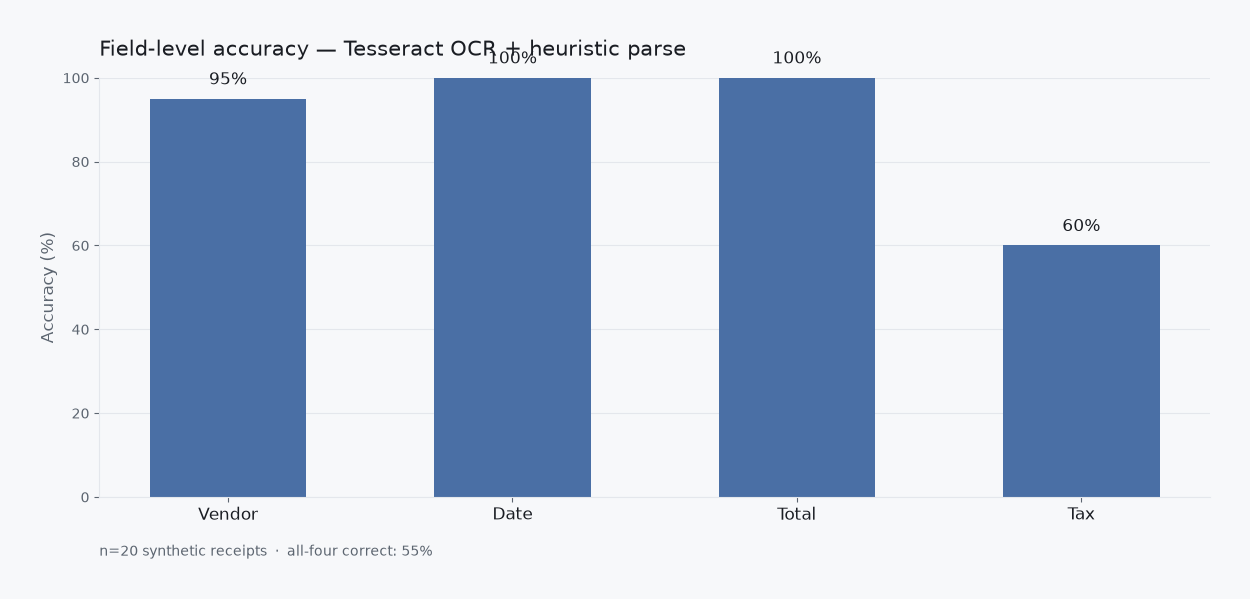
SlipSheet will flag any fields it could not read confidently, and you can re-shoot the receipt in better light or fill the missing fields in manually. The original image is kept alongside the corrected data so the audit trail stays intact.

Do I need a separate SlipSheet account for each employee being reimbursed?

Not necessarily. Smaller teams often share one workspace and use tags or notes to mark which employee each receipt belongs to. Larger teams usually prefer one workspace per employee so exports stay clean by default.

What export format works best for reimbursement reports?

CSV is the safest default because every spreadsheet and accounting tool can open it. If your finance team uses Google Sheets or Excel and wants formulas, XLSX keeps the data types clean and avoids date format issues.

Ready to stop typing receipts?

Open your ledger.

14-day trial. No card. Cancel anytime. Your receipts write themselves while you do literally anything else.