Tracking receipts in Google Sheets is one of the simplest ways to keep your books tidy without paying for a full accounting suite. The trick is setting up a small workflow that captures each receipt, pulls out the key fields, and lands them in a sheet you can actually search, sort, and total. This guide walks through the four steps that turn a stack of paper or a phone full of photos into a clean, queryable Google Sheet.
What you need
Before you start, gather a few basics:
- A Google account with access to Google Sheets and Google Drive.
- A folder for receipts on Drive, ideally shared with anyone else who needs access.
- A way to capture receipts on the go. A phone camera is fine; a tool that pulls out the vendor, date, total, and tax saves hours of typing.
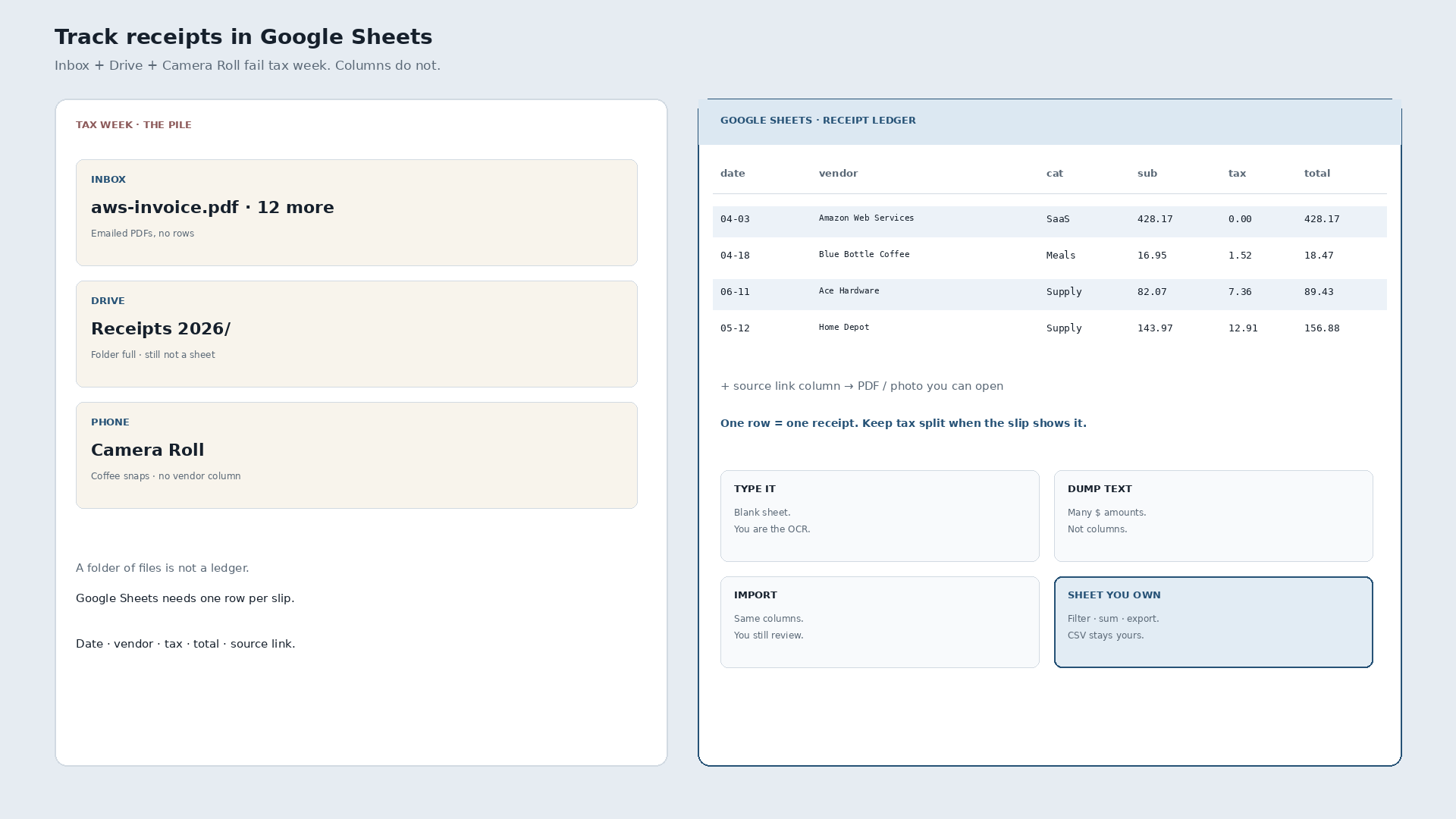
- A consistent column layout. Decide upfront what fields matter: date, vendor, category, subtotal, tax, total, payment method, notes, and a link or filename for the source image.
Lock in the column layout first. Renaming and reordering columns after you have a hundred rows of data is annoying, and a stable shape is what makes formulas and pivot tables work later.
Step 1: Gather your receipts
Start by pulling everything into one place. Walk your desk, your car, your wallet, and the email receipts sitting unread from the last quarter. If you have paper receipts, photograph them the same day so the ink does not fade. Email receipts get forwarded into a single inbox or saved as PDFs into your Drive folder.
A useful habit: capture the receipt at the moment of the purchase. Snap the photo in line at the coffee shop, or forward the email before the tab closes. Backfilling months of receipts is the part that makes people give up on tracking altogether, so shrinking the backlog now pays off forever.
Keep filenames boring and searchable. 2026-06-23-amazon-office-supplies.pdf is far easier to scan than IMG_4832.jpg. A date prefix sorts cleanly in any file browser.
Step 2: Upload or capture with SlipSheet
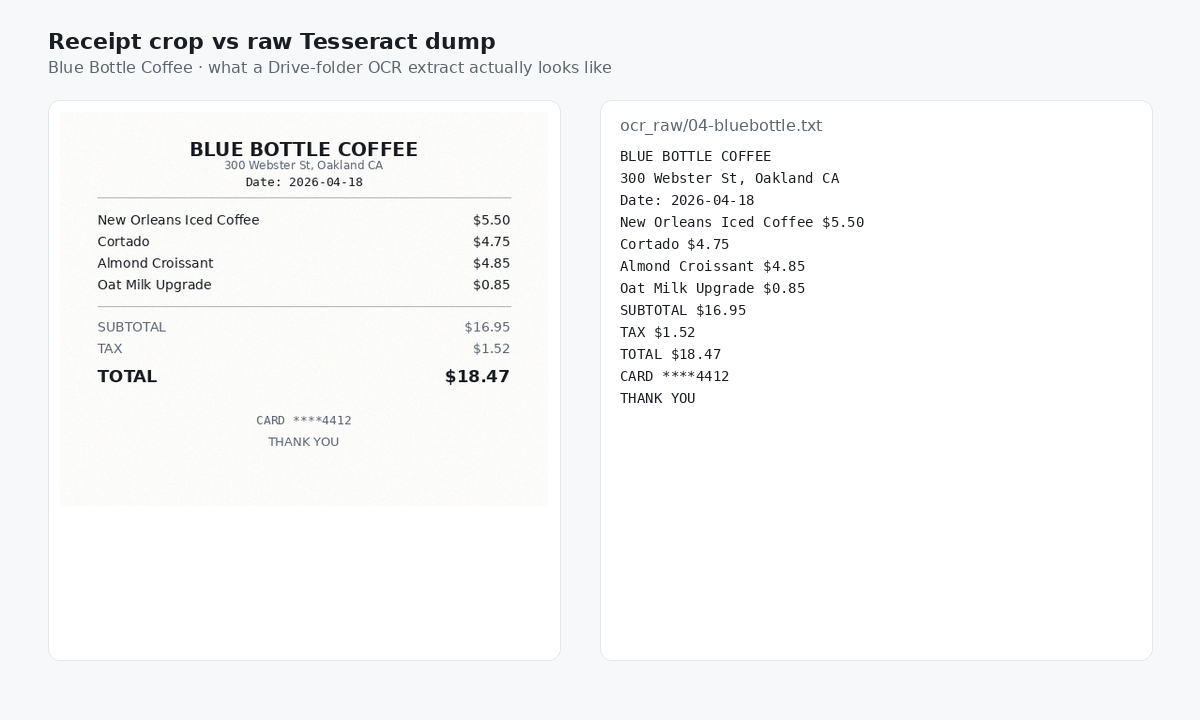
This is the step that does the heavy lifting. Open SlipSheet on your phone or laptop and drop your receipts in, one at a time or as a batch. You can upload photos, PDFs, or email forwards. SlipSheet reads each receipt and pulls out the vendor, date, line items, subtotal, tax, and total.
Batch mode is the real time saver. If you have thirty receipts to process, you can queue them up in a single upload and let the extraction run while you do something else. The result is a draft row for each receipt, ready to review.
Tip: if you are catching up on a backlog, do it in batches of 20 to 30 at a time. Smaller batches keep the review step manageable and give you a clear stopping point at the end of each session.
Step 3: Review extracted fields
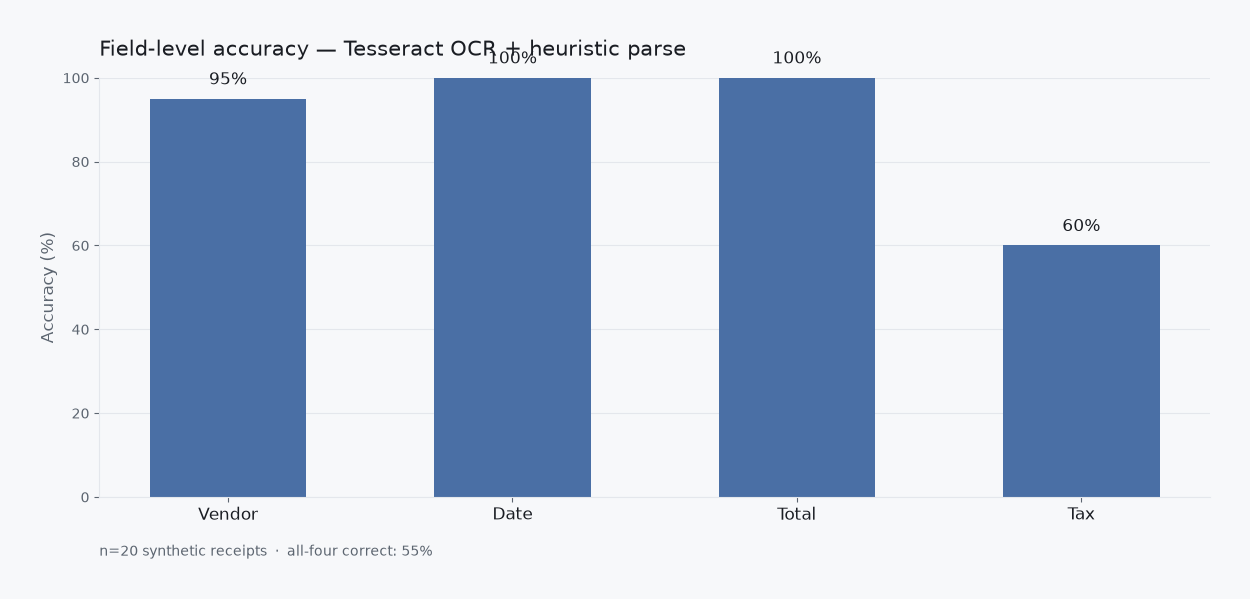
No extractor is perfect. The point of this step is to catch the few rows where the OCR misread a number or a date. Open each draft and confirm the vendor name, date, total, and tax. If a receipt is handwritten or faded, a quick visual check against the image is worth the extra ten seconds.
Pay extra attention to:
- Dates. Receipt printers often print MM/DD/YY, and OCR can swap day and month. Make sure the year is right, especially around January and December.
- Totals. If the extracted total does not match subtotal plus tax, fix it manually before moving on.
- Categories. Decide on a short list (office, travel, meals, software, utilities, other) and tag each row. Consistent categories are what make the monthly summary useful.
Once a row is reviewed, mark it as ready. SlipSheet keeps reviewed rows separate from drafts, so you always know what still needs attention.
Step 4: Export or share the data
When the review queue is empty, export the rows to Google Sheets. A direct export keeps the original Drive link to each receipt image, so you can click a row in the sheet and see the source. This is the single most useful feature when your bookkeeper or accountant asks "where did this number come from?" six months from now.
From there, add a few light formulas:
=SUMIF(Category, "meals", Total)for quick category totals.=SUMIFS(Total, Date, ">="&DATE(2026,6,1), Date, "<="&DATE(2026,6,30))for a monthly total.- A simple pivot table grouped by category and month, if you want a fuller report.
Share the sheet with the right people and lock down the layout so columns do not get accidentally reordered. Most small teams only need view access; the person entering receipts needs edit access to one tab.
Common mistakes to avoid
Letting the backlog grow. The biggest reason people stop tracking receipts is that the pile gets intimidating. A daily two-minute capture habit beats a heroic weekend cleanup every time.
Inconsistent categories. If you call the same vendor "travel" one month and "transportation" the next, your totals will be wrong and you will not know it. Pick a small, stable list of categories and stick to it.
Trusting the extracted total blindly. Most rows are correct, but the few that are not will quietly corrupt your monthly numbers. A quick glance at each row is faster than reconciling a surprise later.
Keeping receipts on the phone only. Phones get lost, reset, or replaced. Saving the source image to Drive, linked from the sheet, gives you a backup that does not depend on any single device.
That is the full loop: capture the receipt, extract the fields, review the draft, and export to Sheets. After a few weeks, the workflow takes only a few minutes a day, and the monthly close becomes a matter of reading numbers off a sheet you already trust.
Ready to stop typing receipts by hand? Try SlipSheet free and see your first batch of receipts land in Google Sheets this afternoon.
FAQ
Do I need a paid Google Workspace account to track receipts in Sheets?
No. A free Google account works fine. You only need paid Workspace if you want advanced admin controls or larger storage quotas, neither of which is required for a basic receipt tracking setup.
Can I scan paper receipts with my phone?
Yes. Photograph each receipt the same day you receive it, save it to a Drive folder, and upload it to SlipSheet for field extraction. Use the date in the filename so the image sorts chronologically.
How accurate is the receipt extraction?
Extraction is reliable on clean, printed receipts. You should still review each row for date, vendor, and total before exporting to Sheets, especially on handwritten or faded receipts.
What columns should my receipt sheet have?
At minimum: date, vendor, category, subtotal, tax, total, payment method, and a link to the source image. Add notes for anything that needs context later, like a project name or client code.
Can my bookkeeper access the sheet without a SlipSheet account?
Yes. The export lands directly in Google Sheets, and you can share the sheet with anyone. They only need read access to verify totals and click through to source receipts.