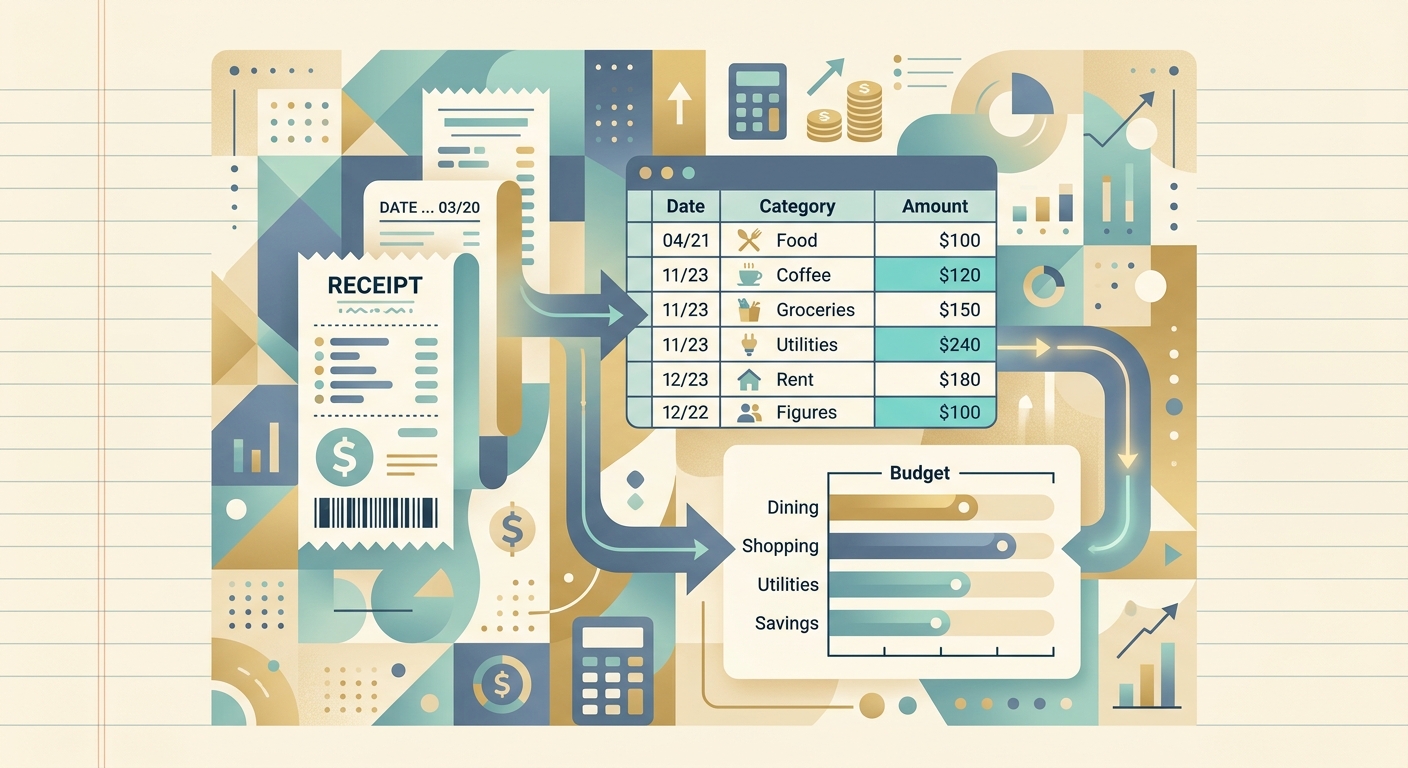
Most budgets fail because the numbers going in are guesses. You estimate what you spent on supplies last month, or you skip a category entirely because pulling the receipts feels like a chore. Receipt data for budgeting flips that. Once each receipt becomes a clean row in a spreadsheet, you stop estimating and start budgeting from what you actually bought. This guide walks through how to turn a pile of paper and email receipts into budget-ready data, step by step.
What you need before you start
You don't need a complicated setup, but a few basics make the process faster:
- A consistent place to collect receipts. One email folder, one shoebox, or one stack in your bag. The medium matters less than the habit.
- A target budget sheet. Google Sheets, Excel, or Numbers. Make sure the column headers match what you actually want to budget against (category, vendor, date, amount, tax).
- A scanner or phone camera. Phone cameras are usually enough. Good lighting and a flat surface beat a fancy scanner every time.
- SlipSheet for turning receipt photos and PDFs into spreadsheet rows. You can do this by hand, but for more than a handful of receipts a month, automation pays for itself within a week.
Block off about 30 minutes for your first pass. After that, a weekly 10-minute habit keeps the data fresh.
Step 1: Gather your receipts
Start with whatever time period you're budgeting for, usually one month. Pull every receipt you have: paper from your wallet and desk, email confirmations, and digital PDFs from subscriptions and online orders. If you bank or pay with a card, your statement is a backup, but it won't show cash transactions, tips, or itemized details, so the receipts themselves still matter.
Sort them roughly by date or category as you go. Don't overthink it; a single pile is fine for the first month. The goal of step one is to make sure nothing slips through the cracks.
Step 2: Upload or capture with SlipSheet
Open SlipSheet and upload your receipts in batches. You can photograph a paper receipt with your phone, drag a PDF from your desktop, or forward an emailed receipt to a dedicated inbox. SlipSheet accepts photos, scans, and PDFs and reads the merchant, date, line items, subtotal, tax, and total on each one.
For a typical month of small business or freelancer expenses, you might have 30 to 80 receipts. Uploading them all at once usually takes under five minutes. If you're catching up after a few months, do it in batches of 20 to 30 so you can review each one without fatigue.
A few practical tips while uploading:
- Photograph receipts flat, not at an angle. Skewed images are harder to read, especially for low-contrast thermal paper.
- Use natural light when possible. Avoid overhead fluorescents that cast shadows across the receipt.
- Keep the full receipt in frame. Cropping off the date or total means you lose the most useful fields for budgeting.
Step 3: Review extracted fields
SlipSheet returns a row for each receipt with the merchant, date, line items, and totals. Before exporting, spend a minute per receipt on a quick sanity check. Look for three things:
- Date and merchant. These are usually right, but confirm them first. A wrong date will throw off every weekly or monthly total downstream.
- Category. If SlipSheet didn't tag the receipt, add a category that matches your budget: Office Supplies, Travel, Software, Meals, Client Entertainment, and so on. Consistent categories are what make receipt data useful for budgeting at all.
- Total and tax. Quick spot-check against the original image. If the total looks off, the line items usually explain why (a tip, a discount, a missing item).
This review step is where you add the judgment that no OCR tool can supply. A "lunch with a client" receipt might be a personal expense. A "Target" charge might be office supplies, or it might be home goods. Your call, applied consistently, is what turns raw receipts into a budget that reflects your real priorities.
Step 4: Export or share the data
Once the data looks right, export it to your spreadsheet. SlipSheet generates a CSV or XLSX that drops straight into Google Sheets or Excel. From there, you can build pivot tables by category, run a monthly summary, or feed the numbers into a budgeting template.
If you work with a bookkeeper or accountant, share the exported file directly rather than forwarding receipts one by one. Most bookkeepers would rather receive a clean spreadsheet than sort through 60 PDF attachments. If you do your own books, this is also the moment to mark which receipts are tax-deductible, which are reimbursable, and which are personal. Doing it now, while the receipts are still in front of you, takes a fraction of the time it takes to redo it at tax time.
Common mistakes to avoid
A few patterns show up again and again when people start using receipt data for budgeting. Skipping them will save you hours of cleanup.
- Letting receipts pile up for months. The longer you wait, the harder it is to remember what a charge was for. Process weekly, not quarterly.
- Mixing personal and business expenses. Tag personal charges clearly or filter them out before exporting. Budgeting only works on the category you actually want to budget.
- Trusting OCR blindly. Extraction is highly accurate, but it's not perfect. A two-minute review catches the rare misread that would otherwise skew your totals for months.
- Forgetting recurring subscriptions. Receipts are mostly for one-off purchases, but monthly SaaS, hosting, or domain renewals are real budget lines. Make sure those flow in too, either through SlipSheet or a separate list.
- Skipping the cash receipts. Card transactions show up on your statement, but cash disappears. Photograph those receipts the same day, or you'll lose the data entirely.
Once you've got a few months of clean receipt data, budgeting stops being an act of guesswork. You can answer questions like "what did I actually spend on software last quarter?" or "did travel costs go up compared to last year?" without digging through a shoebox. The hard part is the habit; SlipSheet takes care of the rest.
Ready to try it? Start turning your receipts into budget-ready data with SlipSheet, and you'll have your first export within minutes.
FAQ
How often should I process receipts for budgeting?
Weekly is the sweet spot for most small businesses and freelancers. Daily is even better if you have time, but a 10-minute weekly pass keeps the data fresh without becoming a chore.
Do I need every receipt, or can I skip small ones?
Keep them all. Small cash purchases add up fast and they're the easiest to lose track of. A receipt that seems trivial in isolation often becomes meaningful when you total a category for the month.
What's the fastest way to digitize paper receipts?
Photograph them flat in natural light with your phone, then upload the photos to SlipSheet. Avoid crumpling, folding, or photographing at an angle, since those make the text harder to read.
Can I use receipt data for both business and personal budgeting?
Yes. Run everything through SlipSheet, then add a category column (Business, Personal, Mixed) so you can filter or split the data when you export. Most people find it easier to keep one dataset than to maintain separate ones.
What spreadsheet columns should my budget sheet have?
At minimum: date, merchant, category, total, and tax. If you want to dig deeper, add payment method (card, cash, ACH) and a notes column for context like client meeting or annual renewal.