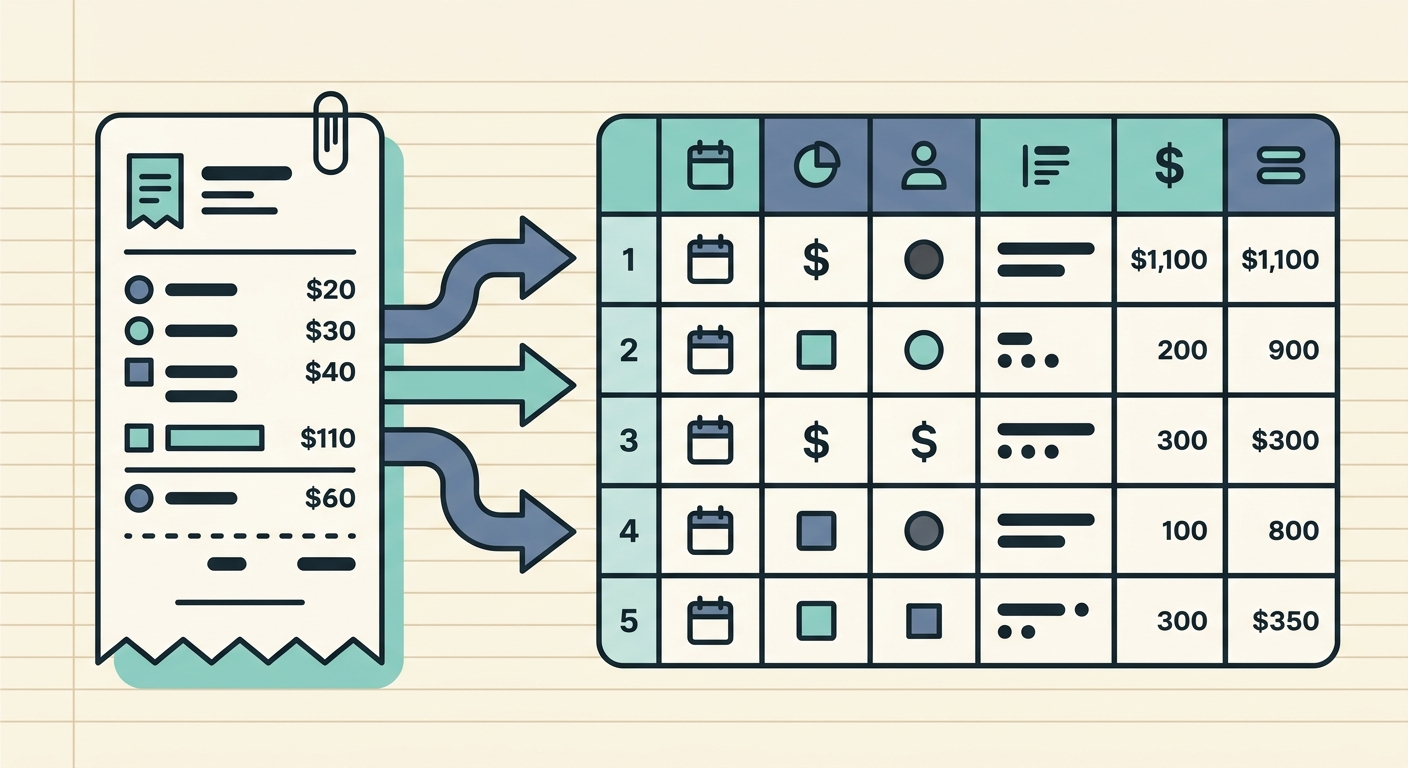
Managing business expenses, especially the paper trail of receipts, can be a daunting task for any business owner or freelancer. The sheer volume of receipts, from coffee shop purchases to software subscriptions, often leads to a disorganized mess, making tax season a significant headache. For those who rely on FreshBooks for their accounting needs, an efficient receipt to FreshBooks workflow is not just a convenience, it is a necessity for accurate financial tracking and streamlined operations. This is where tools like SlipSheet step in, transforming the tedious chore of receipt management into a simple, automated process.
FreshBooks is renowned for its user-friendly interface and powerful features for invoicing, time tracking, and expense management. However, getting your raw receipt data into FreshBooks accurately and without extensive manual entry remains a common challenge. Imagine being able to snap a photo of a receipt or forward an email receipt, and have that data automatically populate into a structured format, ready for FreshBooks. SlipSheet makes this vision a reality, bridging the gap between physical and digital receipts and your accounting software, ensuring your financial records are always up-to-date and audit-ready.
Getting Started with an Efficient Receipt to FreshBooks Workflow
The traditional method of receipt management often involves shoeboxes, overflowing folders, or stacks of paper on a desk. This antiquated approach is not only time-consuming but also highly susceptible to errors and lost receipts, which can have significant financial implications come tax time. Transitioning to a digital, automated receipt to FreshBooks workflow is a game-changer, liberating you from manual data entry and allowing you to focus on growing your business.
SlipSheet is designed to kickstart this transformation. Its core functionality revolves around taking unstructured receipt data, whether from an image or an email, and converting it into organized spreadsheet rows. This foundational step is crucial for anyone aiming to leverage FreshBooks' expense tracking capabilities to their fullest. By adopting a tool that automates the initial data capture, you lay the groundwork for a robust and reliable financial system, ensuring every expense is accounted for with minimal effort.
Capturing and Uploading Your Receipts with Ease
The first critical step in any effective receipt to FreshBooks workflow is the capture of receipt data. SlipSheet offers unparalleled flexibility and convenience in this regard, accommodating both physical paper receipts and digital email receipts. Gone are the days of manually typing out details from every single slip of paper.
- Photo Receipts: Simply use your smartphone camera to snap a clear picture of any paper receipt. SlipSheet's intelligent processing then takes over, extracting key information such as vendor name, date, total amount, and currency. The clarity of the photo is paramount for optimal accuracy, so ensure good lighting and a flat surface.
- Email Receipts: For the ever-increasing number of digital receipts, SlipSheet provides an equally seamless solution. You can forward your email receipts directly to a dedicated SlipSheet email address, or in some cases, integrate with your email provider. This eliminates the need to print digital receipts or manually copy information, saving precious time and reducing clutter.
This multi-channel capture capability ensures that no receipt, regardless of its origin, slips through the cracks, making your expense tracking comprehensive and effortless.
Reviewing and Refining Extracted Data
Once your receipts are captured, SlipSheet employs advanced Optical Character Recognition (OCR) technology to extract the relevant data. However, no automated system is infallible, and a crucial step in a robust receipt to FreshBooks workflow is the review and refinement of this extracted information. SlipSheet provides an intuitive interface for this very purpose.
Upon extraction, you will see the automatically identified fields: vendor, date, total amount, tax, and currency. It is a quick and straightforward process to visually inspect these fields for accuracy. If any detail is incorrect or missing, you can easily edit it directly within SlipSheet. This human-in-the-loop approach ensures that the data destined for FreshBooks is precise, preventing discrepancies and errors in your financial reports. Think of it as a final quality control check, guaranteeing that your expense entries are perfect before they move further down the workflow.
Assigning Categories and Tags for FreshBooks Integration
For your expenses to be truly useful in FreshBooks, they need to be properly categorized and, optionally, tagged. This step is vital for generating meaningful financial reports, understanding spending patterns, and simplifying tax preparation. SlipSheet understands this need and integrates this functionality seamlessly into your receipt to FreshBooks workflow.
After reviewing the extracted data, SlipSheet allows you to assign relevant categories to each expense. You can use your existing FreshBooks categories or create new ones within SlipSheet to ensure consistency. Furthermore, adding tags can provide an extra layer of detail, useful for project-based accounting or specific expense tracking. For instance, you might tag an expense with a client name or a project code. This organized approach means that when your data lands in FreshBooks, it is already structured and ready for analysis, saving you significant time in post-import organization.
Seamless Export to FreshBooks
The culmination of your efficient receipt to FreshBooks workflow is the seamless export of your organized expense data. SlipSheet transforms your raw receipts into structured spreadsheet rows, typically in a CSV (Comma Separated Values) format, which is universally compatible and easily importable into FreshBooks.
Once you have captured, reviewed, and categorized your receipts within SlipSheet, you can generate an export file. This file will contain all the necessary details: date, vendor, amount, currency, category, and any custom tags you have added. Importing this CSV into FreshBooks is a straightforward process. FreshBooks provides options to import expenses from a spreadsheet, allowing you to map the columns from your SlipSheet export to the corresponding fields in FreshBooks. This direct path from receipt to a fully documented expense entry in FreshBooks drastically reduces manual data entry, minimizes errors, and keeps your financial records pristine and up-to-date.
Common Pitfalls and How to Avoid Them
While SlipSheet significantly simplifies the receipt to FreshBooks workflow, being aware of common pitfalls can further enhance your efficiency and accuracy.
- Poor Quality Receipt Photos: Blurry, crumpled, or poorly lit receipt photos can hinder OCR accuracy. Always ensure your receipt is flat, well-lit, and in focus when taking a picture.
- Inconsistent Categorization: Using different categories for similar expenses can lead to messy reports in FreshBooks. Establish a consistent categorization system within SlipSheet that mirrors or aligns with your FreshBooks categories from the start.
- Delayed Processing: Letting receipts pile up before processing them can negate the benefits of automation. Aim to process receipts as soon as they are received, turning it into a quick, routine task.
- Missing Information: Sometimes receipts lack crucial details. If an essential piece of information, like the vendor name, is missing, make sure to add it manually during the review phase in SlipSheet.
By addressing these common issues proactively, you can ensure a smooth, error-free flow of expense data into FreshBooks, maximizing the value of both SlipSheet and your accounting software.
An optimized receipt to FreshBooks workflow is no longer a luxury, it is a necessity for modern businesses seeking financial clarity and efficiency. SlipSheet stands out as an indispensable tool in this process, transforming the often-dreaded task of receipt management into a streamlined, accurate, and almost effortless operation. By automating the capture, extraction, review, and preparation of your expense data, SlipSheet empowers you to maintain immaculate financial records in FreshBooks, saving you time, reducing stress, and providing invaluable insights into your business spending. Ready to revolutionize your expense management? Visit slipsheet.app today and experience the future of receipt to spreadsheet automation.
FAQ
What is the primary benefit of using SlipSheet for my FreshBooks workflow?
SlipSheet automates the tedious process of converting receipt photos and email receipts into structured data, significantly reducing manual data entry and ensuring accurate, up-to-date expense records in FreshBooks.
How does SlipSheet handle different types of receipts?
SlipSheet supports both paper receipts, via smartphone photo capture, and digital email receipts, which can be forwarded directly or integrated, providing a versatile solution for all your expense documentation.
Can I categorize my expenses in SlipSheet before exporting to FreshBooks?
Yes, SlipSheet allows you to assign categories and tags to your expenses after data extraction, ensuring that your financial data is organized and ready for accurate reporting when imported into FreshBooks.
What format does SlipSheet use for exporting data to FreshBooks?
SlipSheet typically exports your organized receipt data into a CSV (Comma Separated Values) file, which can be easily imported into FreshBooks using its expense import functionality.
What should I do if the extracted data from a receipt is incorrect?
SlipSheet provides an intuitive interface for reviewing and editing extracted fields. You can quickly correct any inaccurate vendor names, dates, or amounts before exporting the data to FreshBooks, ensuring data integrity.