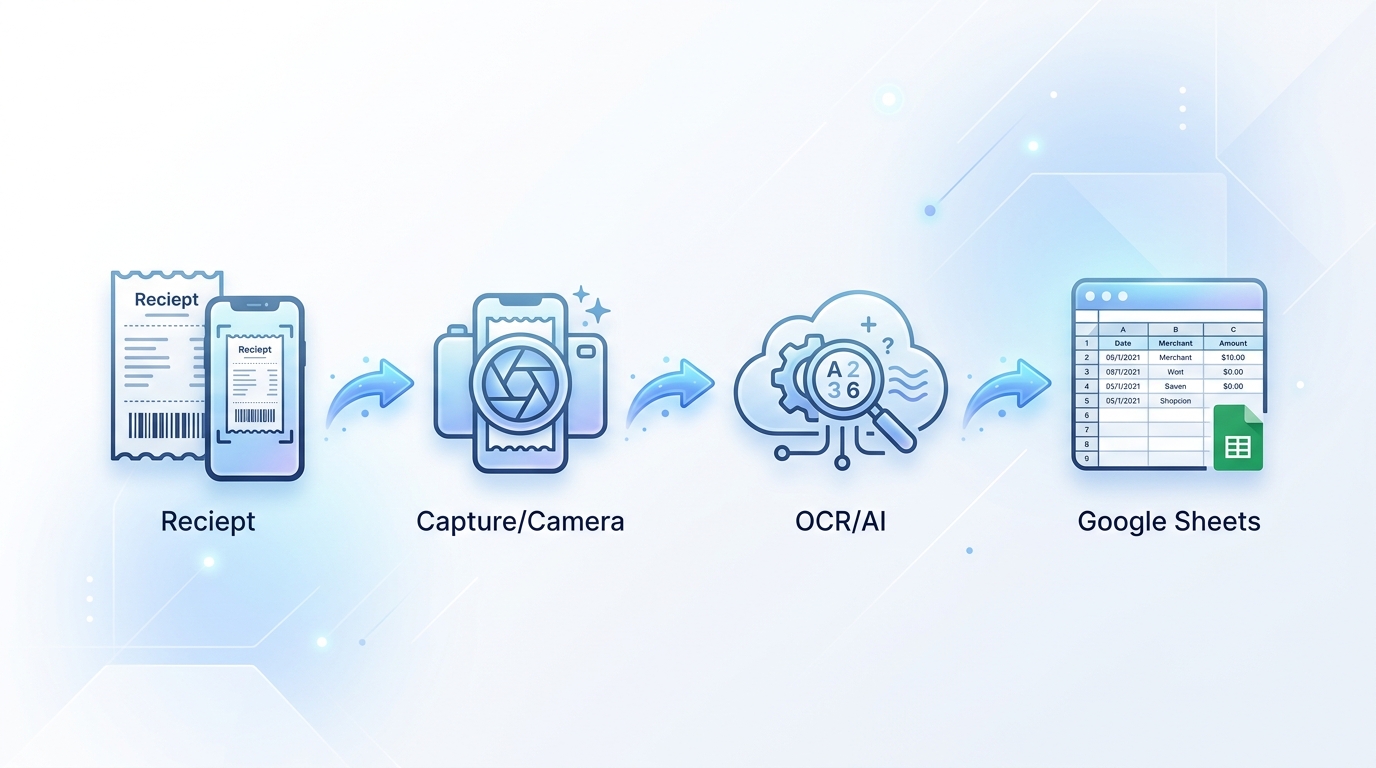
In today's fast-paced world, managing expenses and keeping accurate financial records can be a daunting task for individuals and businesses alike. The traditional method of manually entering receipt data into spreadsheets is time-consuming, prone to errors, and frankly, inefficient. Imagine a world where your physical receipts and digital invoices are automatically transformed into organized, actionable data in your preferred spreadsheet tool. This is precisely what a streamlined receipt to Google Sheets workflow offers, providing clarity, saving time, and ensuring accuracy.
Google Sheets is a powerful, accessible, and collaborative platform for data management. Integrating your expense tracking directly into Google Sheets can revolutionize how you handle financial data, from budgeting to tax preparation. The challenge has always been bridging the gap between unstructured receipt information and structured spreadsheet rows. Fortunately, tools like SlipSheet have emerged to automate this crucial connection, making the entire process seamless and efficient.
Getting Started with Your Receipt to Google Sheets Workflow
Embarking on an automated receipt to Google Sheets workflow starts with recognizing the immense benefits it brings. Manual data entry is not only tedious but also introduces human error, leading to inaccuracies that can complicate financial reconciliation. By adopting an automated solution, you ensure consistency and free up valuable time that can be better spent on analysis or core business activities.
SlipSheet stands as a pivotal tool in this modern workflow, designed specifically to address the pains of receipt management. It acts as the intelligent bridge, transforming chaotic piles of paper or digital files into clean, usable data within your Google Sheets. The process is straightforward, built for user convenience, and engineered for precision, making your transition to an automated system smooth and rewarding. Embracing this workflow means stepping into a more organized and productive financial management future.
Phase 1: Capturing and Uploading Your Receipts
The initial step in any effective receipt to Google Sheets workflow is getting your receipts into a system that can process them. This phase is all about convenience and flexibility, recognizing that receipts come in various forms, from crumpled paper slips to digital invoices in your inbox. SlipSheet excels here by offering multiple ways to ingest your financial documents, ensuring no receipt is left behind.
- Effortless Photo Capture: For physical receipts, simply snap a photo using your smartphone. SlipSheet's mobile-friendly interface makes this quick and intuitive. The quality of the photo is important for accurate extraction, so a clear, well-lit image is always best.
- Seamless Email Integration: Many businesses receive invoices and receipts directly via email. SlipSheet allows you to forward these email receipts directly to a dedicated address, instantly adding them to your processing queue. This eliminates the need for printing or manual saving, streamlining your digital expense capture.
- Bulk Uploads: If you have a collection of scanned receipts or downloaded digital files, SlipSheet supports bulk uploads, enabling you to process multiple documents at once. This feature is particularly useful for end-of-month reconciliation or catching up on past expenses.
By providing these diverse capture methods, SlipSheet ensures that whether your receipts are physical or digital, they can be easily and quickly brought into the automated workflow, setting the stage for efficient data extraction.
Phase 2: Automated Data Extraction with SlipSheet
Once your receipts are captured, the real magic of the automated receipt to Google Sheets workflow begins. This is where SlipSheet distinguishes itself, transforming raw, unstructured receipt images and emails into structured, organized data points. This phase leverages advanced technology to accurately identify and extract crucial information, saving you hours of manual input.
- Intelligent OCR and AI: SlipSheet employs state-of-the-art Optical Character Recognition (OCR) technology combined with artificial intelligence to read and interpret the text on your receipts. This goes beyond simple text recognition, understanding the context of the information.
- Precise Data Identification: The system is designed to automatically identify and pull out key financial details. This includes the vendor name, the exact date of the transaction, the total amount spent, and critically, the individual line item details from the receipt. Recognizing line items is especially valuable for detailed budgeting, categorization, and tax purposes.
- Categorization and Custom Fields: Beyond basic extraction, SlipSheet can often suggest categories for your expenses based on vendor or past entries. Furthermore, you can define custom fields to capture specific information relevant to your personal or business needs, adding another layer of organization before the data even reaches Google Sheets.
This automated extraction process is the backbone of an efficient receipt to Google Sheets workflow, ensuring that your data is not just collected, but intelligently processed and prepared for immediate use.
Phase 3: Reviewing and Refining the Structured Output
While automation is incredibly powerful, a critical component of a robust receipt to Google Sheets workflow is the ability to review and, if necessary, refine the extracted data. SlipSheet understands the importance of accuracy, providing you with a user-friendly interface to verify the extracted information before it's finalized. This step ensures data integrity and gives you complete control over your financial records.
- Intuitive Review Interface: After extraction, SlipSheet presents the captured receipt alongside the extracted data in a clear, side-by-side view. This allows for quick visual verification, ensuring that the vendor, date, total, and line items have been correctly identified.
- Easy Editing and Correction: Should any detail be slightly off, perhaps due to a blurry receipt image or an unusual format, SlipSheet allows for simple in-app editing. You can click on any field to make corrections, add missing information, or adjust categories. This ensures that the data going into your Google Sheet is 100% accurate to your specifications.
- Learning and Improvement: Each correction you make helps SlipSheet's AI learn and improve its accuracy for future extractions. Over time, the system becomes even more tailored to your specific receipt types and vendors, further enhancing the efficiency of your workflow.
This review phase is essential for maintaining high data quality, bridging the gap between automated processing and human oversight, and ensuring your Google Sheets are populated with reliable information.
Phase 4: Seamless Export to Google Sheets
The culmination of your efficient receipt to Google Sheets workflow is the seamless transfer of your now structured and verified expense data directly into your Google Sheet. This final step is where the power of automation truly shines, transforming individual receipts into organized rows of data ready for analysis, budgeting, and reporting. SlipSheet offers flexible export options to suit your preferences.
- Direct Integration: SlipSheet can directly integrate with Google Sheets, allowing you to push your processed receipts directly into a designated spreadsheet. This creates a live link, making updates and transfers incredibly smooth and efficient, often with just a click.
- Copy and Paste Functionality: For those who prefer a more hands-on approach or need to consolidate data from various sources, SlipSheet provides an easy copy and paste option. You can select the rows of extracted data and simply paste them into your Google Sheet, maintaining all formatting and column integrity.
- CSV Export: Alternatively, you can export your data as a Comma Separated Values (CSV) file. This universal format can then be easily imported into any Google Sheet, offering flexibility and compatibility with other spreadsheet applications if needed.
With your data now perfectly organized in Google Sheets, you unlock a wealth of possibilities. You can create custom dashboards, track spending trends, categorize expenses for tax purposes, collaborate with team members, and generate insightful reports, all powered by the accurate and timely data provided by your SlipSheet workflow.
Common Pitfalls and How to Avoid Them
While an automated receipt to Google Sheets workflow significantly streamlines expense management, being aware of common pitfalls can help you maximize its effectiveness. Many issues stem from the initial receipt capture or overlooking the review process.
- Poor Receipt Quality: Blurry photos, crumpled receipts, or faded ink can hinder even the best OCR technology. Always aim for clear, well-lit photos of receipts, ensuring all details are visible. For email receipts, ensure they are not truncated.
- Inconsistent Data Entry (Before Automation): If you previously used manual methods, you might have inconsistencies. SlipSheet helps standardize data, but be mindful of how you categorize and tag expenses within the tool for long-term consistency in Google Sheets.
- Skipping the Review Phase: While automation is generally accurate, it is not infallible. Skipping the review step, especially for new vendors or unusually formatted receipts, can lead to incorrect data in your Google Sheets. Always take a moment to verify the extracted information.
- Lack of Regularity: Letting receipts pile up defeats the purpose of an efficient workflow. Make it a habit to process receipts daily or weekly. This keeps your Google Sheet up-to-date and prevents overwhelming backlogs.
By addressing these potential issues proactively, you can ensure your SlipSheet-powered receipt to Google Sheets workflow operates at peak efficiency, providing you with consistently accurate and organized financial data.
Embracing a modern receipt to Google Sheets workflow with SlipSheet transforms a once tedious and error-prone chore into a smooth, efficient, and accurate process. From capturing diverse receipt types to intelligent data extraction, thorough review, and seamless export, every step is designed to optimize your financial record-keeping. Say goodbye to manual data entry and hello to organized, actionable insights in Google Sheets. Ready to transform your expense tracking? Visit slipsheet.app today and experience the ultimate receipt to Google Sheets workflow.
FAQ
What is the primary benefit of using a receipt to Google Sheets workflow?
The primary benefit is significant time savings and enhanced accuracy in expense tracking. It eliminates manual data entry, reduces errors, and provides organized financial data for budgeting and reporting.
How does SlipSheet handle different types of receipts?
SlipSheet is versatile, allowing users to capture physical receipts via smartphone photos, forward email receipts directly, or upload scanned digital files in bulk. This ensures all your expenses can be processed efficiently.
Can I edit the extracted data before exporting it to Google Sheets?
Yes, SlipSheet provides an intuitive review interface where you can easily verify and edit any extracted information, such as vendor names, dates, totals, or line items, before the data is finalized and exported.
How does SlipSheet ensure the accuracy of the extracted data?
SlipSheet uses advanced Optical Character Recognition, OCR, and artificial intelligence to accurately identify and extract key details from receipts. Additionally, the user review phase allows for human verification and correction, further enhancing data accuracy.
Is a SlipSheet-powered workflow suitable for both personal and business expenses?
Absolutely. A SlipSheet-powered receipt to Google Sheets workflow is highly adaptable for both personal financial management, like budgeting, and business expense tracking, including tax preparation and detailed reporting.