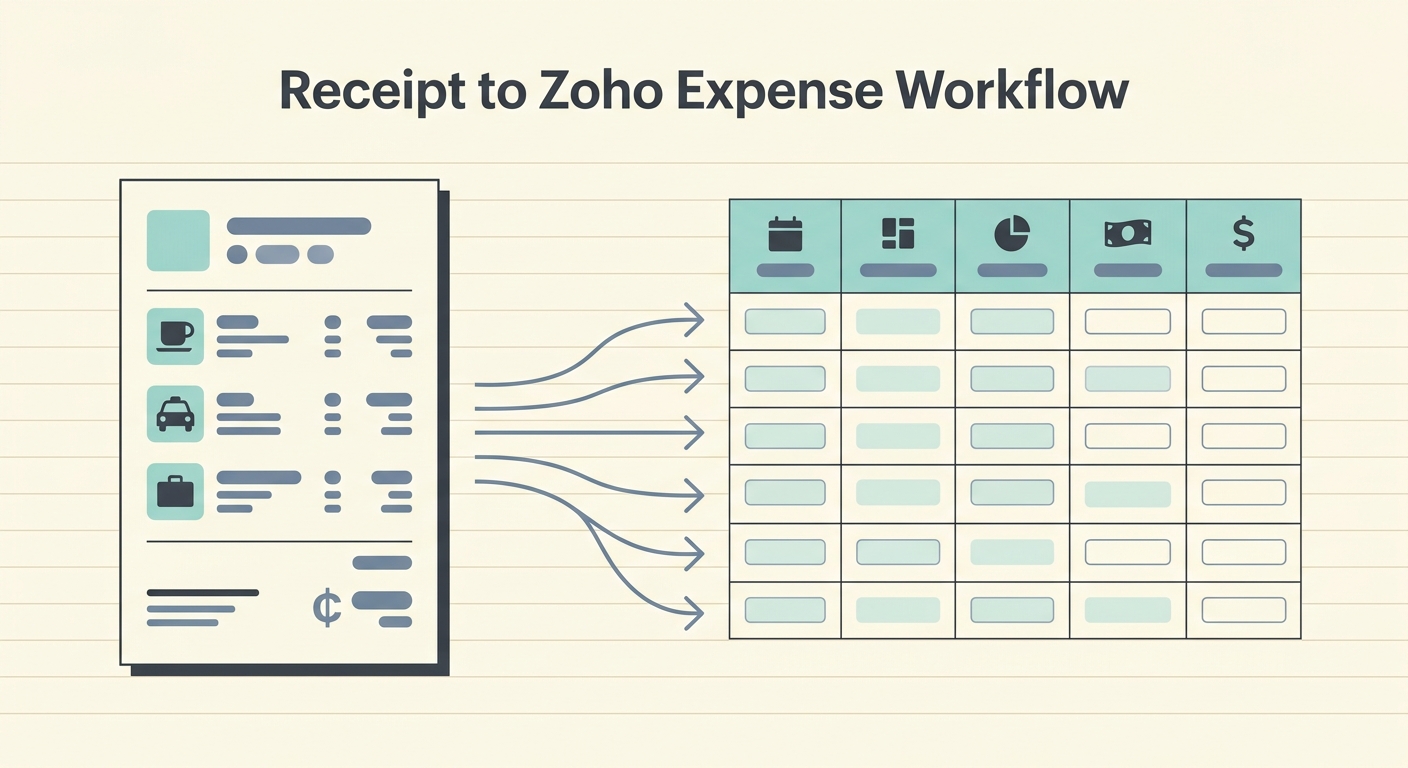
Streamlining Your Receipt to Zoho Workflow with SlipSheet: A Comprehensive Guide
Managing business expenses is a critical, yet often time-consuming, task for any organization. For users of Zoho Expense, the goal is always to achieve a seamless and accurate receipt to Zoho workflow. Manually entering data from physical receipts or sifting through email inboxes can be a significant drain on productivity and increase the risk of errors. This is where SlipSheet, an innovative tool designed to transform your receipt management, becomes an invaluable asset. By automating the extraction of data from various receipt formats, SlipSheet drastically simplifies and accelerates your entire expense reporting process, ensuring your Zoho Expense account is always up-to-date and accurate.
This guide will walk you through an optimized receipt to Zoho workflow, highlighting how SlipSheet integrates effortlessly at each stage to enhance efficiency, reduce manual effort, and improve the overall accuracy of your expense data. Prepare to revolutionize the way you handle receipts, from capture to final export into Zoho Expense.
Getting Started with an Efficient Receipt to Zoho Workflow
The first step to optimizing your receipt to Zoho workflow is recognizing the pain points in your current process. Are you spending too much time on data entry? Are receipts frequently lost or misplaced? SlipSheet addresses these challenges head-on by providing a centralized, intelligent platform for all your receipt data. Getting started is straightforward, requiring minimal setup to integrate into your existing financial habits.
- Sign Up for SlipSheet: Begin by creating an account at slipsheet.app. The user-friendly interface is designed for quick adoption, allowing you to start processing receipts almost immediately.
- Understand Your Needs: Before you begin, consider the types of receipts you most frequently encounter. SlipSheet is equipped to handle both photographic receipts and digital email receipts, offering unparalleled versatility for your receipt to Zoho workflow.
- Familiarize Yourself with the Dashboard: Spend a few moments exploring the SlipSheet dashboard. You will find it intuitive, with clear pathways for uploading, reviewing, and exporting your expense data.
Phase 1: Capturing and Uploading Receipts Effortlessly
The foundation of any efficient receipt to Zoho workflow is the initial capture of expense data. Traditional methods often involve keeping physical receipts in wallets, scanning them, or forwarding individual emails, all of which are prone to delays and errors. SlipSheet simplifies this by offering multiple, convenient ways to capture your receipts, ensuring no expense goes unrecorded.
- Photo Capture: For physical receipts, simply snap a photo using your smartphone. SlipSheet's advanced optical character recognition (OCR) technology will then process the image, identifying key data points such as vendor, date, total amount, and currency. This eliminates the need for manual transcription, a common bottleneck in the receipt to Zoho workflow.
- Email Forwarding: For digital receipts received via email, SlipSheet provides a unique email address. Simply forward your receipt emails to this address, and SlipSheet will automatically extract the relevant information. This feature is particularly useful for online purchases, subscriptions, and travel bookings, making your digital receipt to Zoho workflow incredibly smooth.
- Direct Upload: If you have existing digital receipt files, such as PDFs or image files, you can upload them directly to SlipSheet through its web interface. This flexibility ensures all your receipts, regardless of their origin, can be centrally managed and processed.
Phase 2: Reviewing and Verifying Extracted Data
Accuracy is paramount in expense reporting. While SlipSheet's OCR technology is highly sophisticated, a quick review phase ensures that every piece of data is correct before it makes its way into your Zoho Expense account. This verification step is a crucial component of a robust receipt to Zoho workflow, empowering you with control and confidence in your financial records.
- Automated Extraction: Upon capture, SlipSheet automatically extracts all pertinent information. You will see fields populated for vendor name, transaction date, total amount, currency, and often line-item details.
- User-Friendly Review Interface: SlipSheet presents the extracted data in a clear, editable format. You can quickly scan through each field to confirm its accuracy. If any detail needs adjustment, such as a slightly misread vendor name or an incorrect date, you can easily edit it directly within the platform.
- Side-by-Side View: To aid in verification, SlipSheet often displays the original receipt alongside the extracted data. This side-by-side view allows for quick comparisons and ensures that any discrepancies are immediately noticeable and correctable, solidifying the reliability of your receipt to Zoho workflow.
Phase 3: Assigning Categories and Tags for Zoho Expense Integration
Once the data is accurately extracted and verified, the next step in preparing your expenses for Zoho Expense is categorization. Proper categorization is vital for financial reporting, budgeting, and tax compliance. SlipSheet facilitates this by allowing you to add meaningful context to each expense, aligning perfectly with Zoho Expense's organizational structure.
- Customizable Categories: Within SlipSheet, you can assign categories to each expense. While SlipSheet may suggest categories based on vendor type, you have the flexibility to select from a predefined list or create custom categories that mirror those in your Zoho Expense account. This pre-categorization streamlines the final export process.
- Adding Tags and Notes: Beyond categories, you can add tags, project codes, or internal notes to each expense. These additional details are invaluable for granular reporting and internal auditing, providing a richer dataset for your receipt to Zoho workflow. For example, you might tag an expense with a specific client name or project ID.
- Memorized Preferences: SlipSheet learns from your past categorizations. If you frequently categorize expenses from a particular vendor in a certain way, SlipSheet will begin to suggest or automatically apply those categories, further accelerating your data preparation.
Phase 4: Seamless Export to Zoho Expense
The final, and perhaps most satisfying, phase of your optimized receipt to Zoho workflow is the export of your meticulously prepared data into Zoho Expense. SlipSheet ensures this transition is smooth, efficient, and error-free, eliminating the manual data entry that often plagues traditional expense management.
- Direct Integration Options: SlipSheet offers robust export functionalities. While direct API integration with Zoho Expense might be available or in development, a common and highly effective method is to export your data in a format readily accepted by Zoho Expense, such as a CSV file.
- Customizable Export Fields: When exporting, you can select which fields to include, ensuring that the exported file contains all the necessary data points for Zoho Expense, including vendor, date, amount, currency, category, and any tags or notes you added.
- Batch Export Capabilities: Rather than exporting one receipt at a time, SlipSheet allows you to select and export multiple receipts simultaneously. This batch processing capability significantly reduces the time spent on administrative tasks, making your receipt to Zoho workflow incredibly efficient.
- Easy Import into Zoho Expense: Once exported from SlipSheet, the file can be easily imported into Zoho Expense. Zoho Expense typically has an intuitive import function that maps the columns from your SlipSheet export directly to its own expense fields, completing the cycle with minimal effort.
Common Pitfalls and How to Avoid Them in Your Receipt to Zoho Workflow
Even with advanced tools like SlipSheet, users can encounter common issues. Being aware of these pitfalls allows you to proactively avoid them, ensuring an even smoother receipt to Zoho workflow.
- Poor Quality Receipt Photos: Blurry, poorly lit, or crumpled receipts can hinder OCR accuracy. Always take clear, well-lit photos of your physical receipts, ensuring all details are legible.
- Inconsistent Categorization: Failing to maintain consistent categorization within SlipSheet can lead to messy data in Zoho Expense. Take the time to set up and consistently use a standardized set of categories and tags.
- Delayed Processing: Letting receipts pile up before processing them can negate the benefits of automation. Adopt a habit of capturing and processing receipts regularly, ideally as soon as the expense occurs.
- Not Utilizing All Features: SlipSheet offers powerful features like custom tags and learning categories. Fully explore and utilize these functionalities to maximize efficiency in your receipt to Zoho workflow.
- Ignoring the Review Phase: While SlipSheet is highly accurate, skipping the review step can allow minor errors to propagate into Zoho Expense. Always perform a quick check of extracted data before exporting.
By integrating SlipSheet into your expense management strategy, you are not just adopting a tool; you are embracing a more intelligent, efficient, and accurate way to handle your finances. The journey from a crumpled receipt to a perfectly categorized entry in Zoho Expense has never been easier or faster. Say goodbye to manual data entry headaches and hello to streamlined financial management.
Ready to transform your receipt to Zoho workflow? Discover how SlipSheet can simplify your expense reporting and save you valuable time. Visit slipsheet.app today to get started!
FAQ
What is the primary benefit of using SlipSheet for my receipt to Zoho workflow?
The primary benefit is automation and accuracy. SlipSheet eliminates manual data entry, saving significant time and reducing errors by intelligently extracting data from receipt photos and emails before exporting to Zoho Expense.
How does SlipSheet handle different types of receipts?
SlipSheet is versatile, handling both physical receipts, which can be captured via smartphone photos, and digital receipts, which can be forwarded directly via email or uploaded as files.
Can I categorize my expenses in SlipSheet before exporting to Zoho Expense?
Yes, SlipSheet allows you to assign customizable categories, tags, and notes to each expense. This pre-categorization streamlines the import process into Zoho Expense and enhances reporting capabilities.
Is there a direct integration between SlipSheet and Zoho Expense?
While specific direct API integrations are continuously developed, SlipSheet offers robust export functionalities, typically via CSV files, that are easily imported into Zoho Expense's system with mapped fields.
What should I do if SlipSheet misreads some information on a receipt?
SlipSheet provides a user-friendly review interface where you can easily verify and edit any extracted data. A side-by-side view of the original receipt and extracted data makes corrections quick and simple.