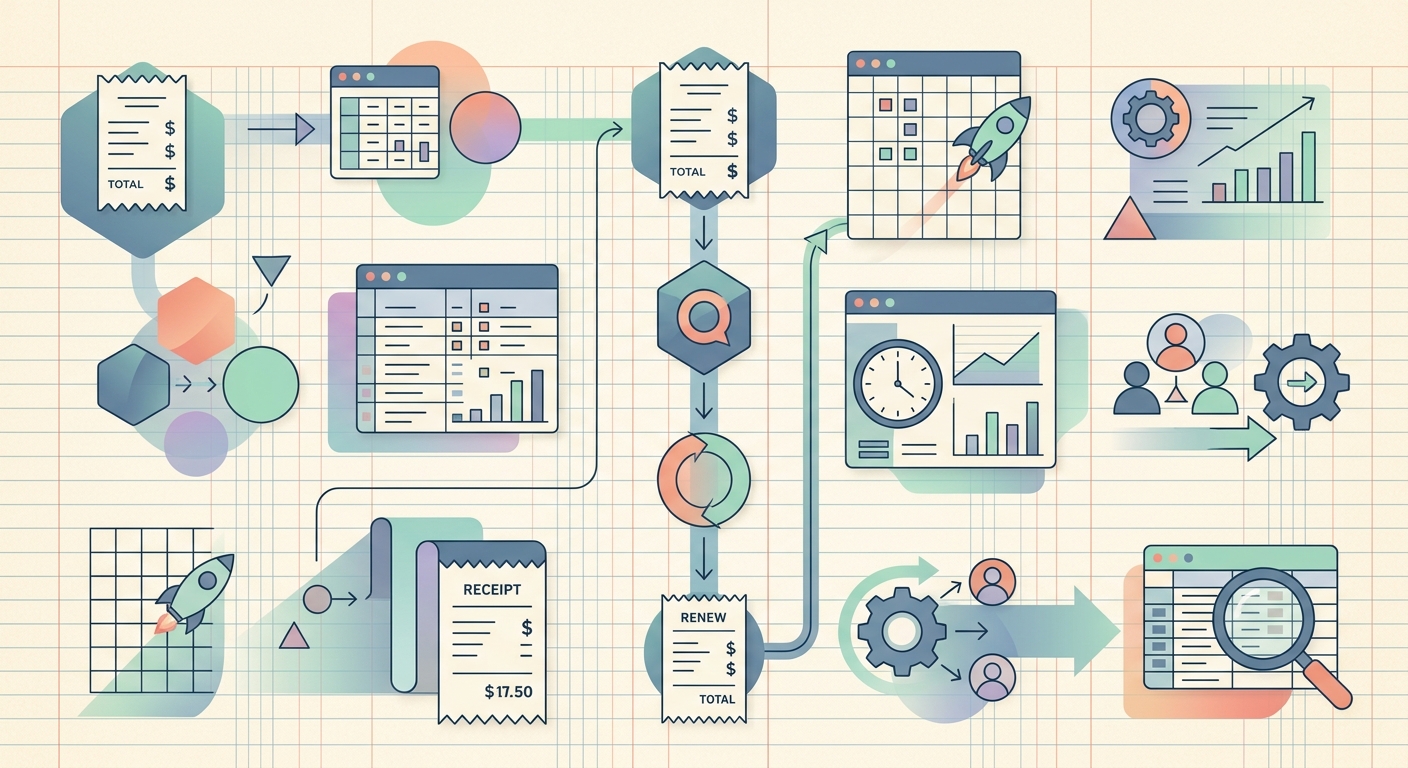
Most small teams bleed money on SaaS subscriptions they forgot they were paying for. A design tool here, a CRM add-on there, a forgotten analytics trial that converted to a paid plan three months ago. The fix is not a new piece of software; the fix is a short, repeatable workflow that catches every charge, assigns it to a cost center, and surfaces the renewals you actually need to act on.
This workflow walks through how to track SaaS subscriptions the same way you track any other business expense: capture the receipt or invoice the moment it lands, extract the key fields, tag it to the right project or department, and export it to your accounting tool before the next billing cycle rolls around. SlipSheet is the spreadsheet-first tool that holds the middle of this workflow together.
Capture every charge the moment it lands
The first step is the easiest to skip and the most expensive to ignore. Every SaaS subscription sends a receipt: a welcome email when you sign up, an invoice on the first of the month, and a renewal notice a week or two before the card is charged again. Forward those emails to a single inbox, drop the PDFs into one folder, or take a quick photo of the screen with your phone. The goal is to get the charge out of your head and into a place you can search.
If you already use a shared drive or a Slack channel for receipts, keep using it; just make sure SaaS receipts live alongside the rest of your expenses and not in a separate "software" folder that nobody opens. The whole point of the workflow is to stop treating software as a special case.
Extract the fields that matter
Once the receipt is captured, you need four pieces of information: the vendor, the amount, the billing cycle (monthly, annual, per-seat), and the renewal date. SlipSheet reads those fields off a receipt photo or PDF and drops them into a spreadsheet row. You can also paste a forwarded email and let it pull the merchant, total, and date from the message body.
The billing cycle matters more than the dollar amount for SaaS tracking. A $20 monthly charge that auto-renews for a year costs $240; a $200 annual charge that you forgot about costs the same $200 with no surprise. Tag the cycle on every row so the renewal column sorts cleanly and you can see, at a glance, what hits the card next month.
Assign a category and an owner
Every SaaS line item needs two tags: a category (Marketing, Engineering, Operations, Sales) and an owner (the person on the team who actually uses the tool). Without those tags, you cannot answer the only question that matters during a budget review: "Do we still need this?"
Use a single category column and a single owner column. Resist the urge to nest subcategories or add a project tag on top. The simpler the tagging scheme, the more likely it is that you (or a bookkeeper) will keep it current. SlipSheet lets you set default categories by vendor so that Notion always lands in Operations and Figma always lands in Design without typing the same tag twice.
Review before the renewal hits
Set a 14-day reminder on the renewal column. Two weeks before any subscription renews, you should be able to see three numbers side by side: what you paid last cycle, what you will pay this cycle, and the last time someone on the team actually logged in. That third number is the one that kills zombie subscriptions.
For tools with built-in usage reports, log into the admin console once a quarter and pull the active-user count. If the owner column says four people but only one logged in last month, you have an answer: downgrade the seat count, move the plan to a lower tier, or cancel and find a free alternative. SlipSheet can hold a usage notes column for this so the decision is documented for the next time the renewal comes up.
Export to your accounting tool
When the month closes, export the SaaS subscription rows to your accounting software. Most bookkeepers want the export broken out by category so that software expenses sit on their own line in the P&L, not buried inside Office Supplies or Miscellaneous. SlipSheet exports to CSV, Google Sheets, Excel, and QuickBooks; pick the format your accountant already opens.
Tag exports by date range, not by month. A clean export covers the calendar month, matches the bank statement, and includes a category subtotal at the bottom. If you run multiple entities or a side hustle in the same sheet, filter the export by entity before you send it so the bookkeeper is not sorting personal charges out of the business pile.
Getting started
Set up the workflow in one afternoon. Create a folder for SaaS receipts, point your email forwarder at it, and import your last three months of invoices to seed the spreadsheet. Tag every line with a category and an owner, then set the 14-day renewal reminder. The first month will take an hour; every month after that takes ten minutes.
If you are starting from zero, SlipSheet's SaaS subscription template ships with the categories, owner column, and renewal reminder already wired up. Drop your first receipt in, tag it, and the workflow runs itself.
Common pitfalls
Three mistakes catch most teams. First, capturing only the welcome email and missing the renewal notice, so the renewal column is wrong from day one. Forward the renewal email too, or set a calendar reminder to log the renewal date manually. Second, tagging by department without an owner; a category without a name attached becomes orphan data the moment the team rotates. Third, exporting to the accountant without filtering by entity, which forces the bookkeeper to do your cleanup work and burns the goodwill you built by sending the export in the first place.
Avoid those three and the workflow pays for itself in the first cancelled zombie subscription. Most small teams recover $50 to $300 a month once they actually look at what they are paying for.
Ready to stop guessing what your software costs? Start a free SlipSheet trial and run the SaaS subscription workflow on your own stack this week.
FAQ
How often should I review my SaaS subscriptions?
Run a full review once a quarter and check the renewal column once a month. The 14-day renewal reminder in SlipSheet fires before any auto-charge, so you have time to cancel or downgrade before the card is hit.
What fields do I need to track for each subscription?
Vendor, amount, billing cycle (monthly, annual, per-seat), renewal date, category, and owner. Those six fields answer 90% of the questions a bookkeeper or finance lead will ask during a budget review.
Can I track per-seat pricing with this workflow?
Yes. Add a 'seats' column next to the amount column and a 'cost per seat' formula. SlipSheet will calculate the per-seat rate so you can compare plans across vendors without doing the math in your head.
How do I handle annual subscriptions that renew all at once?
Log the renewal date for the full year and split the cost into a monthly amortized amount. That way your monthly P&L reflects the true software expense instead of one big spike in the renewal month.
What is the fastest way to find zombie subscriptions?
Sort by renewal date and check the usage notes column for each line. Any subscription where nobody logged in during the last 30 days is a candidate to cancel or downgrade before the next renewal.