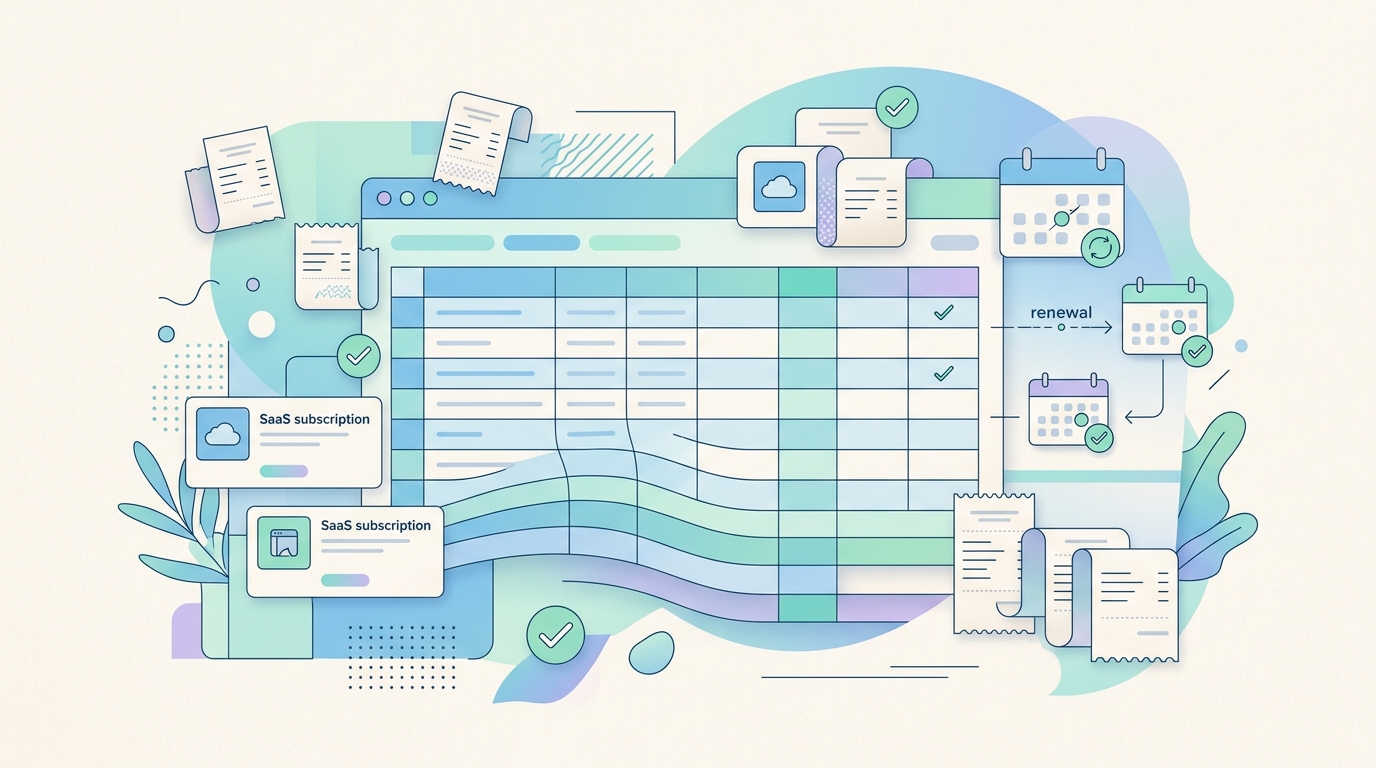
A software expense template is a simple control system for one of the messiest categories in a modern small business budget. The problem is not that software receipts are hard to find. The problem is that software spending spreads across app stores, Stripe checkouts, marketplace invoices, renewal emails, card statements, team seats, annual plans, trials that converted, and tools purchased by different people. By the time bookkeeping starts, the receipt trail is usually scattered.
The goal of a good software expense template is to turn those scattered purchases into a clean review table: what was bought, who owns it, how often it renews, what account it belongs to, whether the receipt is saved, and how it should be categorized. That matters because the IRS describes business expenses as costs that are ordinary and necessary for carrying on a trade or business, and it expects records that support the deduction. A template gives you a repeatable way to collect that support before month-end turns into archaeology.
What the template should track
Software expenses deserve more detail than a generic office expense row. The same vendor can bill monthly, annually, per seat, per workspace, or through a reseller. A useful template should separate the transaction from the subscription it represents.
- Date paid: The card or bank transaction date.
- Vendor: The legal or billing name, not just the product nickname.
- Product: The app, plugin, API, hosting add-on, or subscription being used.
- Plan or seats: Tier name, seat count, workspace, or usage package.
- Amount and currency: Include tax, fees, and foreign currency if applicable.
- Billing cycle: Monthly, annual, usage-based, one-time, or trial conversion.
- Owner: The person or team responsible for approving the tool.
- Business purpose: A plain-language note that explains why the software exists.
- Category: Bookkeeping category such as software, subscriptions, hosting, advertising, or contractor tools.
- Receipt status: Saved, missing, OCR reviewed, duplicate, refunded, or needs follow-up.
That last field is easy to underestimate. A spreadsheet full of amounts is not enough if the source documents are missing. SlipSheet helps by converting receipt PDFs, screenshots, and invoice images into spreadsheet-ready rows so the template does not depend on manual typing.
How to collect software receipts
Start with the places software receipts actually arrive. Search email for terms such as receipt, invoice, subscription, renewal, payment, card ending digits, and processor names. Stripe, Paddle, Apple, Google, GitHub, AWS, Google Workspace, Adobe, Canva, Notion, Figma, OpenAI, Slack, and Zoom all leave different receipt trails. Some send PDFs. Others send HTML emails that must be saved as PDFs or screenshots.
For each receipt, capture the document in a consistent folder and name it with the payment date, vendor, and amount. Then extract the fields into the template. If you have a batch of receipts, OCR saves time, but it still needs review. OCR can misread totals, taxes, currencies, invoice numbers, and vendor names, especially when the receipt is a screenshot or a forwarded email. The template should include a review column so you can distinguish raw extraction from approved bookkeeping data.
- Save the original receipt or invoice, not only the spreadsheet row.
- Keep refunds and credits as separate rows rather than hiding them inside notes.
- Mark annual renewals clearly so cash flow does not surprise you later.
- Record the user, workspace, or project when a vendor bills multiple products.
How to categorize software costs
Not every software charge belongs in the same bucket. A design subscription, cloud hosting bill, payment processor add-on, AI API bill, bookkeeping app, and recruiting tool may all look like software, but they can tell different stories in management reporting. Your bookkeeper may keep them in one account, but your operating review may need finer labels.
A practical template can include both a bookkeeping category and a management tag. The bookkeeping category keeps the export consistent with your accounting system. The management tag explains how the tool supports the business, such as product development, marketing, support, operations, finance, or sales. This makes review more useful than a single growing total called software.
- Software subscriptions: SaaS apps used by the team.
- Cloud and infrastructure: Hosting, storage, databases, domains, email delivery, or usage-based APIs.
- Marketing tools: SEO, analytics, ad platforms, landing page tools, and email marketing.
- Professional tools: Accounting, legal, payroll, project management, and admin software.
- Capitalized or prepaid items: Large annual contracts may need special accounting treatment, so flag them for review.
A monthly software expense workflow
The best template is the one you can actually maintain. Run a monthly workflow after transactions settle and before books are closed. Export software-like transactions from your bank, card, or accounting system, then match each transaction to a receipt. Use SlipSheet to extract receipt details into rows, paste or import them into the template, and review exceptions.
- Filter card transactions for known software vendors and recurring charges.
- Search email and vendor portals for missing receipts.
- Upload receipts to SlipSheet and convert them into CSV-ready data.
- Compare extracted totals to bank or card amounts.
- Assign category, management tag, owner, and renewal date.
- Flag missing receipts, duplicate subscriptions, unexpected price increases, and unused seats.
For teams, add an approval rule: every new paid tool needs an owner, a business purpose, and a renewal reminder.
Download structure for a software expense template
If you are building the spreadsheet from scratch, create one tab for transactions and one tab for vendors. The transaction tab is the monthly bookkeeping view. The vendor tab is the subscription inventory. Keeping both avoids a common mistake: treating each charge as isolated when it is actually part of a recurring commitment.
- Transactions tab: date, vendor, product, amount, currency, tax, payment method, receipt file, OCR status, category, notes.
- Vendors tab: product, owner, plan, seats, billing cycle, renewal date, cancellation URL, admin URL, business purpose.
- Review tab: missing receipts, annual renewals due soon, duplicate tools, price increases, and uncategorized charges.
SlipSheet fits into the front of the workflow by turning documents into spreadsheet rows, so the template can stay focused on review and decisions instead of data entry.
FAQ
What is a software expense template?
A software expense template is a spreadsheet or table used to track purchases, subscriptions, receipts, categories, owners, and renewal dates. It helps organize bookkeeping support and review recurring spend.
Should software receipts be saved if the charge appears on a bank statement?
Yes. A bank or card statement proves payment, but the receipt or invoice usually provides vendor details, tax, product, and business context that support bookkeeping and tax review.
Can OCR be used for software receipts?
Yes, OCR is useful for extracting vendor names, dates, totals, and invoice details from PDFs, screenshots, and email receipts. You should still review extracted fields because software receipts often include taxes, credits, currencies, and renewal details that can be misread.
How often should software expenses be reviewed?
Monthly review is best for accuracy, while quarterly review is useful for renewal cleanup, unused seats, duplicates, and price increases.
What categories should I use for software spending?
Common categories include software subscriptions, cloud infrastructure, marketing tools, professional software, and prepaid annual contracts. Use the categories your accounting system needs, then add management tags for better operating insight.