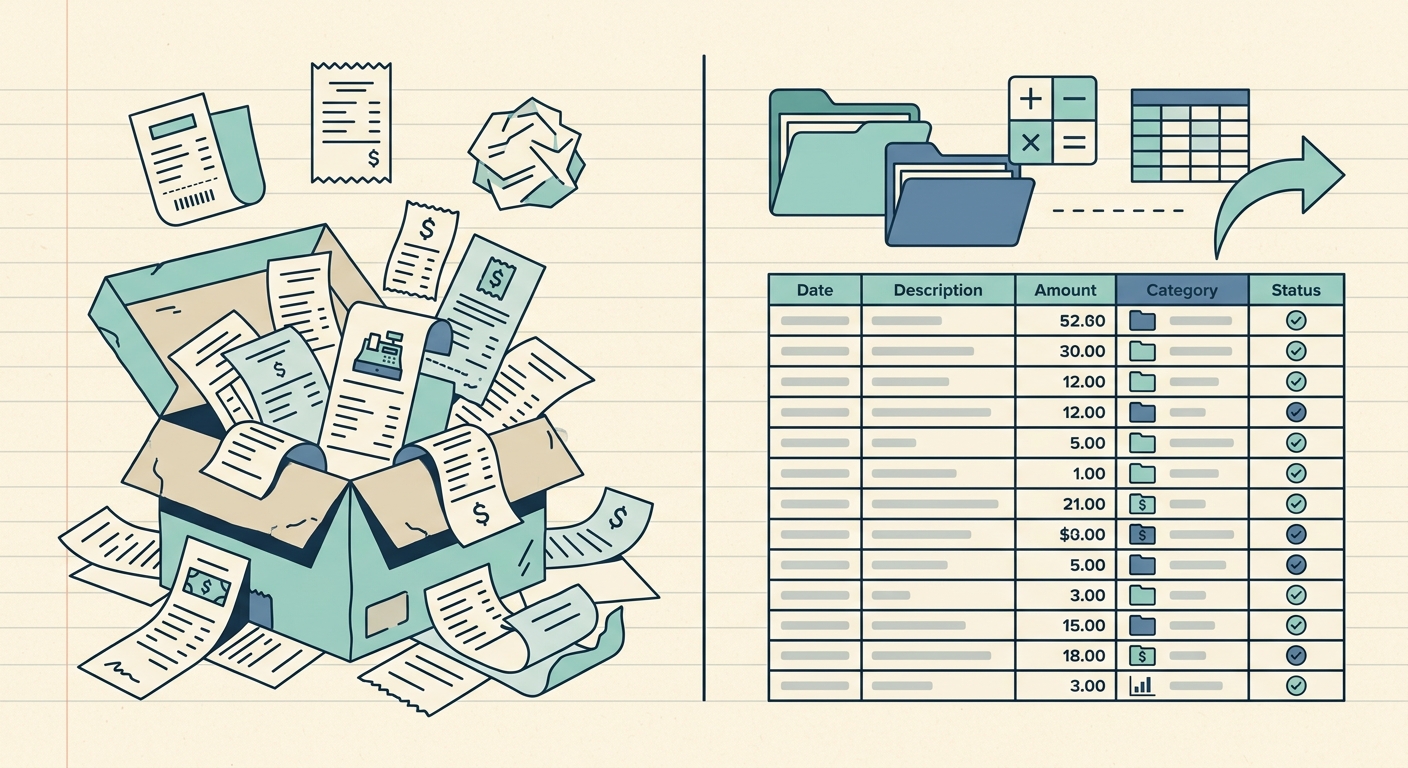
If you have ever tried to pull a clean list of business expenses out of your bank feed, you already know the catch. Bank imports give you raw transactions, not a tidy ledger. The numbers show up, but the merchant name is mangled, the category is a guess, and the receipt that proves the charge is sitting in a drawer or a different app entirely. That gap is why many freelancers, bookkeepers, and small business owners start searching for a bank import alternative. They want the simplicity of a CSV export, but with the receipts attached and the math already done.
What bank imports do well
Bank imports earned their place in modern accounting software for good reasons. They pull every transaction from your checking, savings, and credit card accounts in near real time, which means you stop typing in numbers by hand. Most tools match the feed against a category list and let you recategorize mistakes with a click. For businesses that need to know today's cash position, that live feed is genuinely useful.
Bank imports also keep a long history. Once you connect an account, you can usually pull 12 to 24 months of past transactions, which is great for catching up on a new client's books or rebuilding last year's file. The native feeds handle duplicates, splits, and reconciliation tags without extra setup.
Where bank imports fall short
The trouble starts when the IRS, a lender, or your accountant asks for the receipt behind a transaction. Bank imports know the amount and the merchant; they do not know what you actually bought. You end up with a long list of charges like "AMZN MKTPL*X123" that you have to chase down one at a time. For a freelancer with 80 transactions a month, that chase eats a Saturday.
There is also the categorization ceiling. Bank feeds guess, and their guesses lean generic: "shopping," "other services," "miscellaneous." Real expense reports need more texture, like which client the lunch was for, whether the software subscription is a product cost or a software expense, and which quarter the equipment purchase landed in. You can edit each line, but that turns into another row-by-row chore.
Finally, bank imports lock you into whatever format your accounting platform prefers. Exporting to a spreadsheet usually means a generic CSV with merged cells and odd headers. If you live in Excel or Google Sheets, the export is more of a starting point than a finished file.
What SlipSheet does differently
SlipSheet approaches the same problem from the other direction. Instead of starting with your bank feed, it starts with your receipts. Snap a photo of a receipt, drop in a PDF, or forward an email receipt, and SlipSheet reads the merchant, date, line items, tax, and total. The receipt becomes the source of truth, and the bank transaction is just the verification step later.
Every receipt lands in a clean spreadsheet with the columns you actually use: date, vendor, category, tax, payment method, and notes. You can add columns for client, project, or location without breaking the layout. The exported CSV opens in Excel, Google Sheets, or Numbers exactly the way you would build it yourself, because you would build it that way if you had the time.
Because the data is keyed off the receipt image, you have proof for every line. An auditor can ask "show me the receipt for this $42 charge" and you have it in two clicks. That is the part bank imports cannot replicate, since the feed never sees the receipt in the first place.
Who should switch from bank imports
A pure bank import workflow works fine if your business is mostly subscription charges and recurring vendor payments, and you are happy with high-level categories. The moment you start working in different client accounts, sharing books with a bookkeeper, or being asked for source documents, the gap shows up.
Consider a switch if any of these sound familiar:
- You need per-client or per-project breakdowns that your bank feed cannot tag.
- Your accountant or the IRS has asked for receipts, and you had to scramble.
- You live in a spreadsheet, and your current export takes 20 minutes to clean up.
- Cash purchases, contractor payments, or reimbursements never make it into the imported feed.
- You want a single file you can email to your bookkeeper without giving them software access.
For users in that group, a receipt-first workflow is usually faster at month-end and far easier to defend in an audit.
Common migration questions
Do I have to give up my bank feed entirely? No. Many users keep a passive bank connection for cash-flow visibility and use SlipSheet for the receipt-driven expense ledger. The two cover different jobs.
What about historical transactions? SlipSheet works best going forward. For past months, keep your existing imported history; just attach the receipts you still have to the lines that need documentation.
Can I share the spreadsheet with my bookkeeper? Yes. The export is a standard CSV, so your bookkeeper can open it in their tool of choice without learning new software.
How long does it take per receipt? A typical receipt takes about 10 seconds to snap and review. Most users spend less than five minutes a day keeping up.
If the receipts are the real story behind your expenses and the bank feed is just the receipt line, SlipSheet is built for that workflow. Try SlipSheet and turn your next stack of receipts into a finished spreadsheet before your coffee gets cold.
FAQ
Is a bank import alternative really necessary if my accounting app already connects to my bank?
If you only need a rough ledger of charges, a bank feed is enough. If you need receipts attached, per-client tags, and a clean spreadsheet export, a receipt-first tool fills the gap that bank imports leave open.
Can SlipSheet replace my bank import, or do I need both?
Many users keep a passive bank connection for cash-flow visibility and run SlipSheet as the receipt-driven expense ledger. The two tools cover different jobs and complement each other well.
What kinds of expenses work best in a receipt-first workflow?
Cash purchases, contractor payments, reimbursements, and any charge where the vendor name on the bank feed does not explain the purchase. Receipts capture the detail that bank feeds cannot.
How do I move my existing imported transactions to SlipSheet?
Keep your past imported history where it is. Start SlipSheet fresh for the next month, and attach the receipts you still have to the older lines that need documentation. The new system runs alongside the old one.
Will my bookkeeper be able to use the SlipSheet export?
Yes. The export is a standard CSV that opens cleanly in Excel, Google Sheets, Numbers, and any bookkeeping software that accepts CSV imports. No new tool to learn.