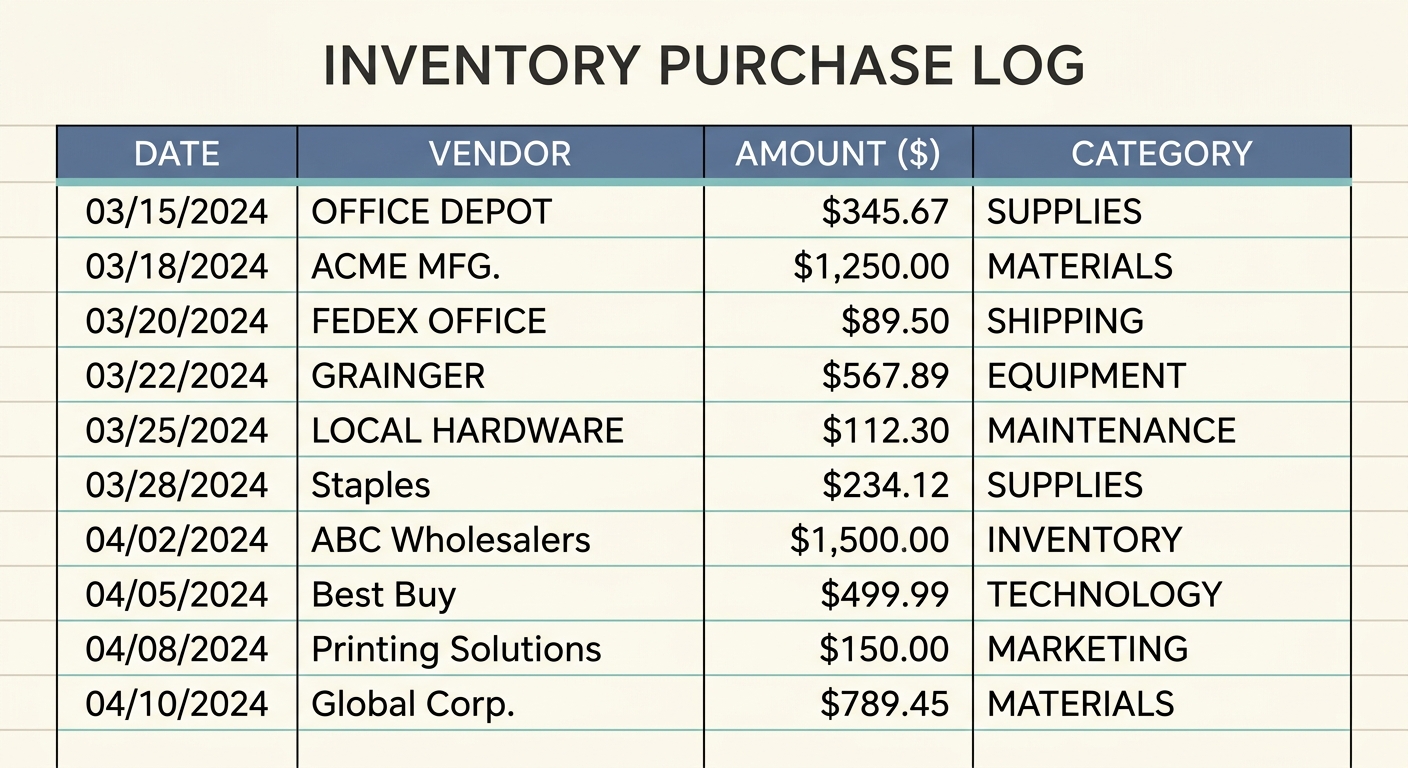
Inventory costs can quietly become one of the messiest parts of small business bookkeeping. A few supplier receipts land in email, a few paper invoices stay in a drawer, and a quick store run gets paid for on a card that also covers other expenses. By month end, it is hard to tell what was bought, where it went, and whether the cost belongs in inventory, supplies, or cost of goods sold.
An inventory purchase log template gives you one clean place to record every inventory buy before the details disappear. It is simple enough for a shop owner, contractor, maker, food business, online seller, or bookkeeper to maintain, but structured enough to support better stock tracking and cleaner accounting exports.
What the template is
An inventory purchase log is a spreadsheet-style record of items purchased for resale, production, or stock replenishment. It does not replace a full inventory management system, and it does not need to. Its job is to capture the purchase details that matter for bookkeeping and operational review.
The template works best as a running log. Each row represents one inventory purchase line, not necessarily one receipt. If a supplier invoice includes five different products, you can either record five rows for item-level detail or one summary row if that is enough for your business. The right level of detail depends on how closely you track margins, stock counts, and supplier pricing.
For many small teams, the log becomes the bridge between receipts and accounting. You capture the receipt, extract the important fields, review the numbers, and keep a clean spreadsheet that can be shared with your bookkeeper or imported into another system.
Fields and columns
A practical inventory purchase log should stay focused. Too many columns make the template harder to use; too few columns force you to hunt through receipts later. Start with these core fields:
- Date: The purchase or invoice date. Use one consistent date format so sorting and filtering work correctly.
- Item: The product, material, part, ingredient, or SKU purchased.
- Vendor: The supplier, marketplace, store, distributor, or manufacturer.
- Quantity: The number of units purchased. If units vary, add the unit type in the item name or notes.
- Unit cost: The cost per item before tax, shipping, or discounts, if available.
- Total: The line total for the purchase. This should tie back to the receipt or invoice.
- Location: Where the inventory went, such as warehouse, retail shelf, job site, vehicle, storage room, or online stock.
- Notes: Anything useful later, including order number, receipt link, tax treatment, damaged items, backorders, or special pricing.
If your business needs more detail, add columns for SKU, category, payment method, receipt URL, tax, shipping, discount, account code, or project. Keep those optional. The template should make daily entry easier, not turn every receipt into a research project.
How to use it
The best time to update an inventory purchase log is immediately after a receipt or invoice arrives. Waiting until the end of the month creates more work and more guessing. A simple weekly rhythm is still workable if purchases are low volume, but high-volume sellers should update the log more often.
- Capture the source document. Save the receipt, invoice, order confirmation, or packing slip. If it is paper, scan it or take a clear photo.
- Record the purchase date and vendor. These fields make reconciliation easier when reviewing bank and card transactions.
- Enter each item or summary line. Choose the level of detail your business actually uses. If you track stock by SKU, enter by SKU.
- Check quantity and cost. Unit cost and total cost are the fields most likely to affect margin decisions, so review them carefully.
- Add location and notes. This helps later when inventory is split across shelves, storage, job sites, or sales channels.
- Review before export. Filter for blanks, duplicate receipts, unusual totals, and inconsistent vendor names.
SlipSheet can help with the capture and extraction steps. Instead of typing every field from every receipt, you can upload receipts, let SlipSheet pull structured data into rows, review the results, and export a spreadsheet. That is especially useful when purchases come from a mix of paper receipts, PDFs, forwarded emails, and mobile photos.
Customization options
The template should match how your business thinks about inventory. A cafe might care about ingredients, supplier names, units, and storage location. A clothing reseller might care about SKU, size, condition, marketplace source, and landed cost. A contractor might care about job site, material type, vendor, and whether the item was used immediately or held in stock.
If you sell products, consider adding category and SKU columns. If you manufacture or assemble goods, add a column for production batch or finished product. If you buy for multiple locations, make location required. If your bookkeeper prepares monthly reports, add account code or bookkeeping category so exports need less cleanup.
Be careful with formulas. A total column can multiply quantity by unit cost, but receipts often include discounts, sales tax, shipping, or bundled pricing. If the formula total does not match the receipt, add notes rather than forcing the numbers to fit. Clean records are better than falsely precise ones.
Common mistakes to avoid
The most common mistake is using the log as a dumping ground. If every row says “supplies” or “misc inventory,” the spreadsheet will not help you understand stock costs. Use plain, specific item names that someone else could understand three months from now.
Another mistake is mixing inventory purchases with ordinary operating expenses. Printer paper, office snacks, replacement light bulbs, and packaging tape may be valid business expenses, but they are not always inventory. Decide how your business separates inventory, supplies, packaging, tools, and cost of goods sold, then keep the log consistent.
Duplicate entries also cause problems. If one person records the receipt and another records the invoice, the same purchase may appear twice. A receipt URL, order number, or invoice number column can prevent that. Review duplicates before sending the sheet to accounting.
Getting started
Start with the core columns: date, item, vendor, quantity, unit cost, total, location, and notes. Add only the extra fields you truly use. Then choose a routine: update the log daily, after each supplier order, or at a fixed weekly review time.
If your receipts are scattered, begin by processing the newest purchases first. Do not let the perfect backfill project block you from building a better habit today. Once the current workflow is working, you can clean up older records if they are needed for reporting or tax support.
Ready to turn inventory receipts into clean spreadsheet rows? Try SlipSheet to capture receipts, extract the important fields, review the data, and export a purchase log your bookkeeper can actually use.
FAQ
What should an inventory purchase log include?
At minimum, include date, item, vendor, quantity, unit cost, total, location, and notes. Add SKU, category, tax, shipping, or receipt URL only if those fields support your workflow.
Is an inventory purchase log the same as an inventory count sheet?
No. A purchase log records what you bought, while an inventory count sheet records what you have on hand at a point in time. Many businesses use both.
Should I enter each item separately or summarize the whole receipt?
Enter each item separately if you track margins, stock, or SKUs. A summary row can work for low-volume businesses that only need bookkeeping support.
Can SlipSheet create this log from receipts?
Yes. SlipSheet can extract receipt details into structured rows, then you can review and export the data into a spreadsheet-friendly purchase log.
How often should I update the log?
Update it after each supplier purchase if possible, or at least weekly. Waiting until month end usually creates more missing details and duplicate entries.