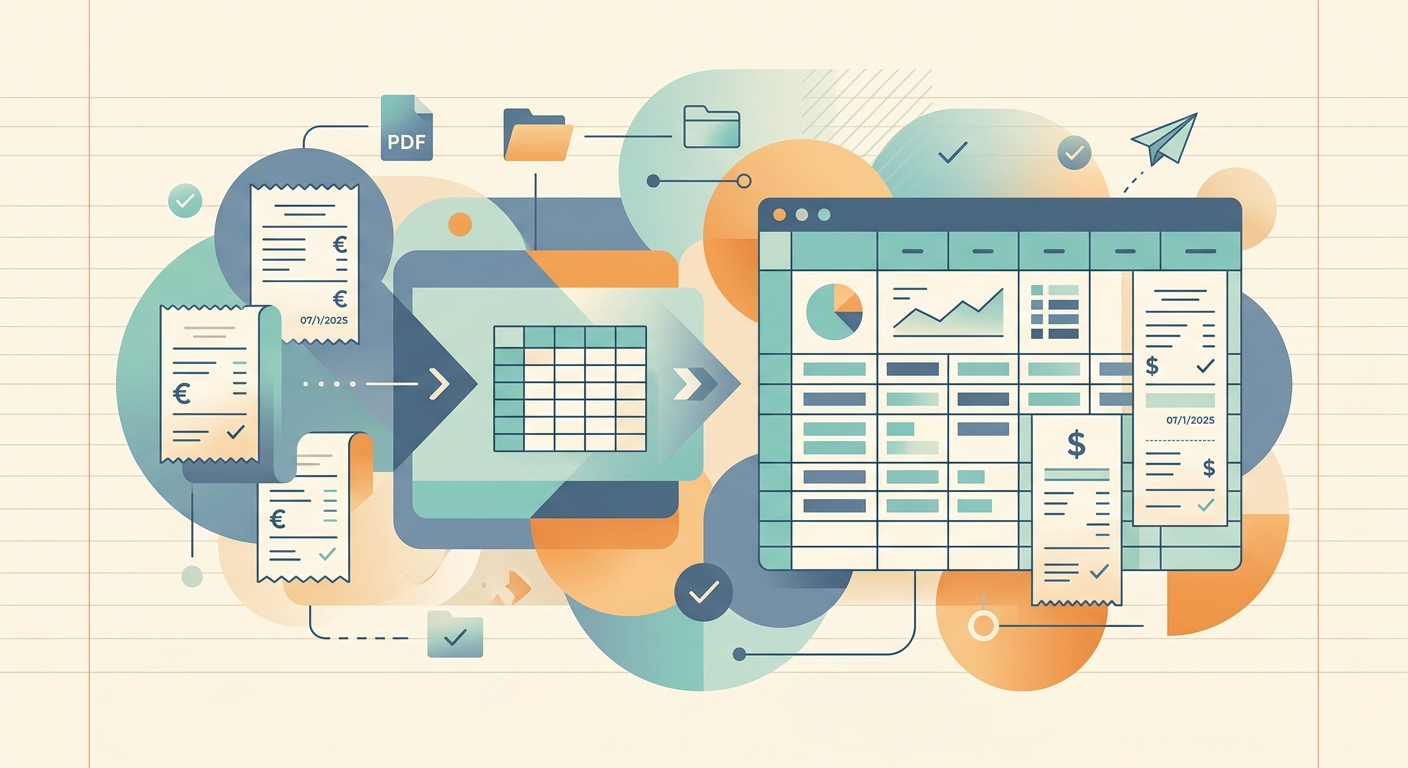
PDF receipt conversion turns the receipts your vendors email you, the statements you download from portals, and the scans that arrive as attachments into structured rows you can actually use. Instead of opening ten PDFs and typing each total into a spreadsheet by hand, you drop them in, let the parser do the work, and review the output before it lands in your books.
This guide explains what PDF receipt conversion does, walks through the steps to use it in SlipSheet, covers a few technical details worth knowing, and shows the most common situations where it pays for itself.
What PDF receipt conversion is
PDF receipt conversion is the process of pulling the text, numbers, and key fields out of a PDF receipt and putting them into a structured format like a CSV file, a Google Sheet, or a row in your bookkeeping app. The "structured" part matters: a PDF is designed for humans to read, not for software to read, so a raw PDF file is essentially a flat image of a receipt. Conversion means the date, vendor, line items, taxes, and total each become a labeled value rather than a blob of text on a page.
Most people first encounter this problem when tax season arrives and they have a folder of emailed receipts mixed with scanned paper ones. Manually retyping totals is tedious and error-prone, and a single missed receipt can throw off a category total. PDF receipt conversion automates that first pass so you only review the output instead of typing everything from scratch.
How to convert PDF receipts step by step
SlipSheet handles PDF receipt conversion as part of its normal receipt upload flow. You do not need a separate tool or a special import path.
- Upload your PDFs. Drag and drop one or more PDF receipts into SlipSheet. You can upload them one at a time or in batches. Most people upload a whole folder at the end of a trip, a project, or a week of client work.
- Wait for the parser to run. SlipSheet reads each PDF, identifies the vendor, date, line items, taxes, and total, and writes them into a draft row. This usually takes a few seconds per receipt.
- Review the extracted fields. Open the review pane and check the vendor name, date, total, and category for each receipt. If anything is off, you can correct it inline. The corrections stay attached to that receipt.
- Export the structured data. When the batch looks right, export to CSV, copy to a Google Sheet, or send to your bookkeeping tool. Each row contains the receipt metadata in named columns, ready for filtering, sorting, or reconciliation.
The whole loop from upload to export usually takes a few minutes for a typical batch, even when you have a couple dozen receipts to process.
Technical notes on how the conversion works
SlipSheet uses a multi-step pipeline under the hood, and knowing the moving pieces helps you understand what to expect.
- Text layer extraction first. When a PDF has a real text layer (the kind produced by a point-of-sale system or an emailed digital receipt), SlipSheet pulls the text directly. This is fast and highly accurate, since the data was never an image to begin with.
- OCR fallback for scanned PDFs. When a PDF is really a scanned image (a phone snap of a paper receipt that someone saved as a PDF, or a flat scan from a printer), the text layer is empty. SlipSheet falls back to OCR to read the image and extract the same fields.
- Field detection and normalization. After text extraction, the parser maps raw strings into labeled fields: date, vendor, line items, subtotal, tax, and total. Dates are normalized to ISO format, currencies are normalized to a single code per row, and totals are computed and cross-checked against the subtotal plus tax when possible.
- Confidence flags on the review pane. Receipts where the parser is uncertain (low text quality, unusual layout, missing total) are flagged so you know to look more carefully during review.
For most everyday receipts, accuracy is high enough that you only need to spot-check a handful of fields per batch. For the messy edge cases, the review pane is where you do the cleanup work once instead of doing it during data entry.
Common use cases for PDF receipt conversion
PDF receipt conversion is useful in any workflow where receipts arrive as PDFs and need to end up somewhere structured. A few situations where it saves the most time:
- Emailed digital receipts. Airline tickets, hotel folios, online subscriptions, and SaaS invoices almost always arrive as PDFs. Converting them keeps a clean record without the print-and-file routine.
- Vendor portal downloads. Many B2B vendors, marketplaces, and freelance platforms let you download monthly statements as PDFs. Converting a year's worth of statements beats retyping them every quarter.
- Scanned paper receipts. When you scan a pile of paper receipts to clear your desk, you usually end up with a folder of PDFs. Conversion makes that folder useful instead of a digital archive you never look at.
- Quarterly tax prep. Pulling a quarter of receipts into a single sheet, with each receipt on its own row, makes category totals and deduction totals a one-line pivot away.
- Client expense reimbursement. Freelancers who bill clients back for expenses can collect PDFs during the project and convert them into a clean expense report at the end.
If you spend more than a few minutes a month moving receipt data from PDFs into a spreadsheet or bookkeeping tool, the conversion step is usually the bottleneck, and SlipSheet is built to remove it.
Getting started with PDF receipt conversion
If you have a stack of PDF receipts sitting in a folder, the fastest way to try the workflow is to upload a handful and see what the review pane looks like. Pick a mix: one digital receipt with a clean text layer, one scanned receipt, and one that is a bit unusual. The review pane will show you which fields came through cleanly and which ones needed a correction, so you can judge accuracy against your own receipts before committing to a larger batch.
Once you are happy with the results, settle into a routine. Most people find a weekly rhythm works well: drop in the week's receipts, review the flagged ones, export, and you are done. The data is structured before it ever lands in your spreadsheet, so the downstream work (categorizing, summing, reconciling) gets a lot faster.
Start with SlipSheet and turn that PDF folder into a clean, exportable set of expense rows.
FAQ
Can SlipSheet convert scanned PDF receipts?
Yes. When a PDF does not have a text layer, SlipSheet falls back to OCR so scanned receipts are read the same way as digital ones.
What format does the converted data come out in?
You can export to CSV, copy straight into a Google Sheet, or send the rows to a connected bookkeeping tool. Each receipt becomes one row with labeled columns.
How accurate is PDF receipt conversion?
For receipts with a clean text layer, accuracy is very high and most batches need only light review. Scanned receipts are flagged when the parser is uncertain so you know what to double-check.
Do I need to convert one receipt at a time?
No. SlipSheet accepts batches, so you can drop in a folder of PDF receipts and review them as a group before exporting.
What happens if a total looks wrong after conversion?
Open the receipt in the review pane and correct the field inline. The correction is saved with the receipt, so the next export includes the right value.