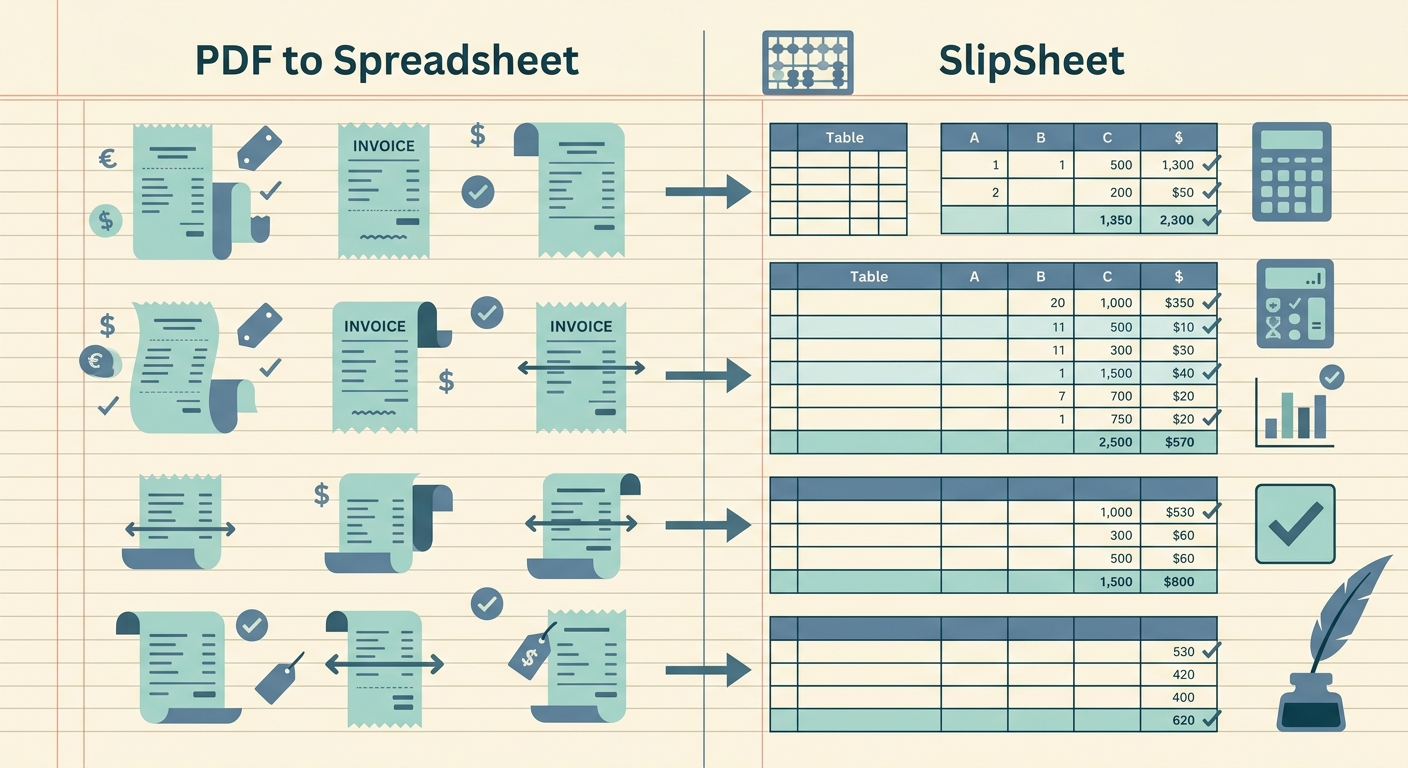
PDF to spreadsheet converters and SlipSheet solve overlapping problems, but they are built for very different jobs. General PDF tools turn any document into rows and columns; SlipSheet turns receipts into a clean, structured ledger ready for your books. If you are trying to decide which one actually fits your workflow, here is how they compare across the parts that matter most.
Receipt capture: what you are feeding the tool
General PDF to spreadsheet converters expect text-based PDFs with clearly defined table structures. They handle bank statements, invoices, contracts, and reports well, because those documents were generated digitally and contain selectable text. Scanned documents are a weaker spot; most converters rely on embedded text rather than OCR, so a photo of a receipt becomes a blank cell.
SlipSheet is built for the messy input small businesses actually have. Phone photos, email forwards, multi-page PDFs, crumpled paper receipts, and thermal printer slips all work the same way. You upload the file or forward an email, and the service handles extraction on the back end. If your stack is mostly paper receipts, a general PDF converter will leave you with a lot of manual cleanup.
Data extraction: from cells to fields
Once a PDF converter has the document, it pulls out whatever table structure exists. You get rows, columns, and headers that mirror the layout of the source. That is useful when the source already looks like a table. It is less useful when the source is a receipt, because receipts are not tables. They are date-stamped blocks with totals buried at the bottom, tax lines mid-document, and vendor names in fonts that change between stores.
SlipSheet treats every receipt as a structured record. The extraction step pulls vendor, date, subtotal, tax, total, payment method, and line items into named fields. Each receipt becomes one row in your spreadsheet with consistent columns, even when the source documents look nothing like each other. The result is a ledger you can sort, filter, and total without reformatting.
Export format: a file versus a workflow
PDF converters typically produce a CSV or XLSX file based on the literal layout of the source PDF. Three columns in, three columns out. Run ten PDFs through the tool and you get ten separate sheets or ten separate files. Stitching them together into a single ledger is your job.
SlipSheet produces a unified ledger where every receipt lives in the same column structure. You can export to Google Sheets, Excel, or CSV, and push directly into Xero, QuickBooks, and Notion. The export is built for downstream accounting, not just for opening a file. If you spend an hour every month copying numbers from ten different PDFs into one sheet, that hour disappears.
Pricing: per page versus flat
General PDF to spreadsheet tools usually run on a per-page or per-task model. Free tiers cover light use, but heavy users hit a wall quickly. Paid plans range from roughly five to fifteen dollars per month for moderate use, and enterprise tools like Adobe Acrobat Pro sit well above that. If you only convert a handful of PDFs per month, a general tool is cheap. If you process receipts every day, the math gets worse as volume grows.
SlipSheet uses transparent flat pricing aimed at small teams and solo operators. There is no per-page metering, and the plan covers the volume most small businesses actually have. For high-volume users, the unit economics favor SlipSheet; for one-off conversions, a free PDF tool is hard to beat.
Integrations: standalone file versus connected pipeline
Most PDF to spreadsheet converters are standalone utilities. You upload, convert, download, and then move the file somewhere else by hand. A few offer API access for developers, but the consumer experience is "download the result and figure out the next step."
SlipSheet is designed to slot into an existing bookkeeping workflow. Direct connections to Google Sheets, Xero, QuickBooks, and Notion mean the export lands where you already work. Email forwarding lets you forward a receipt from your phone and have it appear in the ledger without opening a dashboard. If you want a tool that hands data off automatically, that is a meaningful difference.
Who should pick which
Pick a general PDF to spreadsheet converter if your documents are mostly text-based, already table-shaped, and you only need a quick one-off export. They are excellent for financial statements, exported reports, and any document where the structure is already clean.
Pick SlipSheet if your main input is receipts, you want consistent fields across every transaction, and you need the export to land directly in your accounting stack. It is purpose-built for the receipt-to-spreadsheet job, with extraction, categorization, and export handled in one pass.
The two tools are not really competing in the same lane. A PDF converter is a general utility; SlipSheet is a focused workflow for one specific kind of messy input. If you spend more than a few minutes per week cleaning up receipt data, the focused tool will save real time. If you only convert a clean PDF once in a while, a free PDF converter is fine for that job.
SlipSheet is built to take the receipts off your desk and put them into your books in a format you can actually use. You can try it free at slipsheet.app and see how it handles your own stack of paper.
FAQ
Can a PDF to spreadsheet converter handle scanned receipts?
Most general PDF converters rely on embedded text rather than OCR, so scanned or photographed receipts usually come out blank or unreadable. SlipSheet is built for that input and handles phone photos and scans directly.
Why would I use SlipSheet instead of a free PDF converter?
Free converters are great for clean, text-based PDFs. SlipSheet is purpose-built for receipts, extracting vendor, date, total, tax, and line items into consistent fields and exporting a unified ledger instead of one file per document.
Does SlipSheet export to Google Sheets and Excel?
Yes. SlipSheet exports directly to Google Sheets, Excel, and CSV, and can push into Xero, QuickBooks, and Notion without manual file handling.
How is SlipSheet priced compared to PDF converter tools?
SlipSheet uses flat pricing with no per-page metering, while most PDF converters charge by the page or task. For occasional conversions, a free PDF tool is cheaper; for daily receipt processing, flat pricing usually wins.
What types of receipts does SlipSheet handle?
Phone photos, scanned paper receipts, email forwards, multi-page PDFs, and thermal printer slips. The extraction step normalizes them all into the same column structure regardless of source.