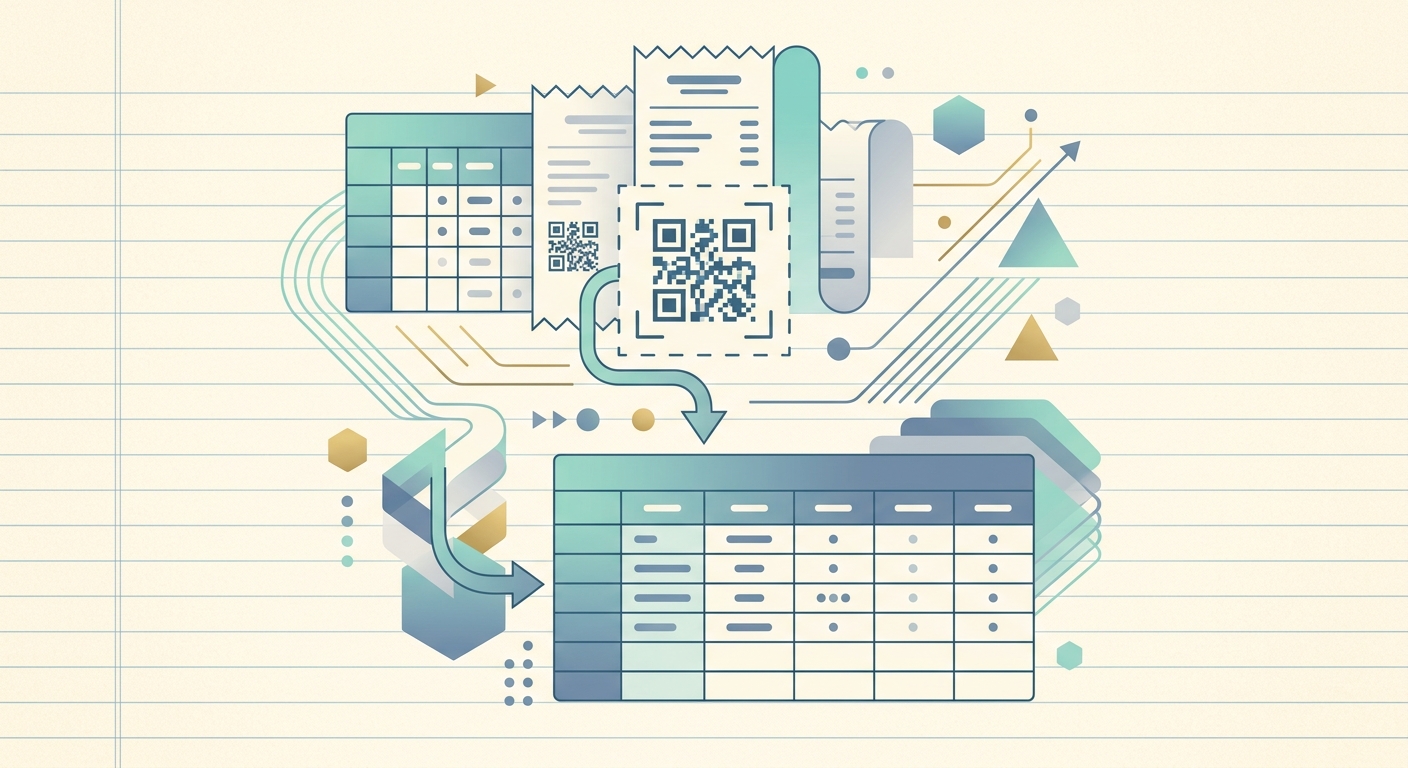
Paper receipts still arrive with a small printed square at the bottom: a QR code, a 2D barcode, a quiet little box most people never look at twice. That square is actually a structured data payload, and reading it is called QR code extraction. For small business owners, freelancers, and bookkeepers, it is one of the fastest ways to turn a paper receipt into a clean, searchable row in a spreadsheet without typing a thing.
SlipSheet reads these codes automatically when you snap a photo of a receipt. The data lands in your spreadsheet the same way the typed line items would, with a date, merchant, total, and tax amount ready to reconcile. This guide explains what QR code extraction is, how it works under the hood, and how to use it in a real bookkeeping workflow.
What QR code extraction actually does
A receipt QR code is not the same as a marketing QR code on a flyer. On receipts, the code usually follows a structured format such as the ZATCA spec used in Saudi Arabia, the GS1 Digital Link standard, or a vendor-specific JSON blob. Inside that square is a payload that often contains:
- The merchant's tax registration number and name
- The invoice or transaction date and time
- The total amount, including tax and excluding tax
- The receipt number or invoice reference
- Sometimes line items, payment method, and a cryptographic hash for tamper detection
QR code extraction is the act of decoding that payload and turning it into fields a spreadsheet can use. A good extractor does not just read the code; it maps the fields to consistent column names, validates the structure, and falls back to OCR (optical character recognition) when the code is damaged or missing.
How to use QR code extraction step by step
The workflow is short, and once you have done it twice it becomes muscle memory.
- Snap a clear photo. Lay the receipt flat on a dark surface. Make sure the QR code is in frame, not folded, and not hidden under a coffee ring. Natural light works better than flash, which can blow out the white edges of the code.
- Upload to SlipSheet. Drop the photo, email it to your SlipSheet inbox, or forward a PDF. SlipSheet will detect the receipt and queue it for processing.
- Wait for extraction. SlipSheet first tries to decode the QR code. If that succeeds, the structured fields (merchant, date, total, tax) come back in roughly two to three seconds. If the QR is missing or unreadable, the system falls back to OCR on the printed text.
- Review the parsed row. Open the review screen and confirm the totals. The screen highlights anything that looks off, such as a missing tax line or a total that does not add up.
- Export to your spreadsheet. Send the row to Google Sheets, Excel, or CSV. Each receipt becomes one row, and the QR-derived fields are tagged so you can filter on them later.
That is the whole loop. The big win is that the merchant name, tax ID, and receipt number are usually more accurate from a QR payload than from OCR, because they were typed by the merchant's own system, not inferred from a printed image.
Technical notes worth knowing
You do not need to be a developer to use QR extraction, but a few details help when things go sideways.
- Multiple codes per receipt. Some receipts (notably in the EU and GCC) print two codes: one for the merchant and one for the tax authority. SlipSheet picks the tax-authority code first because it has the richer payload.
- Crypto hashes. ZATCA-style codes include a SHA-256 hash of the invoice data. SlipSheet verifies the hash when present; a mismatch usually means the receipt was reprinted or edited, which is a useful red flag for audits.
- Privacy. QR payloads can include personally identifiable information such as the last four digits of a card. SlipSheet never shares raw payload data with third parties and lets you mask sensitive columns on export.
- Image quality matters. Codes under 200 pixels across are hard to read. If your camera phone is older, hold it about 20 cm (8 inches) above the receipt and let autofocus lock before you shoot.
- Fallback behavior. When QR extraction fails, SlipSheet still runs OCR and flags the row as "QR unreadable" so you know to give it a closer look during review.
Common use cases
QR code extraction is most useful when you have high receipt volume and need clean data fast. A few situations where it pays for itself:
- Contractors and freelancers logging business meals and travel, where each receipt needs a tax breakdown.
- E-commerce sellers importing supplier receipts from overseas, where the printed text is in another language but the QR fields are still structured.
- Bookkeepers handling a batch of month-end receipts for multiple clients, where consistent column names save hours of cleanup.
- Field service teams who email receipts back to the office, because the structured payload survives the email-to-photo-to-pipeline journey better than OCR text does.
If you are still typing receipt totals by hand, QR extraction is the single biggest accuracy upgrade you can make. It also keeps an audit trail: the same hash the merchant signed is the same hash you store, so the numbers can be verified later if a tax authority ever asks.
Getting started
Try it on your next ten receipts. Snap them the way you normally would, and let SlipSheet read the codes. Spend a minute on the review screen to confirm totals, then export. After a week you will have a clean, structured ledger with searchable merchant names, accurate tax columns, and receipt numbers you can pull up in a second. From there, the question is not whether to capture receipts this way, it is what to do with the time you used to spend typing.
SlipSheet is built for people who live in spreadsheets. If that is you, try QR code extraction on your next stack of receipts and see how much of the typing goes away.
FAQ
What is QR code extraction on a receipt?
It is the process of decoding the small printed square on a receipt and turning its structured data (merchant, date, total, tax) into spreadsheet fields. It is faster and more accurate than typing from the printed text.
Do all receipts have QR codes?
No. Many countries and merchants still print only text. SlipSheet reads the QR when it is present and falls back to OCR for receipts without one.
What if the QR code is smudged or folded?
SlipSheet tries to decode the code first; if that fails, it runs OCR on the printed text and flags the row for review so you can confirm the totals.
Is the data inside a QR code private?
It can include sensitive fields like the last digits of a card. SlipSheet never shares raw payloads with third parties and lets you mask sensitive columns on export.
How accurate is QR extraction compared to manual entry?
QR payloads are generated by the merchant's own system, so merchant name, tax ID, and totals are usually more accurate than OCR or hand-typed values, with near-zero typo risk.