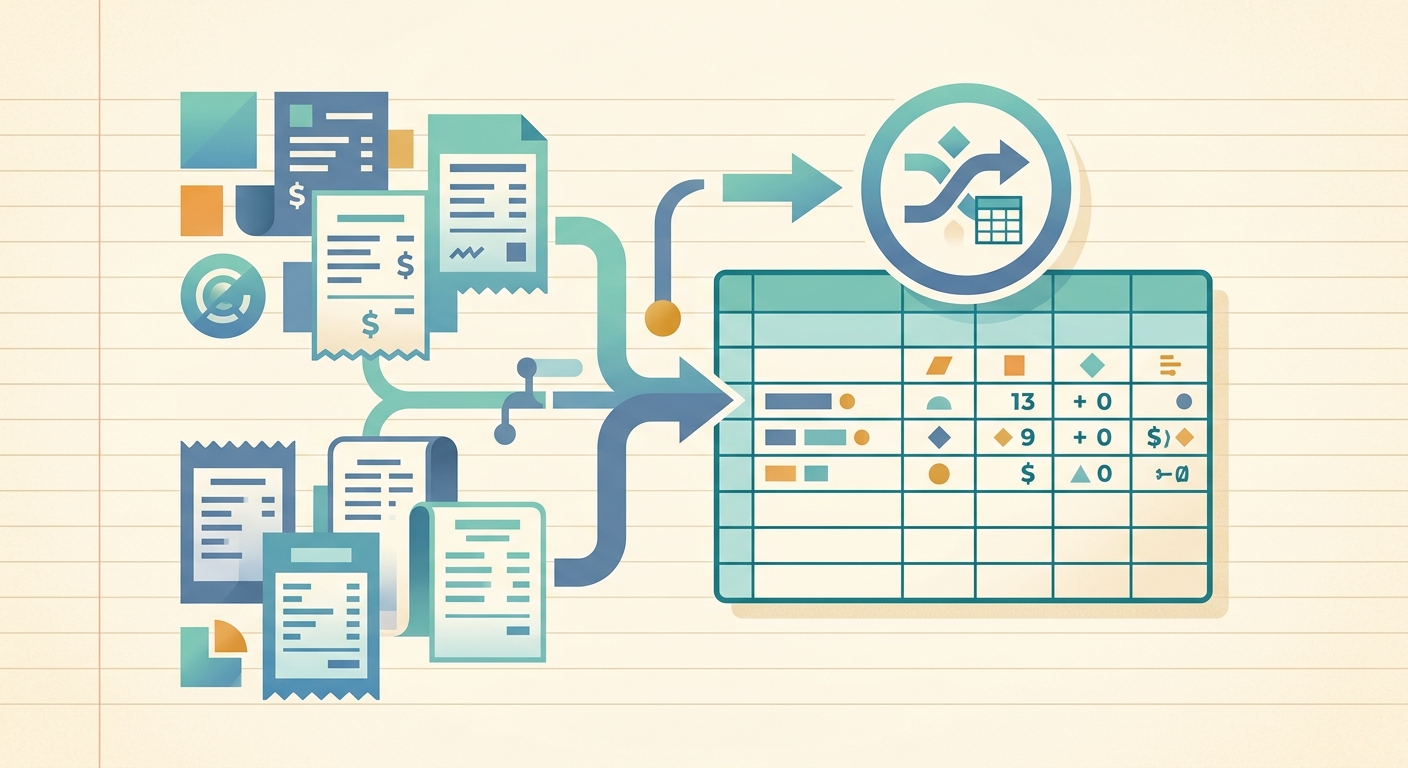
A single business trip can produce a stack of receipts that all belong to the same thing. A coffee at the airport, a cab to the hotel, dinner with a client, a tip left on the room service tab, a parking fee on the way home. None of those line items are wrong on their own, but they tell the wrong story when they hit your books as five separate expense rows. Receipt merge is the SlipSheet feature that fixes that.
Receipt merge combines two or more imported receipts into a single expense entry, so the resulting spreadsheet row reflects the real underlying event, not the receipt printer it happened to roll out of. The merged entry keeps the line item detail, totals, and tax rollups from each source receipt while presenting one clean row in your export.
What the feature is
Receipt merge is a grouping action that lives inside the SlipSheet review queue. Once receipts are captured and extracted, you can select multiple entries and collapse them into a single expense row with one vendor, one date, one category, and one total.
The feature was designed for a specific problem: per-receipt exports create spreadsheet noise that does not match the way expenses actually happen. A client lunch is one expense. A two-day conference is one expense. A weekly office supply run is one expense, even when the receipts came from three different stores. Receipt merge lets you reflect that real-world grouping without losing the underlying detail.
The merged entry preserves a few important things from the source receipts:
- The line item detail from every source receipt, kept in the entry's notes and line breakdown
- The original receipt images, still linked and viewable from the merged entry
- The combined tax and tip totals, summed across the source receipts
- A list of the source receipts, so the merge can be reversed or audited later
The feature works on any combination of receipts in your queue, regardless of how they were imported. Scanned mobile captures, email forwards, drag-and-drop uploads, and CSV imports can all be merged together.
How to use it step by step
Receipt merge is a one-screen action. There is no separate workspace to learn, and the typical flow finishes in under a minute.
- Import the receipts. Capture or upload the receipts you want to merge. Use the mobile scanner, forward them to your SlipSheet inbox, or drag a batch of PDFs into the upload zone.
- Open the review queue. Once extraction is finished, the receipts land in the review queue with vendor, date, amount, and category filled in. Sort or filter to find the receipts you want to group.
- Select the receipts. Click the checkbox on two or more entries. SlipSheet shows the multi-select toolbar with available actions, including "Merge."
- Click Merge. The system opens a summary view showing the combined total, the date range covered, the suggested vendor, the proposed category, and the line items from each source receipt.
- Adjust the metadata. Confirm or change the vendor name, the date (you can pick the earliest, latest, or a specific date), the category, and any cost center or client tag.
- Save the merged entry. The merged row appears in your export queue, and the source receipts move to a "merged" view where they are still searchable but no longer exportable on their own.
If you change your mind after saving, the merge can be reversed from the entry detail view. The original source receipts are restored to the queue without any data loss.
Technical notes
A few behaviors worth knowing about how receipt merge actually works under the hood.
Minimum count. A merge requires at least two source receipts. Single-receipt "merges" are not exposed as an action, since a single receipt is already one entry.
Currency consistency. SlipSheet warns you when you select receipts in different currencies. You can still proceed, but the merged entry stores each source amount separately and does not attempt to convert them. This avoids picking the wrong exchange rate for a tax-deductible expense.
Tax and tip rollup. When each source receipt has its own tax line or a tip field, those values are summed into a single combined tax field on the merged entry. The detailed per-receipt breakdown is preserved in the notes, so your bookkeeper can still see the original numbers.
Duplicate detection. If two of the selected receipts look like duplicates (same vendor, same total, same day), SlipSheet flags them before completing the merge so you can drop one. This protects against accidentally double-counting a receipt that was scanned twice or emailed and uploaded.
Reversal. Any merged entry has an "Unmerge" action in the entry detail view. Unmerging restores the original source receipts to the review queue with all their extracted data intact, and removes the merged row from your export.
Common use cases
Receipt merge fits a handful of recurring situations for freelancers, small business owners, and bookkeepers.
Client meetings and meals
The most common use case. A client meeting can produce a coffee, a lunch, a parking fee, and a tip. Merge them into a single "Client Meeting - Acme Corp" entry so the books show one event, not four transactions. The per-receipt detail is still preserved in the notes for reimbursement or tax purposes.
Multi-day travel
A two-day conference trip might generate a dozen or more small receipts: flights, ground transport, meals, hotel incidentals, parking. Merge them into one "Travel - Conference Name" entry, with the total cost of the trip. The merged entry is far easier to bill back to a client or claim on a tax form than a wall of separate rows.
Weekly office supply runs
Office managers and small operations often buy supplies from several stores in a single week. Merge a batch of office supply receipts into a single "Office Supplies" entry per week, with the combined total and the line item list in the notes. The books stay clean, and the underlying detail is one click away.
Group purchases and project expenses
When a team member buys materials for a specific project across multiple vendors in one day, merge those receipts into a single project-coded entry. The project total stays accurate, and you do not lose the per-vendor detail your bookkeeper might need for 1099 reporting.
Getting started
If you are new to SlipSheet, import a folder of recent receipts and open the review queue. Select two or more entries from the same event and click Merge to see the summary view. The whole flow takes about a minute, and the merged entry will be ready to export in the same pass.
Receipt merge is included on every SlipSheet plan, with no per-merge fee and no limit on the number of source receipts you can combine. If you are already importing receipts into SlipSheet, you are one click away from cleaner books. Try SlipSheet and group your receipts the way you actually spent the money.
FAQ
What is the minimum number of receipts I can merge?
Receipt merge requires at least two source receipts. If you only have a single receipt, it is already a standalone entry and does not need to be merged.
Can I merge receipts that were imported in different ways?
Yes. Receipts captured by mobile scanner, email forwarding, drag-and-drop upload, and CSV import can all be combined in a single merge, as long as they are sitting in the same review queue.
What happens if I merge receipts in different currencies?
SlipSheet shows a warning before completing the merge. If you proceed, the merged entry stores each source amount separately and does not attempt to convert between currencies, so your tax-deductible totals stay accurate.
Can I unmerge a merged entry later?
Yes. Open the merged entry and click Unmerge in the detail view. The original source receipts are restored to the review queue with all their extracted data intact, and the merged row is removed from your export.
Will merging two similar receipts flag them as duplicates?
If two of the selected receipts share the same vendor, total, and day, SlipSheet flags them as likely duplicates before completing the merge so you can deselect one. This protects against accidentally double-counting the same purchase.