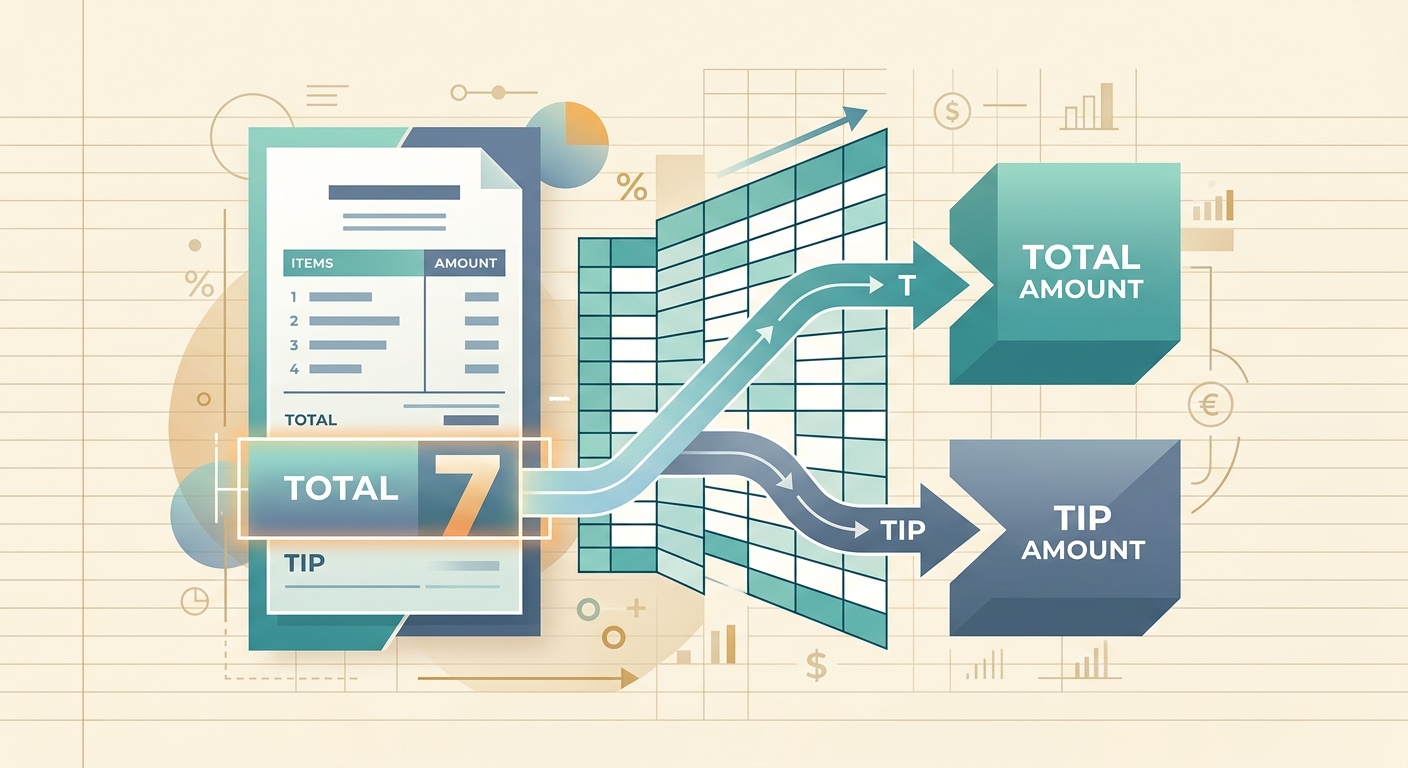
Most receipt scanners dump one number into your spreadsheet: the grand total. That works until you need to know how much of it was tip. Total and tip separation pulls those two numbers apart, so you get a clean total column and a clean tip column without doing math by hand.
What the feature is
SlipSheet's total and tip separation splits a receipt into two distinct line items in your spreadsheet:
- Subtotal/Total: the pre-tip or final-total amount, depending on the receipt format
- Tip: the gratuity line, when present
On a restaurant receipt that says Subtotal $42.00, Tip $8.40, Total $50.40, the feature gives you $50.40 in the total column and $8.40 in the tip column. The spreadsheet does the rest. If the receipt shows a "Gratuity Suggested" section with multiple tip percentages, SlipSheet reads the actual tip line, not the suggested amounts.
How to use it step by step
- Snap or upload the receipt the same way you normally would. SlipSheet's capture flow does not change.
- On the review step, look for the "Tip" field next to the "Total" field. The total populates automatically; the tip field fills in only if a tip line is detected.
- Confirm both values look right. If the tip is missing or wrong, type the correct number in the tip field before exporting.
- Export to your spreadsheet. The tip lands in its own column, the total in its own column, and your existing formulas stay clean.
- Run your monthly reconciliation against the tip column instead of the total column, or sum both depending on what you are reporting.
Technical notes
Tip detection runs on the same OCR pass that reads totals, dates, and merchant names. The model looks for a few common signals:
- Lines labeled "Tip," "Gratuity," "Service Charge," or a localized variant
- Lines that sit between the subtotal and the grand total
- Numeric values that, when added to the subtotal, equal the printed total
If the math does not add up, SlipSheet leaves the tip field blank rather than guess. The same is true when the receipt only shows suggested tip percentages (15%, 18%, 20%) without an actual written-in tip. Suggested percentages are not tips, so they stay out of the tip column.
For receipts that show a service charge or auto-gratuity (common on large-party restaurant checks), the separated value will read as a tip. You can rename the column header in your spreadsheet if you prefer "Service Charge" or "Auto-Gratuity" for accounting purposes.
Common use cases
Servers and bartenders tracking tip income. Tip income has to be reported on tax returns, but it usually arrives mixed in with credit card deposits. Separating tips at the receipt level means the tip column on your spreadsheet already matches what goes on a 1099 or Schedule C, no spreadsheet gymnastics required.
Restaurant owners reconciling POS deposits. Credit card processors batch out gross totals that include tips. Reconciling against the total column alone never quite matches, because the processor is paying you the tip as part of the deposit. With tip separation, you can match deposit reports to receipt totals in one column and report tip income separately in the other.
Rideshare and delivery drivers. Customer tips often show up as a separate line on platform earnings reports but get folded into one number on the receipt you hand to a bookkeeper. Pulling the tip out at capture time keeps driver mileage logs and tip logs in two different columns that you can sum, sort, or filter independently.
Event-based businesses with auto-gratuity. Catering companies and event venues often add a flat gratuity to every invoice. Separating that from the invoice total makes the food-and-beverage revenue line and the gratuity line clean for sales tax reporting, especially in jurisdictions that tax service charges differently from food.
Bookkeepers doing month-end reviews. When a client hands you 40 receipts at once, the fastest path to a clean P&L is to have tip and total already split. You can spot-check the math in seconds instead of reopening every receipt in a PDF viewer.
Tips for accurate capture
Three things help the model get the tip right the first time:
- Lay the receipt flat and well-lit. Crumpled or faded receipts are still readable, but the tip line is sometimes printed in lighter ink than the total.
- Include the whole receipt in the frame. If the tip line is at the very bottom and gets cut off, SlipSheet will only see the total.
- Verify the tip field on the review screen before exporting. Manual corrections stick for the export; they do not retrain the model, but they keep your spreadsheet accurate.
Total and tip separation is one of those small features that pays off the first time you avoid doing receipt math at 11pm before taxes are due. If you have a workflow that needs both numbers in two different places, the spreadsheet should already be doing that work for you.
SlipSheet handles the capture, the OCR, the separation, and the export. You get a spreadsheet with clean columns instead of a calculator app and a stack of paper. Try it at slipsheet.app.
FAQ
Does the feature detect suggested tip percentages?
No. SlipSheet only separates actual tip lines that have a written-in amount. Suggested percentages (15%, 18%, 20%) without a checked or filled-in value stay out of the tip column.
What happens if the receipt has no tip line?
The total column fills in normally and the tip column stays empty. The model does not guess or default to a percentage.
Can I edit the tip value before exporting?
Yes. On the review screen, the tip field is editable. Manual corrections go into the exported spreadsheet but do not retrain the OCR model.
How is a service charge or auto-gratuity handled?
It is treated as a tip and goes into the tip column. You can rename the column header in your spreadsheet (for example, to 'Service Charge' or 'Auto-Gratuity') if your accounting needs a different label.
Does this work for non-restaurant receipts?
Yes. Anywhere a tip, gratuity, or service charge shows up as a separate line on a receipt, SlipSheet will separate it from the total. If only a grand total is present, the tip column simply stays empty.