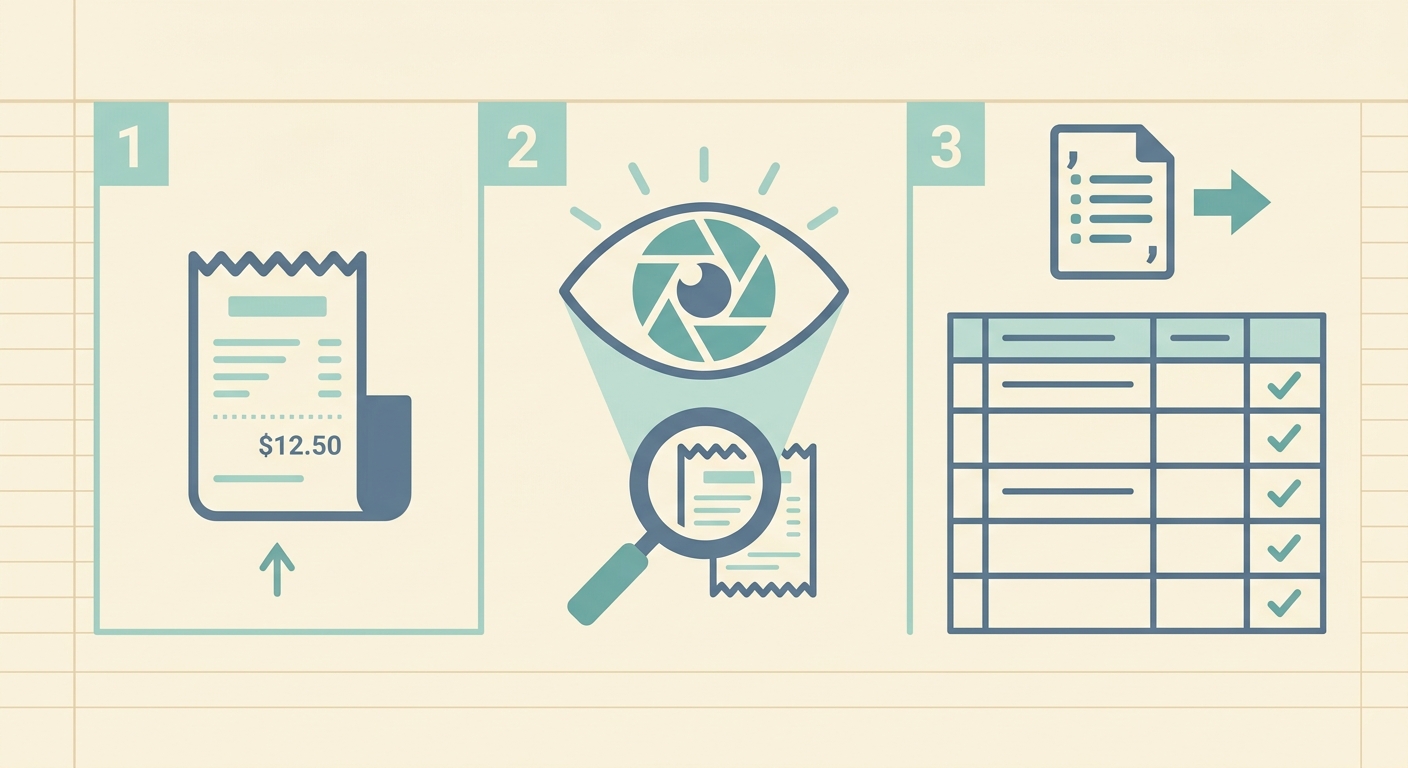
Are you tired of sifting through stacks of paper receipts or endlessly scrolling through your inbox for digital ones? Managing expenses, whether for personal budgeting, business accounting, or tax preparation, can be a time-consuming chore. The good news is that there's a highly efficient way to streamline this process: to export receipts to CSV format. This simple yet powerful action transforms your chaotic receipt data into an organized, analyzable spreadsheet, ready for integration with your favorite accounting software or for detailed financial review. In this guide, we will walk you through the entire process, demonstrating how tools like SlipSheet can make exporting your receipts to CSV not just easy, but genuinely effortless. Say goodbye to manual data entry and hello to automated financial clarity.
What You Need to Export Receipts to CSV
Before diving into the steps, let us ensure you have the necessary components for a smooth receipt export experience.
- Your Receipts: This includes both physical paper receipts and digital receipts received via email. The more complete your collection, the more accurate your financial records will be.
- A Smartphone or Digital Camera: For capturing images of your physical receipts. A good quality camera will ensure better OCR, Optical Character Recognition, results.
- An Internet Connection: Essential for uploading receipts and using web-based tools.
- A Reliable Receipt Management Tool: This is where SlipSheet shines. A specialized tool is crucial for efficiently processing receipt images and emails, extracting key data, and preparing it for CSV export.
- A Computer with Spreadsheet Software (Optional, but Recommended): While not strictly required for the export itself, having access to spreadsheet software like Microsoft Excel, Google Sheets, or LibreOffice Calc will allow you to open, review, and further manipulate your exported CSV file.
Having these items ready will set you up for success in transforming your receipt chaos into structured data.
Phase 1: Gather Your Receipts (Physical and Digital)
The first step in any effective receipt management strategy is consolidation. Before you can export receipts to CSV, you need to bring them all into one accessible place.
For physical receipts, resist the urge to keep them in a shoebox. Instead, consider a more organized approach. A dedicated folder, an accordion file, or even simply stacking them neatly can make a big difference when it comes time to process them. Try to sort them by date or category if you have a large volume, although SlipSheet's automation will handle much of this later.
Digital receipts, often found in your email inbox, require a different approach. You might have receipts scattered across various email accounts, or buried deep within promotional emails. A good practice is to create a dedicated email folder for receipts or to forward them to a central email address. SlipSheet, for example, allows you to forward your email receipts directly to a unique address, consolidating them for processing.
The goal here is to minimize the time spent searching for receipts and maximize the time spent processing them. A systematic gathering process lays the groundwork for accurate and complete data export.
Phase 2: Upload or Capture Receipts with SlipSheet
Once your receipts are gathered, the next crucial phase involves getting them into a system that can read and interpret their data. This is where SlipSheet proves invaluable, offering flexible options to capture both physical and digital receipts.
For physical receipts, simply use your smartphone's camera to take clear photos. SlipSheet's mobile interface makes this process quick and intuitive. Just snap a picture of each receipt, ensuring all relevant details, such as the vendor name, date, and total amount, are clearly visible. You can upload multiple photos at once, streamlining the batch processing of numerous paper receipts.
For digital receipts, SlipSheet offers an even more convenient solution. Instead of manually copying and pasting information, you can simply forward your email receipts to a designated SlipSheet email address. The system automatically detects and extracts the necessary data from the email content and attachments, eliminating the need for any manual input on your part. This feature is particularly useful for subscriptions, online purchases, and recurring bills.
SlipSheet's advanced OCR, Optical Character Recognition, technology is at the heart of this phase. It intelligently scans your receipt images and email content, identifying key data points and preparing them for extraction. This automation significantly reduces the time and effort traditionally associated with receipt data entry, making it feasible to process large volumes of receipts quickly and accurately.
Phase 3: Review and Refine Extracted Fields
While SlipSheet's automation is highly accurate, a quick review is always a wise step to ensure data integrity before you export receipts to CSV. This phase allows you to verify that all information has been correctly identified and gives you the opportunity to make any necessary adjustments.
Upon uploading, SlipSheet presents the extracted data in an easy-to-read format. You will typically see fields such as:
- Date of Transaction: The purchase date.
- Vendor Name: Where the purchase was made.
- Total Amount: The final cost.
- Category: An automatically suggested category, which you can easily modify to fit your specific accounting needs, for example, "Office Supplies," "Travel," "Meals."
- Payment Method: How the transaction was paid for.
- Line Items (where applicable): Detailed breakdown of purchased items.
Take a moment to visually cross-reference the extracted data with the original receipt image or email. If any field is incorrect or missing, SlipSheet's intuitive interface allows for quick edits. You can click on a field to modify its value, ensuring 100% accuracy before the final export. This review step is crucial for maintaining precise financial records, preventing errors that could complicate budgeting or tax filings later on.
The ability to quickly review and refine data is a hallmark of an effective receipt management system, ensuring that when you export receipts to CSV, the file is perfectly aligned with your financial reality.
Phase 4: Export or Share Your Organized Data
With your receipt data meticulously gathered, captured, and reviewed, you are now ready for the final and most anticipated step: to export receipts to CSV. This action transforms your individual receipt entries into a structured, universal file format that can be used across a wide range of applications.
SlipSheet makes the export process straightforward. Typically, you will find an "Export" button or option within your dashboard. Clicking this button will prompt you to select the desired date range or specific receipts you wish to export. Once confirmed, SlipSheet generates a CSV, Comma Separated Values, file containing all your processed receipt data.
The beauty of the CSV format lies in its versatility. It is essentially a plain text file that stores tabular data, where each line is a data record and each record consists of one or more fields, separated by commas. This makes CSV files universally compatible with:
- Spreadsheet Software: Programs like Microsoft Excel, Google Sheets, and LibreOffice Calc can open and display CSV files perfectly, allowing you to sort, filter, analyze, and create reports from your expense data.
- Accounting Software: Many popular accounting platforms, such as QuickBooks, Xero, and FreshBooks, support CSV imports. This means you can seamlessly transfer your categorized receipt data directly into your accounting system, significantly reducing manual data entry for bookkeeping purposes.
- Personal Budgeting Tools: For individuals managing personal finances, importing receipt data into budgeting apps can provide a clearer picture of spending habits and help in adhering to financial goals.
Beyond CSV, some tools might offer direct integrations or other export formats. However, for maximum compatibility and flexibility, the ability to export receipts to CSV remains a gold standard. This final phase empowers you with clean, organized data, ready for any financial analysis or accounting task.
Common Mistakes to Avoid When Exporting Receipts
Even with advanced tools like SlipSheet, certain pitfalls can hinder your receipt management efficiency. Being aware of these common mistakes can help you maintain optimal accuracy and save time.
- Poor Photo Quality: Blurry, poorly lit, or incomplete photos of physical receipts can lead to inaccurate OCR results, requiring more manual corrections. Always ensure your receipt photos are clear and show all relevant details.
- Skipping the Review Step: While automation is powerful, it is not infallible. Neglecting to review extracted data risks exporting errors that could propagate into your accounting or budgeting software. A quick check can prevent significant headaches later.
- Inconsistent Categorization: If you frequently change categories for similar expenses, or use overly broad categories, your financial analysis will suffer. Establish a consistent categorization system and stick to it. SlipSheet's ability to learn your preferences can help with this.
- Delaying Receipt Processing: Letting receipts pile up, whether physical or digital, makes the task feel overwhelming. Regular, small batches are far more manageable than a massive quarterly or annual crunch. Integrate receipt capture into your routine.
- Not Backing Up Data: While SlipSheet securely stores your data, it is always a good practice to periodically download and back up your exported CSV files, especially before major accounting periods or tax season.
By avoiding these common errors, you can maximize the benefits of using a receipt management tool and ensure your exported CSV data is always accurate and reliable.
The days of manual receipt entry and disorganized financial records are firmly behind us. By following these structured phases, from gathering your receipts to leveraging the power of SlipSheet for capture and review, you can effortlessly export receipts to CSV. This transformation from paper and email clutter to clean, digital data empowers you with unparalleled financial clarity, simplifies budgeting, streamlines accounting, and makes tax season significantly less stressful. Embrace the efficiency and accuracy that modern receipt management tools offer.
Ready to transform your receipt management process? Visit slipsheet.app today and start exporting your receipts to CSV with ease.
FAQ
Why should I export my receipts to CSV?
Exporting receipts to CSV organizes your financial data into a universally compatible format, simplifying expense tracking, budgeting, and tax preparation. It allows for easy import into spreadsheets and accounting software, saving significant time on manual data entry.
What kind of receipts can SlipSheet process?
SlipSheet can process both physical paper receipts, which you capture with your smartphone camera, and digital email receipts, which you can simply forward to the platform. It extracts key data from both formats.
Is the data extracted by SlipSheet always accurate?
SlipSheet uses advanced OCR technology for high accuracy, but a quick review step is always recommended. Its intuitive interface allows you to easily verify and correct any extracted fields before export, ensuring data integrity.
Can I categorize my expenses before exporting to CSV?
Yes, SlipSheet allows you to categorize your expenses during the review phase. It often suggests categories automatically, which you can then customize to match your specific accounting or budgeting needs, making your CSV export even more useful.
What software can open the CSV file exported by SlipSheet?
The CSV file exported by SlipSheet can be opened by virtually any spreadsheet software, including Microsoft Excel, Google Sheets, LibreOffice Calc, and Apple Numbers. Many accounting platforms like QuickBooks and Xero also support direct CSV imports.