Slipsheet ยท Content Back to ledger
Home / How to Track Receipts in Excel
How to Track Receipts in Excel

How to Track Receipts in Excel

Tracking receipts in Excel is one of the most reliable ways to keep a clean expense record for a small business, freelance practice, or side project. A spreadsheet gives you full control over your categories, formulas, and exports, and it is the format most bookkeepers and accountants already accept. The hard part is moving data from paper and email receipts into structured rows without spending your Saturday typing totals.

This guide walks through a practical workflow for tracking receipts in Excel, from capturing the source documents to building a sheet that sorts, filters, and totals the way you need it to at tax time. The last step shows how SlipSheet can replace most of the manual typing with a few seconds of automated extraction.

What you need

You do not need a fancy setup to track receipts well. Most people can get started with tools they already have open in a browser tab.

  • A Google Sheets or Microsoft Excel workbook with one tab for raw receipt rows and an optional second tab for monthly summaries.
  • A folder for receipt images on your computer, phone, or cloud drive. Naming the folder by month (e.g. 2026-08-receipts) keeps things tidy.
  • A capture method that gets paper receipts into a digital file. A phone camera works fine; a dedicated scanner is faster if you process more than a handful per week.
  • A consistent set of column headers so each receipt becomes a clean row. The most useful columns are date, vendor, category, total, tax, payment method, and a link or file path to the source image.

1. Capture every receipt at the point of sale

The easiest way to keep your expense log accurate is to capture receipts the same day you get them. Set a phone shortcut, a desktop folder, or a slip of paper in your wallet, and decide in advance where the file is going to land. A daily capture habit removes the late-month scramble for a missing lunch receipt.

If you receive receipts by email, set up a filter that forwards them into one dedicated folder, or save attachments directly to your receipts folder as they arrive. PDF and image files both work; what matters is that they end up in one consistent place.

2. Pull the data into structured rows

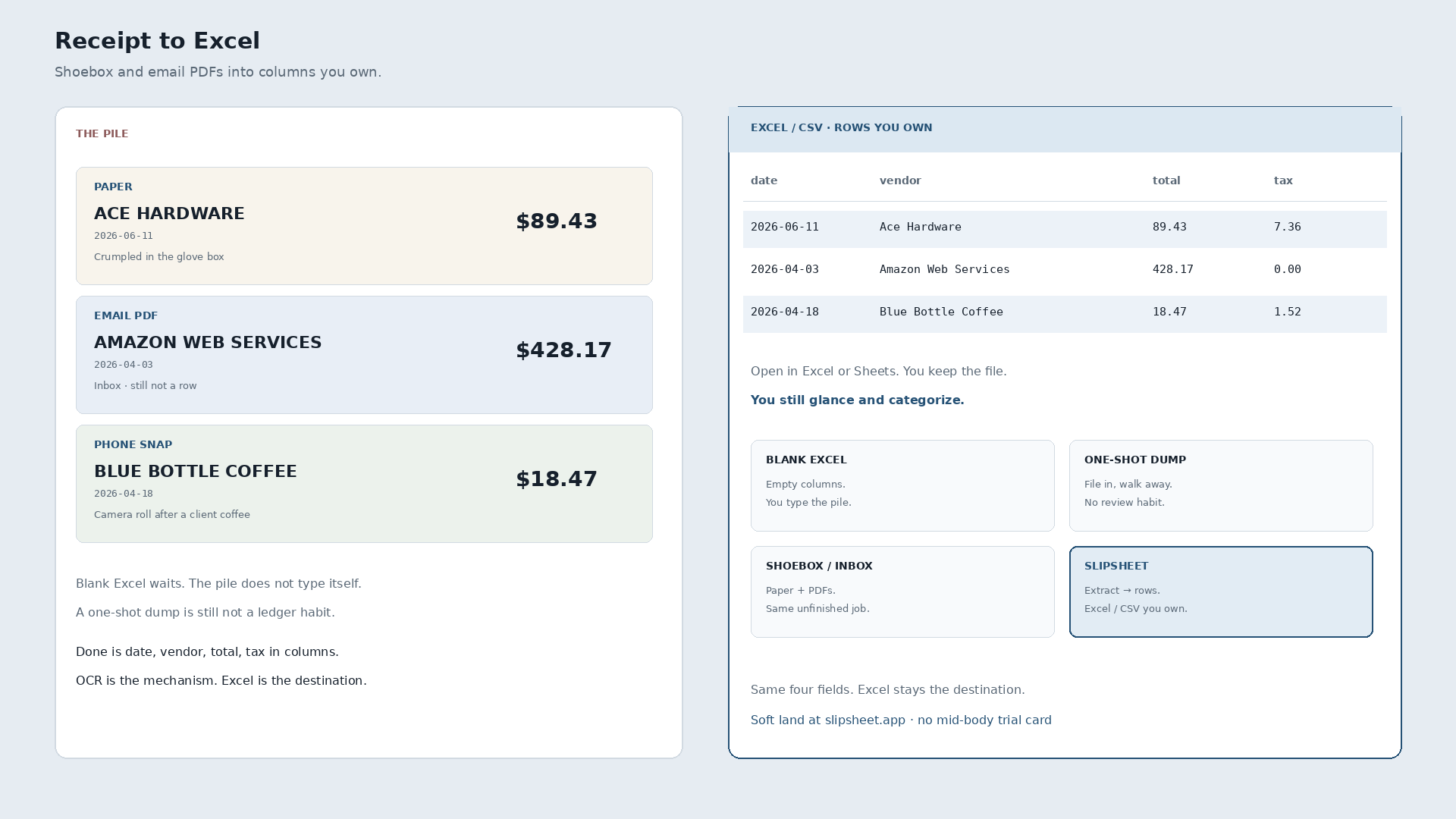
Once the images are saved, the next step is turning them into spreadsheet rows. The fields you need are usually printed near the top and bottom of the receipt: vendor name, transaction date, line items, tax, and total. Most people either type these in by hand or paste from a previous receipt and edit.

For a one-time cleanup, typing is fine. For ongoing tracking, it is the bottleneck. SlipSheet reads each receipt image, extracts vendor, date, total, tax, and category, and writes a clean row directly into your workbook. The first ten receipts in a new month take a few minutes instead of an hour.

3. Clean and categorize each row

Raw extracted data always needs a quick human review. Receipts are printed in dozens of fonts, and the date format, total placement, and tax line can vary by vendor. Spend five minutes confirming the date format, splitting tax from total where needed, and assigning each row to a category that matches how you report expenses.

Common categories for a single-owner business include software subscriptions, travel, meals and entertainment, office supplies, contractor payments, and client reimbursables. Keep the list short. Five to eight categories is usually enough to be useful at tax time without becoming a chore to maintain.

4. Add formulas that do the math for you

A receipt log without formulas is just a list. Formulas are what turn the sheet into a tool. At a minimum, add a SUMIF for each category, a monthly total at the top of the sheet, and a year-to-date cell that sums all monthly totals. In Google Sheets, this looks like =SUMIF(C2:C, "Software", D2:D) where column C is the category and column D is the total.

If you want to compare spending across months, add a second tab with one column per month and a row per category. A simple =SUMIFS per cell will populate it from the raw rows. From there, a chart is one click away and you have a real view of where the money is going.

5. Export, share, and back up the data

When it is time to hand the file to a bookkeeper, send a copy rather than sharing the live sheet. Most accountants prefer a CSV or an XLSX export with a clean filename like 2026-expenses.xlsx. SlipSheet supports both formats and can keep the original receipt images linked from a column in the export, which is the part auditors appreciate most.

Back up the workbook and the source receipt folder on a schedule. A monthly copy to a cloud drive, or a sync to a folder like Dropbox, is enough to keep you safe from a laptop failure. The IRS guidance is to keep receipts for at least three years from the filing date, so the folder is a long-term record, not a short-term to-do.

Common mistakes to avoid

The most common error is letting the spreadsheet grow without a header row, so a year of rows becomes impossible to sort or filter. Always keep a frozen header row at the top. The second is mixing date formats, where some cells use MM/DD/YYYY and others use YYYY-MM-DD; pick one and stick to it. The third is losing the source receipt image, which makes a deduction hard to defend in an audit; link the image file or PDF from a column in the sheet so the proof is one click away.

Putting it all together

Tracking receipts in Excel is a habit, not a project. Capture each receipt once, on the day you get it, then spend a few minutes a week letting a tool like SlipSheet extract the structured fields into your workbook. With consistent categories, a handful of formulas, and a backup of the source files, the end of the month is a quick export rather than a weekend of typing.

SlipSheet starts with a 14-day trial, no credit card required. Upload a stack of receipts, watch the rows appear, and export to Excel or Google Sheets when you are happy. Start tracking receipts in Excel the easy way.

FAQ

What columns should a receipt tracking spreadsheet have?

At minimum, include date, vendor, category, total, tax, payment method, and a link or file path to the source receipt image. These columns are enough to sort, filter, and total expenses for monthly reviews and year-end tax prep.

How long do I need to keep receipts for tax purposes?

The IRS recommends keeping receipts for at least three years from the date you filed the return. Keep them longer for major purchases like equipment, where the basis carries into a future sale or depreciation.

Is Excel or Google Sheets better for tracking receipts?

Both work well. Google Sheets is easier to share with a bookkeeper and has automatic version history. Excel is the better choice if you live inside Microsoft 365 or need advanced formulas and pivot tables.

Can I track receipts in Excel without typing them all in?

Yes. SlipSheet reads receipt images and writes the extracted vendor, date, total, and tax into a clean row in your workbook, so most of the manual typing disappears.

What is the easiest way to scan paper receipts for an Excel log?

A phone camera is enough for occasional use. Take the photo straight down, in good light, with the receipt flat on a dark surface. For higher volume, a portable sheet-fed scanner is faster and produces cleaner OCR output.

Ready to stop typing receipts?

Open your ledger.

14-day trial. No card. Cancel anytime. Your receipts write themselves while you do literally anything else.