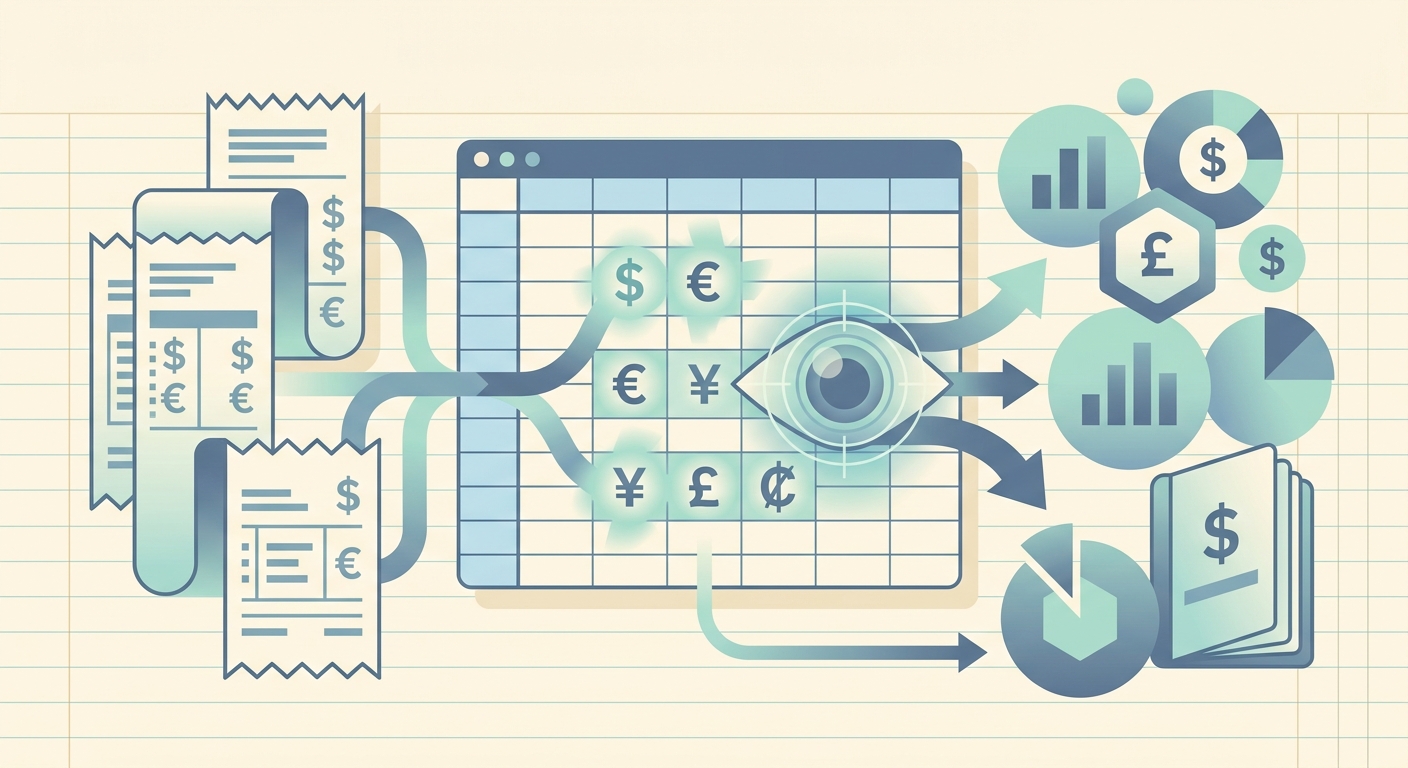
Travel receipts show up in every currency on the planet, and most receipt scanners assume USD or EUR on the first pass. SlipSheet's automatic currency symbol detection looks at the actual symbol or ISO code printed on the receipt and captures both the right amount and the right currency, so a Tokyo coffee and a Toronto lunch end up in the same expense report without manual retagging.
What automatic currency symbol detection does
SlipSheet reads the visible currency hint at the line where the total appears. That covers four common patterns: the symbol itself ($, €, £, ¥, ₹, ₩, kr, R$, etc.), the three-letter ISO 4217 code printed next to the amount (USD, EUR, GBP, JPY, CAD), a localized word like "Mex$" or "HK$", or the ISO code on its own when no symbol is used. The detector then pairs that hint with the numeric total on the same line and writes both fields into the spreadsheet.
If the same receipt lists totals in two currencies, such as a hotel folio that prints both a local amount and a converted total at the bottom, SlipSheet uses the currency hint printed closest to the final amount rather than picking the first match on the page. The same logic applies to credit-card slips that show the billing amount in the cardholder's home currency and the merchant currency higher up on the page; the detector follows the total, not the introduction.
How to use it step by step
- Snap or upload a receipt from your camera roll, a PDF email attachment, or a screenshot drop. The detector runs during extraction, so you do not turn it on per receipt.
- Open the row in SlipSheet to confirm the captured currency. Each row exposes an editable Currency column alongside Amount, Merchant, Date, and Tax, so a quick visual scan is enough to verify the values are right.
- If a receipt has no symbol or code at all, SlipSheet falls back to your last-used currency for that merchant and flags the row for review. A small badge on the row tells you the value was inferred rather than read, so you know what to double-check.
- Edit any row with a one-click currency swap if the detector landed on the wrong country. Overrides stick for that merchant on future receipts, so you only set the rule once.
- Export the file to CSV, Google Sheets, Excel, or QuickBooks Online. The Currency column travels with every export, so multi-currency reporting downstream just works without a column-mapping step.
Technical notes
The detector is locale-aware but symbol-first. A receipt printed in the US style that starts with "$" reads as USD by default, but the same glyph in a CAD context (identified by merchant name or merchant address) reads as CAD. ISO codes win when both are present, which clears up ambiguity on shared symbols like $ between CAD, AUD, NZD, MXN, and USD. The detector treats two-letter currency marks (kr, лв, лв, د.إ) as full currencies on their own when paired with a numeric total.
Receipts without a clear hint still get a best-guess currency based on the merchant's billing country and the merchant's previous entries in your spreadsheet. You can override any row before export, and overrides stick for that merchant on future uploads. SlipSheet also remembers your manual overrides even when the merchant name has small differences (extra spacing, abbreviations like "Co." vs "Company"), so the same café down the street does not slip back to the wrong currency just because the OCR read it slightly differently.
Right-to-left and East Asian scripts are handled by pairing the currency hint with the strongest number on the line. A Japanese receipt with ¥ at the start still surfaces the total on the right, and an Arabic receipt with "د.ك" in the middle still identifies the total on the next line as KWD. The detector ignores stray currency symbols inside the line-item list and only locks on the total.
Common use cases
- Freelancers billing clients for in-person work across borders, where trip reports mix hotels, trains, and meals from several countries on a single invoice.
- Small business owners with travel-heavy teams, who need clean currency columns for reimbursement instead of a spreadsheet full of $400.00 entries with no country context.
- E-commerce sellers buying inventory at trade shows, where a single bag of receipts can cover three to five currencies in the same week.
- Bookkeepers handling expat clients, who often reconcile against multi-currency bank feeds and want the captured currency to match the statement.
- Remote employees on short international assignments, who mix home-currency and host-currency charges on the same expense form.
Where automatic currency symbol detection fits in the bigger workflow
Currency is one of several fields SlipSheet captures on every receipt. It pairs naturally with line item extraction, duplicate detection, and CSV export: scan once, get a spreadsheet with merchant, date, total, tax, currency, and category. Once the file is in Google Sheets or QuickBooks, you can group by currency, set up a sheet for each, or run a SUMIFS by country without rekeying the amounts. That means less time chasing the finance team for a missing pound sterling line and more time on the work that actually needs a human.
Try SlipSheet on a handful of receipts from different countries and let the detector catch the currencies for you. Sign up at slipsheet.app, drop in your first batch, and watch the Currency column fill in next to every Amount.
FAQ
What does automatic currency symbol detection actually look at on a receipt?
It reads the currency symbol, ISO 4217 code, or localized mark (like Mex$ or HK$) printed near the total, then pairs it with the numeric amount on the same line before writing both fields to the row.
What happens when a receipt has no currency symbol or code at all?
SlipSheet falls back to the last-used currency for that merchant and flags the row with a review badge so you can confirm before exporting.
Will it treat every dollar sign as USD?
No. The detector pairs the symbol with the merchant's country context, and ISO codes win when both are present, so CAD, AUD, NZD, and MXN are each captured correctly.
Does the captured currency move with my exports?
Yes. The Currency column ships in CSV, Google Sheets, Excel, and QuickBooks exports alongside Amount and the other fields, so you can group or sum by currency downstream.
Can I override a wrong currency without fixing every future receipt?
Yes. Changing the currency on a single row sets the merchant's default, and SlipSheet applies that to future uploads from the same vendor, even with small OCR variations.