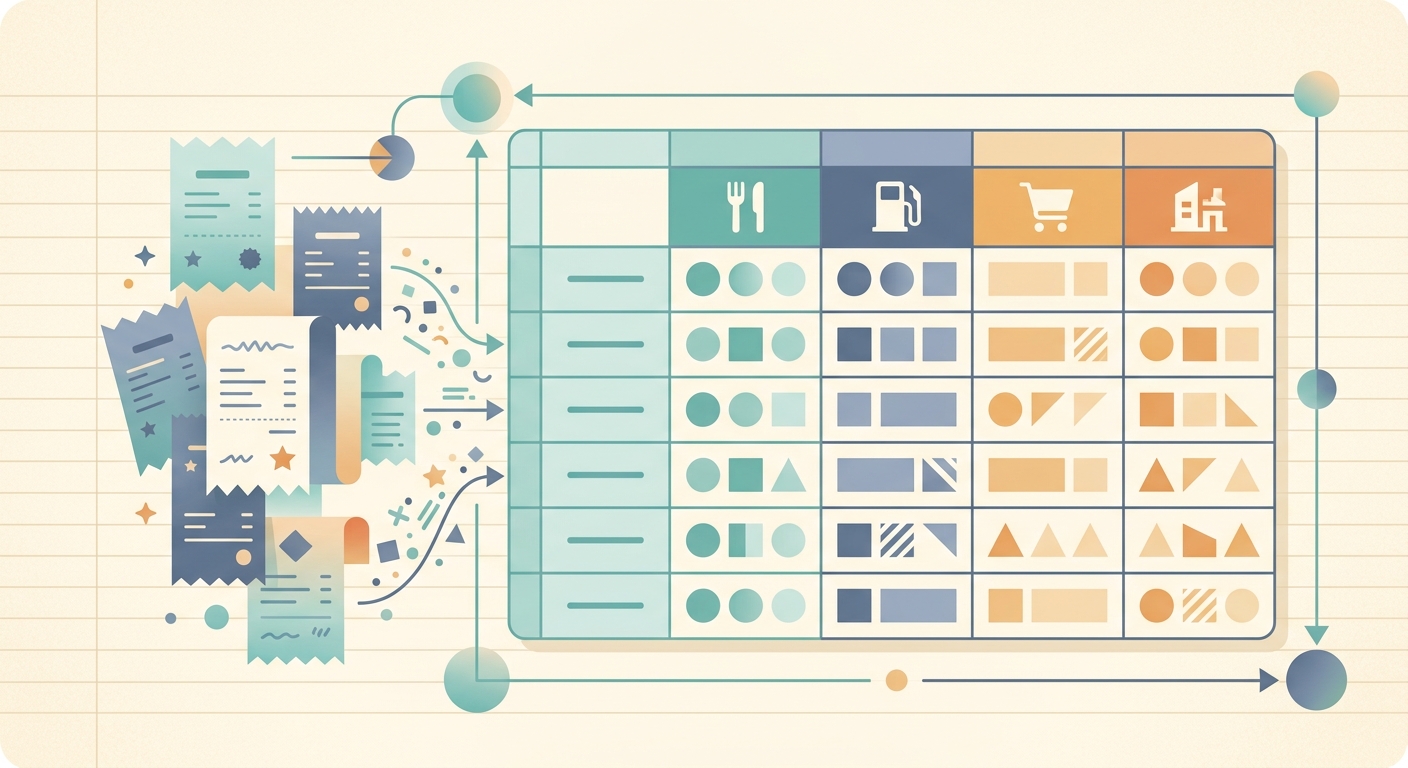
Some receipts refuse to fit into a single category. A Costco run might include printer paper for the office, a pack of hot dogs for the family dinner, and a gift card for a client. A single stop at an office supply store can pull in deductible business expenses, client-facing swag, and a few personal items that snuck into the cart. For freelancers, bookkeepers, and small business owners, those mixed receipts are where clean bookkeeping usually falls apart.
Receipt Split by Category is the SlipSheet feature that solves this. It takes one scanned receipt and lets you break the line items into as many categories as you need, each one tagged, totaled, and exported as its own row in your spreadsheet.
What Receipt Split by Category Does
When you scan or upload a receipt, SlipSheet reads the merchant name, date, line items, tax, and total as a single record. Receipt Split by Category lets you assign different line items on that receipt to different expense categories before the record exports. The feature preserves the original receipt as a single document but produces multiple category entries in the export, one per category used.
Without splitting, every line item from a mixed receipt ends up under one category, usually whichever one the merchant name implies. That misrepresents what you actually spent, makes monthly category reports misleading, and forces you to manually re-tag entries in your spreadsheet later. Receipt Split by Category removes that step. You assign categories once at scan time, and the export is already organized.
How to Split a Receipt Step by Step
- Scan or upload the receipt. Use the SlipSheet mobile app, drag a photo into the desktop uploader, or forward an emailed receipt. The full receipt becomes one record in your slip history.
- Open the receipt detail view. Tap the receipt row to see the line items SlipSheet extracted, along with merchant, date, subtotal, tax, and total.
- Tap "Split by category." The button appears in the receipt detail header when the receipt has more than one line item.
- Assign categories to line items. Each line item shows a category dropdown. Pick the category that fits, or create a new one on the fly.
- Confirm splits and totals. SlipSheet shows the subtotal assigned to each category and the running total. The category totals should add up to the receipt total before you save.
- Export as usual. When you run a CSV, Google Sheets, or QuickBooks export, each category appears as its own row with a reference back to the source receipt.
The whole flow takes about thirty seconds for a typical receipt. A receipt with ten line items split across three categories is closer to a minute.
Where Splitting Helps Most
Splitting shines when a single merchant covers unrelated expenses, or when business and personal spending overlap on the same paper.
- Warehouse clubs like Costco, Sam's Club, and BJ's routinely mix office supplies, client gifts, and household items on one receipt.
- Big-box retailers such as Walmart and Target carry everything from printer toner to groceries to clothing, often on the same transaction.
- Travel days combine flights, rental cars, hotels, meals, and incidentals that need different category treatment for tax and reimbursement.
- Conference trips bundle registration, lodging, transit, and meals, all under one trip but across multiple deduction buckets.
- Office supply hauls sometimes include a personal item or two. Splitting keeps the personal items out of business reporting cleanly.
Technical Notes and Limits
Receipt Split by Category works on any receipt with two or more line items. If a receipt only has a single line, the split option does not appear. SlipSheet preserves the original receipt image and the full line-item list; nothing is deleted when you split. You can re-open a split receipt and adjust the category assignments at any time before export.
The export behaves like this. Each category used in a split produces its own row in the spreadsheet, with the category name, the sum of line items assigned to that category, the date from the source receipt, and a reference to the source receipt ID. The original receipt total still reconciles against the sum of the category rows. If you re-tag a line item, the category totals rebalance immediately.
For QuickBooks exports, split categories map to the corresponding expense accounts. For CSV and Google Sheets exports, the split produces multiple rows with the same merchant and date but different categories and amounts. A single receipt with three categories exports as three rows.
Common Use Cases
Freelancers often split a single coworking day pass that bundles meeting room fees, coffee, and printing into separate "Office," "Meals," and "Supplies" rows. Bookkeepers use the feature when clients bring in mixed hauls from warehouse clubs, so the client's Schedule C reflects the actual split between office, utilities, and personal categories. Small retailers use it when an owner buys inventory, signage, and a personal item in one trip, keeping the personal item out of inventory cost.
For tax season, splitting produces cleaner category reports and a clearer audit trail. Each category row points back to the source receipt, so if the IRS or a state agency asks about a specific line, the source document is one click away.
If you have been re-tagging entries in your spreadsheet after every Costco run, or hand-splitting mixed receipts before export, Receipt Split by Category removes that step. Try it on your next mixed receipt and check the export. The category totals should already match what you owe each bucket, and your spreadsheet should already be organized.
SlipSheet is free to start, with a 14-day trial of every paid feature. Scan a receipt and split it by category in your first session.
FAQ
Does Receipt Split by Category work on every receipt?
It appears on any receipt with two or more line items. Single-line receipts have only one category and do not need splitting.
Can I change the category assignments later?
Yes. Open the split receipt, re-tag any line item, and the category totals rebalance immediately. The original receipt image and line list stay intact.
How does the export look after splitting?
Each category becomes its own row in the CSV, Google Sheets, or QuickBooks export, with the same merchant and date but a different category and amount. A receipt split across three categories exports as three rows.
Do category totals have to match the receipt total?
Yes. SlipSheet shows a running reconciliation as you assign categories, and warns if the assigned subtotals do not add up to the receipt total before you save.
Is Receipt Split by Category included in the free plan?
It is a paid feature. New accounts get a 14-day trial that includes every paid feature, including Receipt Split by Category.