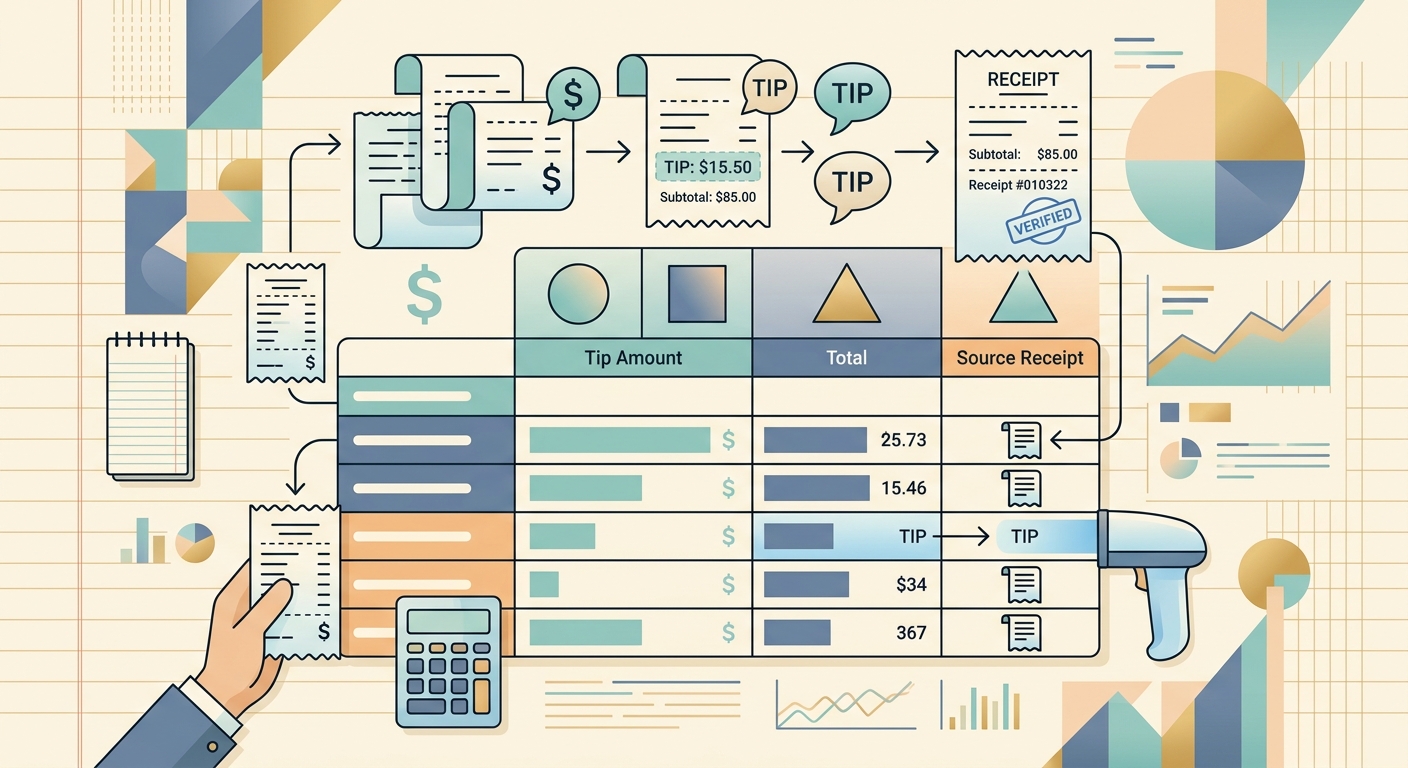
Tip line items are some of the trickiest fields on a receipt. They sit at the bottom, often in small italic print, get bundled into the subtotal, and frequently appear as a single number with no breakdown. If you tip in cash on top of a credit-card charge, the tip never even hits the printed receipt, which makes month-end reconciliation painful for freelancers, servers, rideshare drivers, and small restaurant owners.
The good news: extracting tips from receipts does not have to mean retyping every slip by hand. With a focused workflow and the right tool, you can pull the merchant, date, base amount, tip, tax, and total into a spreadsheet in seconds. This guide walks through the exact four-step process, the common pitfalls that mess up tip data, and how to keep an audit-ready log across an entire tax year.
What you need
- A reliable stream of receipts (paper, email confirmations, or app screenshots)
- A smartphone camera or scanner that produces a flat, readable image
- A tool that reads receipts automatically and lets you correct the extracted fields, such as SlipSheet
- A destination: Google Sheets, Excel, CSV, or a bookkeeping app like QuickBooks
You do not need a special "tip tracking" app. Most tips are extracted as part of the standard receipt fields. What you need is a tool that surfaces the tip line item separately from the total so you can run reports on it later.
Step 1: Gather your receipts
Before you extract anything, collect the receipts you want to process. Group them by week or by pay period if you can; this keeps the upload queue short and makes it easier to spot missing slips later. If you work multiple jobs, sort by venue or employer so the totals reconcile against your reported tips at the end of the shift.
Cash tips that never hit a printed receipt are the hardest case. Common workarounds:
- Keep a small notebook or phone note with the date, gross cash tips, and any net take-home split if you tip out barbacks or bussers.
- Photograph your end-of-night cash count sheet if your employer provides one.
- Save Venmo, Cash App, or Square receipts from your side gigs (rideshare, delivery, dog walking) so each one becomes a real receipt, not a memory.
Do not worry about cleaning up the receipts. Creased thermal paper, faint ink, and slightly skewed photos are all readable. You will fix any extraction errors in step 3.
Step 2: Upload or capture with SlipSheet
Open SlipSheet on your phone or desktop and capture or upload the receipts from step 1. You can photograph a stack of receipts one at a time, or upload a batch of PDFs and screenshots. SlipSheet reads the merchant, date, subtotal, tax, tip, total, and payment method from each slip in roughly three seconds per receipt, depending on image quality.
A few capture habits that improve tip extraction:
- Lay the receipt flat. Curled thermal paper is the single biggest cause of misread numbers.
- Make sure the bottom of the receipt is in frame. The tip line lives below the subtotal, often in smaller type.
- Avoid glare from overhead lights by tilting the receipt slightly, or use a matte surface as the background.
- If a receipt has both a suggested tip line (15%, 18%, 20%) and a written-in tip, photograph the side with the written amount. SlipSheet reads what you actually paid, not what was suggested.
Once uploaded, SlipSheet queues each receipt for OCR processing. You can keep snapping photos while earlier receipts are still being read.
Step 3: Review extracted fields
This is the step most people skip, and it is also where you catch the mistakes that would otherwise corrupt your reports. Open the first receipt in the review pane and check every field against the image:
- Subtotal matches the printed subtotal, not the total.
- Tip line shows a number, not zero or blank. Some receipts print the tip as a dollar amount, others as a percentage; either is fine as long as the field is populated.
- Tax is captured separately. Tax is rarely deductible, so you want it broken out for accurate reporting.
- Total equals subtotal plus tip plus tax. If it does not, fix the field that is off before exporting.
- Date is correct. Thermal receipts often print MM/DD/YY, which OCR engines sometimes misread as DD/MM/YY.
If a tip was paid in cash and never appeared on the receipt, add it as a separate row with the same merchant and date, and a tip amount equal to the cash you reported. SlipSheet treats each row as an independent entry, so this is a clean way to mix credit-card tips and cash tips in one log.
Step 4: Export or share the data
When the review queue is empty, export the data to your destination of choice:
- CSV for a generic spreadsheet workflow
- Google Sheets or Excel for ongoing tracking
- QuickBooks Online as a journal entry or expense for client-billable tips
- A shared sheet if you report tips to an employer or accountant
SlipSheet preserves every extracted field on export, so a tip-only report is a one-line filter on the resulting sheet: filter the column to non-zero values and you have your tips for the period. Add a SUM at the bottom and you have month-end or year-end totals ready for tax filing or payroll reporting.
Common mistakes to avoid
- Including the suggested tip line as the tip. Some receipts print three suggested percentages in addition to the written tip. Always double-check which row the receipt actually charges.
- Bundling tip into total. If your spreadsheet only has a "total" column, you cannot separate tip from base amount, and tip is the only line that changes the math for IRS tip reporting (Form 4137) and TIPC reporting for food-service employees.
- Forgetting cash tips. The IRS requires you to report all tips, including non-cash tips (rare but possible: a complimentary bottle of wine, a gift card). Keep your log complete or your reported income will not match your deposit record.
- Skipping the review step. Even a high-accuracy OCR engine will misread the occasional 0 as an 8 or a 1 as a 7. The 30-second review pass is what turns "almost right" data into audit-ready data.
- Throwing away the physical receipts before the audit window closes. The IRS can audit up to three years; keep slips in a labeled envelope by month until the window closes.
Putting it together
Extracting tips from receipts is a four-step loop: gather, capture, review, export. The first run takes about 20 minutes for a typical week's worth of slips. By week three, the same workflow takes under 10 minutes because the review pass gets faster as you build muscle memory for the receipts you see most often.
If you are already using SlipSheet for receipt scanning, the tip line is just one more field in the exported sheet. If you are still retyping tips by hand, this is the workflow to switch on; the time savings compound across every shift, every week, every tax season.
Start a free SlipSheet trial at slipsheet.app and run your first batch of tip-bearing receipts through the pipeline. The first export will show you exactly what you have been leaving on the table.
FAQ
Why is the tip line on receipts hard to read?
Tip amounts usually print in smaller type at the bottom of the receipt, sometimes below the subtotal and tax, and OCR engines can miss or misread them. Flat, well-lit photos with the bottom of the receipt in frame solve most extraction issues.
How do I record cash tips that never appear on a receipt?
Add a separate row in SlipSheet with the same merchant and date and the cash tip amount. SlipSheet treats each row independently, so you can mix credit-card and cash tips in a single export.
What is the difference between the suggested tip and the actual tip?
Many receipts print suggested percentages (15%, 18%, 20%) for reference, then a separate line for the actual tip you wrote in. Always confirm the extracted tip matches the written-in amount, not a suggested value.
Should I report cash tips to the IRS?
Yes. All tip income, including non-cash tips, is taxable and reportable. Employees use Form 4137 or report on their W-2; self-employed workers report tips as part of their business income.
Can I export the extracted tip data to QuickBooks or Google Sheets?
Yes. SlipSheet exports to CSV, Google Sheets, Excel, and QuickBooks Online. Once exported, filter the tip column to non-zero values to get a clean tip-only report for any date range.